

Windows power plans decide how aggressively your CPU parks cores, drops clock speeds, and sleeps devices — and the default Balanced plan is tuned for battery and thermals, not for a workload that wants full boost clocks the instant an emulator scene loads. The Ultimate Performance plan is Microsoft’s workstation-grade preset that removes most power-saving latency: cores stay ready, clocks stay high, storage and USB stop napping. Switching to the ultimate performance power plan for emulators will not add capability your hardware lacks, and on a laptop it trades battery life and heat for responsiveness — but on a plugged-in low-end PC it is one of the more reliable small wins available, and unlike most tweaks its mechanism is documented by Microsoft itself. This guide covers enabling the (often hidden) plan, the honest cases for and against, and the middle options most people should actually pick.
What Ultimate Performance Changes Under the Hood
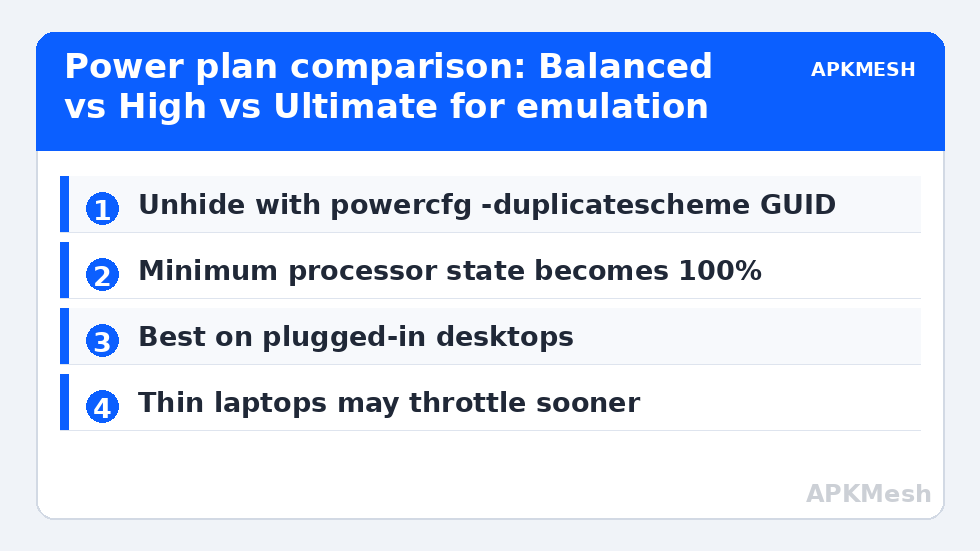
Introduced for Windows 10 Pro for Workstations and present (sometimes hidden) in Windows 11, the plan: eliminates core parking delays, sets minimum processor state to 100%, removes disk/USB/PCIe power-down timers, and disables the clock ramp-down behaviour that creates micro-latency when load spikes. The visible result is a machine whose CPU boost clocks are already there when the emulator asks — Balanced instead polls, decides, and ramps, which is the right behaviour for a laptop on a train and the wrong one for a desktop mid-boss-fight. Frame rates at steady load change little; the gains concentrate in responsiveness and worst-frame behaviour on systems whose CPUs aggressively downclock.
Enable It (It May Be Hidden)
- Check first: Settings → System → Power (laptops show a mode slider; desktops list plans) or the classic Control Panel → Power Options. If Ultimate Performance is listed, select it and skip the rest.
- If it is not listed, open Terminal/PowerShell as administrator and run the official duplication command for the scheme:
powercfg -duplicatescheme e9a42b02-d5df-448d-aa00-03f14749eb61 - Return to Power Options and select Ultimate Performance.
- Note your previous plan first (usually Balanced) so reverting is a click, not a research project.
That GUID is Microsoft’s published Ultimate Performance scheme ID — this is a documented mechanism, not a registry hack. Laptop users: the plan may only appear while plugged in, and some OEM power utilities (Lenovo Vantage, Armoury Crate) override Windows plans with their own profiles; in that case the vendor tool’s Performance mode is the equivalent switch, and stacking both managers creates confusion. Pick one authority.
Lag risk: —
Honest Accounting: Gains, Costs, and the Laptop Question
| Machine | Expected effect | Cost |
|---|---|---|
| Plugged-in desktop, weak/old CPU | Better frame pacing, faster load/boost response; small average gains | Higher idle power draw and fan noise |
| Modern desktop, fast CPU | Usually within noise — Balanced already boosts well | Same power/heat cost for nothing |
| Laptop plugged in, thermally sound | Modest consistency gain | More heat; may hit thermal limits sooner — see the throttling guide |
| Laptop on battery | Not recommended | Battery life falls off a cliff; Balanced exists for this |
| Thin laptop with weak cooling | Can be net-negative: constant boost → earlier throttling | Sustained clocks lower than Balanced in long sessions |
The thin-laptop row surprises people: a plan that forbids clock restraint can push a marginal cooling system over its limit, after which the firmware enforces worse clocks than Balanced would have chosen. Verify with a long session and the overlay clock trace, not with a two-minute test that flatters the change.
The Middle Options Most Users Should Actually Choose
High Performance plan
The long-standing High Performance plan captures most of Ultimate’s behaviour (min processor state 100%, no core parking) without the workstation preset’s remaining aggressions. If Ultimate is unavailable on your edition, High Performance is not a consolation prize — for emulation the two are nearly indistinguishable in measurement.
Balanced, but with the slider at Best Performance
On Windows 11 laptops the Power mode slider (Settings → System → Power) set to Best performance while plugged in gives most users the sane compromise: boost-ready on AC, civilised on battery, automatic switching between the two. For a laptop that moves, this beats a fixed Ultimate plan you must remember to toggle.
Processor minimum state, the DIY version
Under any plan’s advanced settings (Change plan settings → Change advanced power settings → Processor power management), the Minimum processor state is the lever that matters: Balanced defaults to 5%, and raising just that to 100% while plugged in mimics much of the performance plans’ behaviour. Maximum state should stay 100% (reducing it is a deliberate underclock — a valid thermal strategy on problem laptops, but know that is what you are doing).
Reverting and Verifying
Revert by selecting Balanced in the same panel; nothing else lingers. Verify the change with your standard scene and a frametime graph before and after — method lives in our benchmarking guide — and log idle power/heat behaviour for a day, because a plan that wins benchmarks and loses livability is not a win. This setting pairs with the scheduling discussion in our process priority guide, and the entire family is filed under the PC Optimization hub.
Symptoms That Masquerade as Power-Plan Problems
Before crediting or blaming the plan, rule out the look-alikes. Periodic one-second hitches on an exact cadence are almost never power management — they are scheduled background work or storage stalls. A CPU whose clocks are low because it is at 100°C is a cooling case, not a plan case; Ultimate will make it worse, not better, and the correct response is the thermal work in this category. And a GPU-bound emulator at 99% GPU with a cool, half-idle CPU gains nothing from any plan, because the processor was never the constraint. The plan family earns its place in a specific, common profile: an older or low-power CPU that downclocks aggressively between bursts, in a desktop or a well-cooled laptop, on mains power. Inside that profile the improvement is real and repeatable; outside it, you are adjusting a setting because it has an exciting name.
Whichever plan you settle on, write it into your baseline notes with the measured scene results. Power behaviour is exactly the kind of invisible variable that makes a future problem (“it was fine last month”) hard to reason about once an OEM utility update or a Windows feature update has silently reshuffled your settings.
Frequently Asked Questions
Is Ultimate Performance safe for my PC?
Yes in the sense that it is a Microsoft-shipped preset operating within the hardware’s own specifications — it does not overclock or overvolt. The costs are energy, heat, fan noise, and (on laptops) battery life. On a thermally marginal laptop, extra heat can indirectly reduce sustained performance, which is a reason to test, not a safety hazard.
Why doesn’t my Windows show the Ultimate Performance plan?
It is hidden by default on many editions and most laptops (Microsoft surfaces it mainly on workstations/desktops). The powercfg -duplicatescheme command with the official GUID unhides/creates it. Some OEM utilities suppress Windows plans entirely — in that case use the vendor’s performance mode instead.
Ultimate vs High Performance — which for emulators?
Measure both if you enjoy this; expect a tie. Ultimate removes a few more power-down behaviours (storage, PCIe link states), which matters to workstation I/O latency more than to an emulator. High Performance is perfectly sufficient for emulation on any machine where the choice shows a difference at all.
Will the plan drain my laptop battery even while idle?
Substantially, yes — minimum processor state at 100% and disabled device sleeping raise idle draw several-fold versus Balanced. On a laptop, prefer the Best performance slider position (which adapts when you unplug) or switch plans with the charger, deliberately.
Does the power plan affect the emulator’s own FPS limiter or Android-side settings?
No. It governs Windows’ hardware power behaviour only. The emulator’s FPS cap, resolution, and allocation settings are untouched and remain the primary controls for in-game performance; the plan shapes how promptly the hardware underneath responds.