Pagefile fragmentation is a genuinely old problem with a narrow modern habitat: a Windows system on a mechanical hard drive, where pagefile.sys has grown in stages over months and now lies scattered across the platter in dozens of fragments. Every time the emulator pushes memory pressure onto that file, the disk head tours the fragments, and the stutter arrives in sync with paging bursts. To fix page file fragmentation causing emulator stutter, you cannot defragment the file in place while Windows is using it — the standard trick is to delete and recreate it cleanly, or defragment the drive’s free space so a new pagefile lands contiguously. This guide gives the diagnosis first (because on SSDs this entire problem does not exist and the stutter is something else), then the safe procedure.
Confirm the Diagnosis Before the Surgery
- Medium check: Task Manager → Performance → Disk shows “HDD” or “SSD”. If SSD, stop — pagefile fragmentation is physically irrelevant (no seek time); go diagnose paging itself via our pagefile allocation guide or thermals/CPU.
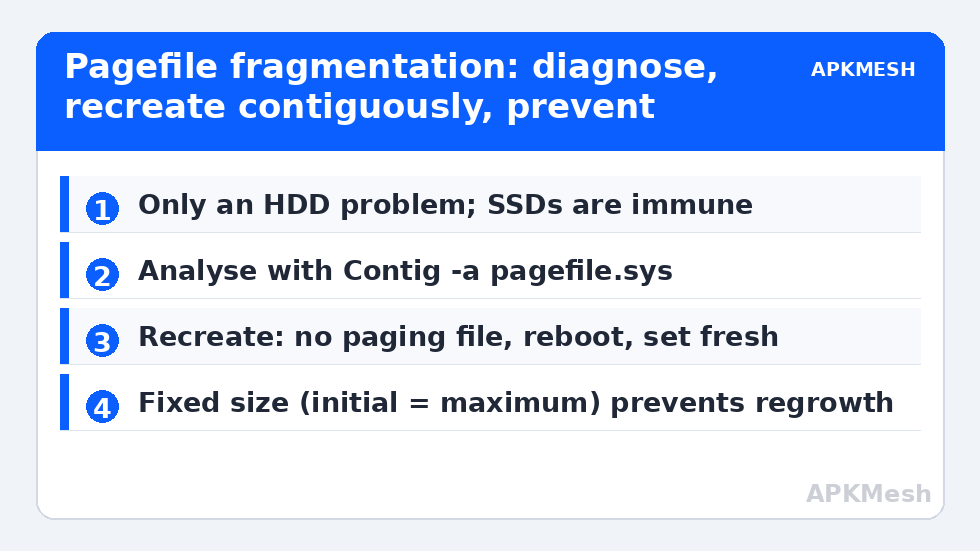
- Fragmentation check: Analyse the drive in Optimize Drives (dfrgui) for overall fragmentation, and Sysinternals Contig with contig -a C:\pagefile.sys for the file itself (may require the file to be visible; PageDefrag’s successor reporting or a boot-time analysis also works). Double-digit fragments on pagefile.sys on an HDD is a positive finding.
- Symptom correlation: stutter coincides with disk activity spikes and high hard-fault rates while committed memory exceeds RAM (Resource Monitor → Memory → Hard Faults/sec). If the machine never pages during play, a fragmented pagefile harms nothing and fixing it changes nothing.
Lag risk: —
Method A: Delete and Recreate the Pagefile (Most Reliable)
- First, free drive space (15%+ free) using the cleanup routine — the recreated file needs a large contiguous home, which a nearly full drive cannot offer.
- Optionally, run a full Optimize Drives defragmentation of the HDD now (with the pagefile still active) to consolidate free space into one region.
- Open sysdm.cpl → Advanced → Performance Settings → Advanced → Virtual memory → Change. Untick automatic management, select the drive, choose No paging file, click Set, OK, and restart. Windows boots without a pagefile — briefly.
- Immediately return to the same dialog and set your intended configuration: either re-enable System managed size (it will create a fresh, contiguous file in the consolidated free space) or a Custom size with initial = maximum (equal values prevent incremental growth, which is how the fragmentation happened). Click Set, OK, restart.
- Verify: Contig analysis on the new file should show 1–3 fragments, and your in-game hard-fault stutter pattern should be gone or reduced to plain paging cost.
Safety bounds: the no-pagefile interval is one reboot at idle — do not run heavy workloads in between, and if the machine has very little RAM (4GB), do steps 3–5 in one sitting without opening anything else, because Windows is temporarily without its pressure valve. Keep at least a small pagefile on the boot drive afterwards for crash dumps, as always.
Method B: Defragment Free Space Only (Gentler)
If deleting the pagefile makes you nervous, the alternative order is: set the pagefile to a fixed size equal to its current size (halting further growth-fragmentation), run a free-space consolidation pass (Optimize Drives, or Contig on large files to clear the neighbourhood), and accept partial improvement. Honest assessment: Method B treats future fragmentation better than the existing scatter; Method A is the actual cure. A third historical option — boot-time defragmentation tools in the PageDefrag tradition — is largely obsolete and unnecessary given the recreate method works on every Windows version.
Prevention: Why It Fragmented in the First Place
A system-managed pagefile grows on demand, and each growth spurt grabs whatever free fragments exist at that moment. On a chronically nearly-full HDD, that guarantees scatter over time. Prevention is therefore boring: keep the drive under ~85% full, use a fixed custom size (initial = maximum) sized from your measured commit peak if you are on HDD, and include the file in your quarterly checks. This is one entry in the storage-maintenance family gathered in our disk cleanup and defrag guide and the wider PC Optimization hub — and it is the one entry that becomes entirely moot the day the emulator moves to an SSD, which the SSD vs HDD comparison in this category makes the case for.
How This Interacts With Your Other Settings
Two settings determine whether you ever meet this problem. The first is pagefile sizing strategy: a fixed size (per our allocation guide) prevents growth-fragmentation by construction, so users who set one for commit reasons get this protection as a side effect. The second is drive fullness management: fragmentation of everything — pagefile, virtual disks, shader caches — accelerates nonlinearly past about 85% occupancy, because the allocator’s choices narrow to leftovers. Treat “keep the emulator drive under 85%” as the single preventive rule that suppresses this entire class. Where the drive cannot be kept lean (a 128GB machine with three instances), an SSD upgrade stops being a luxury recommendation and becomes the exit from a whole family of mechanical-disk pathologies at once: this one, virtual-disk fragmentation, and seek-bound asset stalls share one root cause and one cure.
Budget the whole job at under half an hour, dominated by the defragmentation and two reboots; it is scheduled maintenance, best done before a play session rather than in the frustrated middle of one. If the analysis step shows a tidy file and modest counts, stop there with a clear conscience — the diagnosis itself was the valuable part, and your stutter lives in another subsystem that this category covers.
Record the before/after fragment counts and the gameplay result in your maintenance notes; a documented one-time cure that stays cured under the fixed-size rule is the goal state.
Small comfort for the impatient: unlike most storage work, the result here is binary and checkable in minutes.
After recreating the pagefile, verify the result rather than assuming it: re-run the same analysis you used for the diagnosis and confirm the fragment count has collapsed to a handful, then watch the first heavy session with Task Manager open on the disk graph. Also protect the repair with headroom — a system drive filled beyond roughly 85–90% leaves Windows no contiguous space to work with, and any future pagefile change will scatter again. Treat free space on that drive as part of the fix, not as housekeeping trivia.
Frequently Asked Questions
Does pagefile fragmentation matter on an SSD?
No. Fragmentation costs seek time; SSDs have none. A scattered pagefile on flash performs identically to a contiguous one. If you have paging-related stutter on an SSD, the problem is the volume of paging (RAM pressure), and the remedies are allocation and capacity, not file layout.
How many fragments are “bad”?
Context-dependent. On an HDD, single-digit fragments are normal and harmless because the chunks are large and sequential-ish. Dozens of fragments in a file that is being paged hard during gameplay is the actionable pattern — especially when the symptom correlation (stutter with hard faults) is present. The number alone, without paging load, is trivia.
Is the delete-and-recreate method risky?
Low risk if sequenced as written: free space first, one idle reboot without a pagefile, recreate immediately. The realistic failure mode is forgetting to recreate it — set a same-session rule: you do not open anything else until the new pagefile exists and the machine has restarted with it. Crash-dump capability is also absent during the gap, another reason to keep the interval minutes long.
Why set initial and maximum to the same value?
Equal values create the file once at full size, so it never grows in fragments later. The trade-off is committing that disk space permanently. On an HDD-based emulator PC with a known commit peak, permanence is cheap insurance; on an SSD it is unnecessary either way because growth fragmentation costs nothing there.
Can I just move the pagefile to another HDD partition?
Moving it to a different physical drive can help if that drive is faster or less contended; moving to another partition of the same drive changes nothing physical (same platter, same heads) and the new file is still placed wherever free space dictates. If a second physical HDD exists, placing a freshly created pagefile there is a valid variant of Method A.