

Virtual memory is Windows’ pressure valve: when RAM fills, the memory manager writes less-used pages to a file on disk — pagefile.sys — instead of letting programs die. Android emulators are unusually pagefile-sensitive because each instance wants several gigabytes of committed memory on top of Windows, the game itself, and whatever else is open; on an 8GB machine, two instances and a browser can exceed total commit and produce the classic failure: allocate virtual memory pagefile emulator crash, “out of memory” popups, or the emulator vanishing without an error at all. This guide explains how commit limits actually work, why the default usually suffices, and the specific cases where a manual pagefile size is the correct fix.
Commit Limit: The Number That Actually Matters
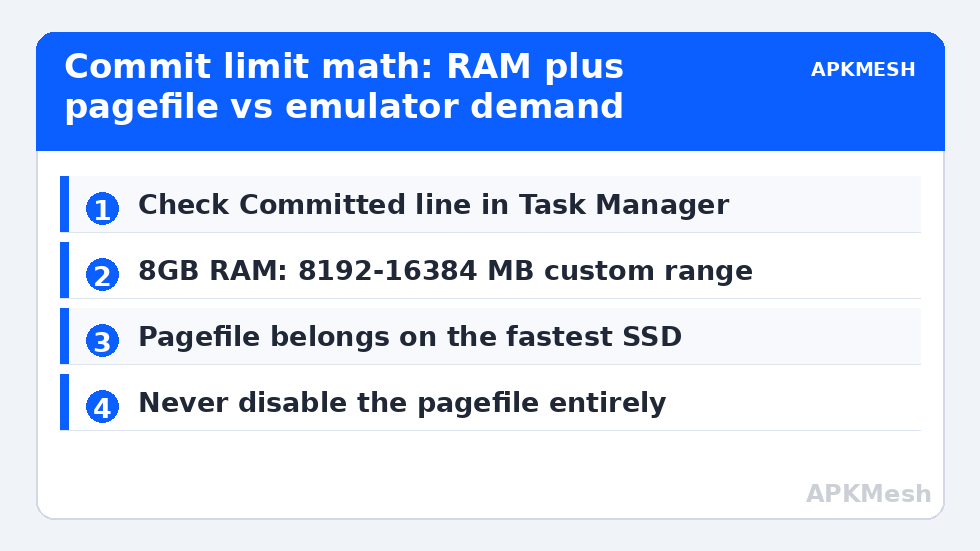
Windows tracks committed memory: the total of all memory reservations backed by RAM plus pagefile. The commit limit ≈ RAM + pagefile size. When a program’s commit request exceeds the limit, allocation fails and the program typically crashes — even with “free RAM” showing in Task Manager, because commit is about promises, not current usage. Check yours: Task Manager → Performance → Memory, the “Committed” line shows used/limit. If your emulator crashes while committed sits near the limit, you have found the problem and no settings inside the emulator will fix it.
Case One (Most People): Leave It System-Managed
Microsoft’s default — “Automatically manage paging file size” (Settings → System → About → Advanced system settings → Performance Settings → Advanced → Virtual memory) — grows the pagefile as commit demand rises, up to generous limits, provided the drive has space. On a machine with 16GB+ RAM and a roomy SSD, this is correct and manual sizing buys nothing. The folklore that a fixed pagefile is inherently faster dates from mechanical-disk fragmentation concerns on much slower systems; on an SSD the effect is not measurable. Leave it alone unless you match case two or three.
Lag risk: —
Case Two: Small RAM + Big Emulator Demands
On 8GB RAM machines running multi-instance, or 4GB machines running anything at all, the system-managed pagefile sometimes grows too slowly or the drive is nearly full so it cannot grow. A manual floor helps: set a custom size with an initial value that covers your peak commit minus RAM, and a maximum with headroom. A pragmatic starting point for emulator PCs:
| RAM | Suggested initial (MB) | Suggested maximum (MB) | Notes |
|---|---|---|---|
| 4GB | 8192 | 16384 | Also reduce emulator RAM allocation; the pagefile is a crutch, not a cure |
| 8GB | 8192 | 16384 | Covers typical 2-instance commit peaks |
| 16GB | System managed (or 4096) | System managed (or 16384) | Manual rarely needed; keep a pagefile for crash dumps |
| 32GB+ | System managed | System managed | Intervene only with measured evidence |
Case Three: Pagefile on the Wrong Drive or No Room to Breathe
The pagefile belongs on your fastest SSD with free space around it. A nearly full drive (over ~90%) both blocks growth and slows everything else; free space first using the routine in our temp and virtual-disk cleanup guide. If you have two SSDs, leaving the pagefile on the system SSD is normally right — the emulator’s constant asset reads from a second drive do not meaningfully contend with paging. Putting the pagefile on a mechanical HDD “to save the SSD” turns every page-in into a multi-millisecond stall: do not.
How to Set a Custom Size (Exact Steps)
- Win + R → sysdm.cpl → Advanced tab → Performance Settings → Advanced tab → Change (Virtual memory).
- Untick “Automatically manage paging file size for all drives.”
- Select the SSD, choose Custom size, enter initial and maximum from the table above.
- Click Set (people forget this and then wonder why nothing changed), then OK, then restart.
- Verify afterwards: Task Manager’s Committed limit should reflect RAM + your new maximum.
Never Disable the Pagefile Entirely
“No paging file” with 32GB of RAM sounds clean and mostly works — until a program requests a commit spike, a crash needs somewhere to write a dump, or an old application refuses to start because it insists on allocating against a pagefile. Windows also uses the pagefile as backing for memory-mapped behaviour in ways that surprise people. A small pagefile costs a few gigabytes of SSD and removes an entire failure class. The pagefile fragmentation guide covers the related stutter pattern on systems where the file has grown in pieces across a fragmented mechanical drive, and the rest of this tuning family lives in the PC Optimization hub.
The Multi-Instance Commit Trap, With Numbers
Worked example, because this is where 8GB machines die quietly. Windows and your browser commit roughly 3–4GB at idle. One emulator instance configured with 4GB RAM does not merely use 4GB — between its reserved address space, the Android guest’s own overhead, graphics buffers, and shared libraries, its commit footprint commonly reaches 5–6GB. Start a second identical instance and total commit approaches 14–16GB. On an 8GB machine with a pagefile that Windows sized conservatively on a nearly full 128GB SSD, the commit limit may be only 12–13GB — so the second instance starts fine, runs for a while, and then dies at the first asset-heavy scene when a large allocation finally crosses the limit. The emulator log blames graphics or the game; the actual cause is arithmetic. This is why the fix order matters: first reduce per-instance RAM allocation to a sane figure (most games are content with 2–3GB), then guarantee commit headroom with the pagefile, and only then suspect the emulator.
Hard faults are the tell-tale during play rather than at crash: if Performance Monitor’s Memory\Page Faults or Task Manager shows the disk spiking while committed memory exceeds physical RAM, Windows is servicing the session from disk and stutter is guaranteed regardless of pagefile size. In that regime the pagefile merely changes the failure mode from “crash” to “crawl” — useful, but the honest recommendation is lower allocations or more RAM.
Note one boundary condition: crash dumps. Windows needs a pagefile on the boot volume at least as large as a small threshold to write memory dumps for blue-screen diagnosis, and some enterprise policies require more. If you ever chase a BSOD on this machine, keep at least a 1–2GB system-managed presence on C: even if your main working pagefile lives elsewhere, so the dump you desperately need actually gets written.
Frequently Asked Questions
How do I know my emulator crash is a commit problem and not a bug?
Reproduce it while watching Task Manager → Performance → Memory. If Committed climbs to within a few hundred MB of the limit at the moment of the crash, that is your answer. Event Viewer (Windows Logs → System, source Resource-Exhaustion-Detector) also logs low-virtual-memory events with the top consuming processes named.
Does a bigger pagefile make the emulator faster?
No. The pagefile prevents failures; it does not accelerate anything. If committed memory is being actively paged during play (visible as hard faults and disk spikes), the real fix is more RAM or lower emulator RAM allocation — paging to even a fast SSD is orders of magnitude slower than RAM.
What size do the “1.5× RAM” rules mean today?
The 1.5× rule is a legacy heuristic from small-RAM eras, useful only as a ceiling sanity check. Size from your measured commit peak instead: run your heaviest realistic session, note peak Committed, and ensure RAM + pagefile exceeds it by ~25%.
I set a custom size and nothing changed. What went wrong?
Almost always the Set button was not clicked before OK, or the machine was not restarted. Recheck sysdm.cpl → Virtual memory: the “Currently allocated” figure at the bottom states the live total. Also confirm the drive you sized is the one Windows is using.
Can I put the pagefile on a second SSD to reduce wear?
You can, and wear concerns are overblown for modern SSDs either way. Keep it on the fastest drive with reliable free space; if both are similar, leave it on the system drive and spend the worry elsewhere.