

There is no partial version of this failure. The game loads, the menu sits waiting, and neither a key press nor a mouse click produces anything at all — as if the emulator were a screenshot. Learning to fix keyboard mouse not detected emulator problems means working the input chain from the physical device to the game in order, because total silence can begin at any link: a receiver Windows has put to sleep, an emulator window that never truly took focus, an input method inside Android that swallowed the keyboard, or a control scheme that expects touch and ignores everything else. The good news is that each link can be proved or cleared in about a minute, and the chain is shorter than it feels when you are staring at an unresponsive menu.
Separate Detection From Keymapping First
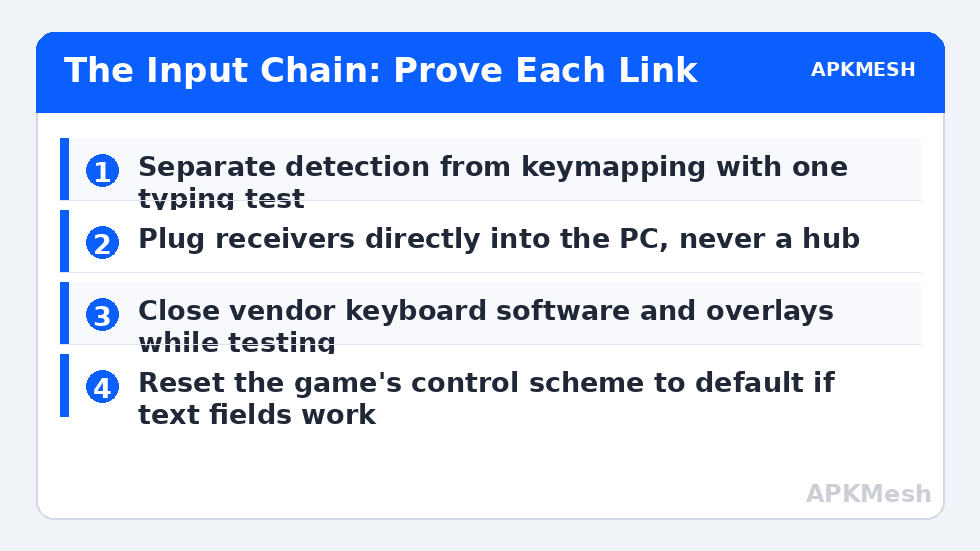
These are different faults wearing the same clothes. Detection is whether the emulator receives input at all. Keymapping is what the emulator does with input it receives — translating your W key into a virtual thumbstick, for example. A broken keymap leaves typing in text fields working perfectly while games ignore you. Broken detection leaves everything dead, including text fields. One test separates them: click into the emulator, open the Play Store or Settings search box, and type.
- Typing works, games ignore keys: keymapping or control-scheme fault. Open the emulator’s keymapping editor for that game, confirm a scheme is active, and reset it to default if it was edited or imported.
- Nothing works anywhere in Android, but Windows is fine: the emulator’s input layer or focus is at fault — the main path below.
- Nothing works in Windows either: device, receiver, port or battery. Fix it at the Windows level first; no emulator setting can detect a device the host cannot see.
- Mouse works, keyboard dead (or the reverse): treat them as separate devices with separate causes; shared-receiver wireless pairs are the exception.
If keys register but arrive late or feel spongy, that is a latency problem rather than detection — a different guide covers it in this category. Likewise a cursor that vanishes specifically in fullscreen is covered by fixing the disappearing fullscreen cursor. This article is strictly about input that never arrives.
Step 1: Prove the Devices at the Windows Level
Open a Windows text field and type; move and click the mouse on the desktop. If either fails here, swap its USB port — use a port directly on the PC or laptop, not a hub — replace or recharge batteries, and for wireless pairs, move the receiver away from USB 3 hard drives and hubs, whose interference can kill a receiver’s range down to centimetres. Confirm in Device Manager that the keyboard and mouse appear without warning icons. Only proceed when Windows itself sees clean, working devices; everything downstream depends on it.
- Test both devices in Windows first; fix host-level faults here.
- Plug wired devices, or the wireless receiver, directly into the PC — no hub.
- Disable USB selective suspend in your power plan’s advanced settings if devices vanish after idle periods.
- In Device Manager, open each device’s Power Management tab and untick the option to turn it off to save power.
- Restart the PC once after port and power changes, so enumeration starts clean.
Step 2: Fix Emulator Focus and Input Capture
Emulators receive keyboard input only while they hold Windows focus, and several everyday tools steal or filter that focus: overlays, screen recorders, clipboard managers, and vendor keyboard software with its own game modes. Click once firmly inside the emulator window — on the Android home screen, not the title bar — and type into your test field again. If input now works, your problem was focus, and the durable fix is to close or configure whichever overlay was intercepting keys. Test with vendor keyboard and mouse software fully exited; these suites can hold keys for macros and profiles and pass nothing through when their active profile mismatches the emulator.
Inside the emulator settings, look for input-related options: some builds offer a choice between input modes, a gamepad/keyboard detection toggle, or a setting to release the mouse with a specific key. A mouse that feels captured but buttonless is often in a shooting-mode capture state — learn your emulator’s release key from its keymapping panel. That behaviour is intentional design for shooters, explained in the cursor guide linked above, and it mimics total mouse failure convincingly if you do not know the release key exists.
Step 3: Repair the Android-Side Input Method
Inside Android, an unexpected input state can block physical keyboard input even when the host passes it through correctly. Open Android Settings and find the language and input section. Confirm a standard on-screen keyboard is present and selected as the default input method; some third-party keyboard apps and debloating experiments leave the instance with an input method that handles physical keys badly. In the physical keyboard settings, if offered, ensure the keyboard layout matches your real keyboard’s language so keys produce the characters printed on them.
Then test in three places in order: an Android text field, the emulator’s own keymapping editor (pressing a key should visibly register when you assign it), and finally your game. Passing the first two and failing the third convicts the game’s control scheme conclusively — reset the scheme to the emulator’s default for that title, then re-apply your customisations gradually. If your switches between apps during testing cause the whole instance to hang, that separate behaviour is covered in fixing freezes when switching apps; resolve input first, since you need reliable keys and clicks to test anything else comfortably.
Lag risk: —
Step 4: Reinstall the Input Layer Only If the Chain Demands It
If devices prove good in Windows, focus is clean, Android’s input method is standard, and still nothing registers anywhere in the emulator, the emulator’s own input components are suspect. Update the emulator to the current build first. If it is current, test a fresh instance: input working there means your main instance’s configuration is damaged, and migrating beats further surgery. Input failing in a fresh instance on a proven host points at the installation itself, where a clean reinstall is finally justified. Verify afterwards with the same three-place test — text field, keymapping editor, game — so your conclusion rests on the full chain, not one lucky keystroke.
Input hardware fails as a family more often than people expect: the same USB power and connection habits that silence a keyboard can drop a gamepad mid-match, which is why fixing controller disconnection bugs makes useful companion reading even for keyboard and mouse players. Once your chain passes all three tests, note the working ports and settings, and keep the APKMesh homepage bookmarked for the emulator calculators you will want when you tune the games themselves.
Frequently Asked Questions
My keyboard works in Windows but not at all in the emulator. Where do I start?
Start by clicking directly inside the emulator window and typing in a text field such as the Play Store search box. If typing works there, your keyboard is detected and the issue is game keymapping. If it fails everywhere in Android, work through the focus, input language, and driver checks in order — the fault is at the emulator’s input layer, not the game.
Why did my wireless keyboard and mouse stop working together?
Simultaneous failure of two wireless devices points at their shared receiver or the Bluetooth connection rather than either device. Move the USB receiver to a front port or short extension away from USB 3 drives and hubs, replace or recharge batteries, and test one wired device to confirm the emulator itself still accepts input before replacing hardware.
Do I need special drivers for gaming keyboards and mice in emulators?
Basic typing and clicking should work with standard Windows drivers and no vendor software. Vendor apps add macro and lighting features, but they can also intercept keys before the emulator sees them. If detection problems began after installing such software, test with it fully closed; the standard driver path is the reliable baseline for emulator input.
The mouse moves but clicks do not register in games. Is that the same fault?
Partially. Movement without clicks usually means the emulator window has pointer capture but the game’s control scheme is intercepting or expecting touch input differently. Click once inside the window to ensure focus, check the keymapping overlay for that game, and test clicking in the Android settings app — if clicks work there, repair the game’s control scheme, not the mouse.
Can a Windows update break emulator keyboard detection?
It can change USB power behaviour, driver versions and input settings, any of which can surface as detection trouble. If the timing matches an update, re-check USB selective suspend, reinstall the vendor graphics-independent input drivers only if Windows itself also misbehaves, and confirm the emulator is updated to a build tested on the current Windows version.