
Gameplay itself is smooth. Then you tap the recent-apps button to answer a message, check a guide, or switch to a second game — and the whole emulator locks for ten, twenty, sometimes forty seconds before it grudgingly responds. Learning to fix emulator freezes when switching apps starts with recognising that switching is the heaviest multitasking moment in Android’s life. The current app must freeze its state, its textures and data compete for memory with the incoming app, and the disk absorbs a burst of reads and writes simultaneously. On a phone with fast storage this is invisible. Inside an emulator on a low-end PC, with a virtual disk on a busy drive, it is where every marginal resource runs out at once.
Why Switching Stresses the Emulator Differently
Steady gameplay is a stable load: the same app, already resident, drawing continuously. Switching breaks that stability in three ways at once. Memory pressure spikes as two large apps are resident together. Storage traffic spikes as the incoming app loads assets while Android writes state for the outgoing one. And the rendering path restarts, rebuilding surfaces and often recompiling interface elements. Any one of those being marginal on your system produces a freeze that gameplay never reveals.
- Short freeze, then both apps work: classic memory and disk pressure during the hand-over; fixable with load reduction and balanced allocation.
- Freeze followed by apps reloading from splash screens: Android killed the background app under pressure and is relaunching it — annoying, but a sign memory is the binding constraint.
- Freeze only when one specific app is involved: that app’s saved state or data is the problem, not the emulator generally.
- Total freeze needing an emulator restart: deeper stall — disk saturation, graphics path hang, or a corrupt app state; test with lightweight apps to isolate.
If the freezes also happen without switching — during ordinary play — widen the diagnosis to the general load patterns in fixing high CPU and memory usage. If they happen specifically when you leave and return to the emulator window from Windows apps, that focus-change pattern overlaps with the engine and display issues in the starting-engine guide less than it first appears; keep your attention inside Android first, where most switching freezes genuinely live.
Step 1: Measure the Switch With a Repeatable Routine
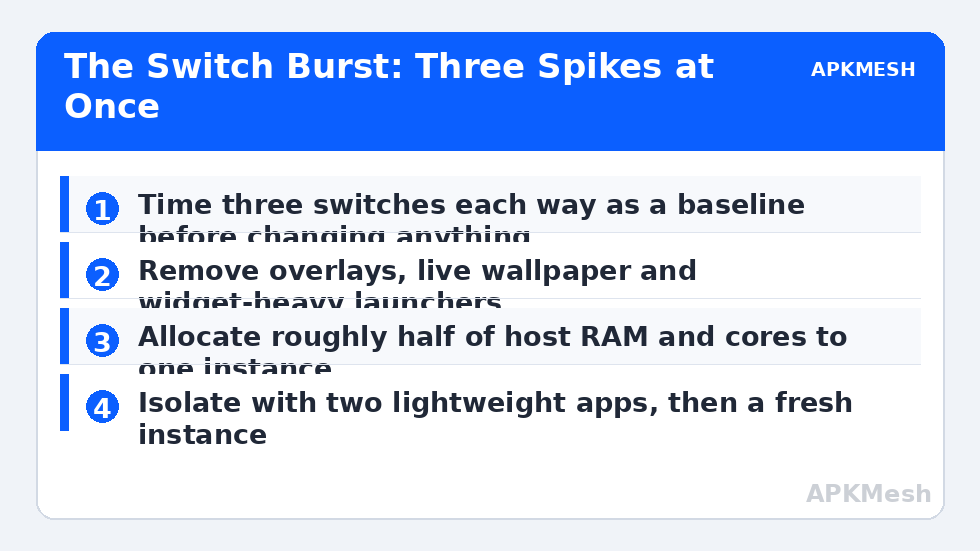
Pick two apps you actually switch between, ideally your game and a messaging or browser app. Time three switches in each direction with your phone stopwatch, noting whether apps resume instantly or reload. This baseline turns later changes from feelings into evidence. While testing, keep Task Manager open on the host and glance at the disk and memory graphs at the moment of a freeze: a disk graph pinned at maximum during every switch names storage as a co-conspirator immediately.
- Choose your real game and companion app as the test pair.
- Time three switches each way and record resume versus reload behaviour.
- Watch host disk and memory graphs during the freezes.
- Repeat the test after closing other emulator instances and heavy Windows apps.
- Note whether one particular app is always involved when freezes are worst.
Step 2: Reduce the Multitasking Load Inside Android
The cheapest freezes to fix are the ones caused by clutter you do not need. Inside Android, remove or disable resident extras: floating overlay tools, screen recorders running by default, live wallpaper, widget-heavy third-party launchers, and chat heads that stay active over games. Each is small alone; together they consume exactly the memory headroom switching needs. In Android Settings, Apps, also force-stop heavy apps you are not using rather than leaving a dozen of them resident in recents — the recents list is a history, and clearing it does not harm anything, but genuinely resident background services are managed in the app list.
Then look at your game itself. Some titles hold very large texture sets in memory and resist being backgrounded gracefully. If switching away from one specific game always freezes while switching between lighter apps is instant, that game is simply near the instance’s memory ceiling. The practical answers are to lower that game’s internal graphics settings, accept closing it when you switch tasks, or give the instance more memory if — and only if — the host can spare it, which the next step checks.
Step 3: Balance Allocation Against the Host
Allocation fixes switching freezes only when the split between guest and host is wrong. On an 8 gigabyte PC, an instance given 6 gigabytes leaves Windows and the emulator’s own rendering and disk processes starved, so every switch queues behind a host that cannot serve it. On a 16 gigabyte PC, an instance limited to 2 gigabytes may thrash internally while the host idles. The balanced pattern most low-end guides converge on — roughly half of system RAM and half of physical cores for a single instance — exists precisely because switching exposes bad splits first.
Change allocation by one step, restart the instance, and rerun your timed routine from Step 1. Keep the change only if times and reload behaviour genuinely improve. Also consider the virtual disk’s home: an instance stored on a nearly full or heavily fragmented hard drive will freeze during switch bursts regardless of memory, because state saving is disk work. Freeing host space and, where possible, keeping the active instance on an SSD pays off here more visibly than anywhere else in emulator use.
Not sure what balanced means for your exact CPU and RAM combination? Run the check before your next test round:
Lag risk: —
Step 4: Isolate a Corrupt App or Instance State
If freezes survive load reduction and balanced allocation, isolate. Test switching between two lightweight apps such as Settings and the built-in browser. If that is smooth, reintroduce your real apps one at a time; the app whose arrival restores the freeze owns it. Clear that app’s cache first, then its data if you can afford the re-login, or reinstall it. If even lightweight switching freezes, create a fresh instance and repeat the lightweight test there. Smooth in the fresh instance means your main instance’s system state has degraded — a migration is more reliable than continued repair. Frozen in both instances points back to host disk or memory pressure, closing the loop with evidence rather than opinion.
Switching performance also depends on the virtual disk having room to breathe while it saves and restores state, so if your instance is nearly full, work through fixing the storage full error inside virtual disks before blaming memory alone. With space, allocation and resident clutter all addressed, switching should feel like the brief pause it is on a phone. The APKMesh homepage collects the calculators that help you keep that balance as you add more apps.
Frequently Asked Questions
Why does the freeze happen only when I switch apps, not while playing?
Playing keeps one app in the foreground with a stable working set. Switching forces Android to save the current app’s state, load another app’s data, and possibly restart background processes all at once. That burst exposes memory pressure and slow storage that steady gameplay hides, which is why switch-triggered freezes are best treated as a multitasking load problem first.
How much free RAM inside Android do I actually need?
Android manages memory aggressively and will report most RAM as used by design, so the number alone misleads. What matters is behaviour: if background apps constantly reload from their splash screens and switching stutters, the working set exceeds comfortable memory. Reducing heavy background apps and keeping emulator allocation balanced matters more than chasing a particular free-memory figure.
Does increasing the emulator’s RAM allocation always fix app-switch freezes?
Only when the instance itself is starved and the host has RAM to spare. On an 8 gigabyte PC, raising the emulator allocation can starve Windows and the emulator’s host processes, making switching worse. Test one step up, measure the same switching routine, and keep the change only if it demonstrably smooths it.
Why did switching become slow after I installed a launcher and widgets?
Home screen replacements, live widgets, floating overlays and accessibility tools all stay resident and compete during every app transition. A heavy launcher with several widgets can add noticeable work on a low-end instance. Test with the stock launcher and overlays disabled; if switching smooths out, reintroduce extras one at a time.
My emulator freezes completely and never recovers when switching. Is that different?
Yes. A freeze that never recovers after a full minute suggests a deeper stall: disk saturation, a hung graphics path, or a corrupt app whose state cannot be saved or restored. Force-close that specific app, test switching between two lightweight apps, and if the total freeze follows one app, clear its data or reinstall it before blaming the whole instance.