
The right-hand block of a full-size keyboard sits idle in most emulator schemes, which is a waste when a simulation or management game offers twenty buttons on screen. Deliberate numpad mapping simulation games emulator design turns that block into a tidy control panel: its grid mirrors an on-screen button grid, its Enter and Plus keys are large enough to find blind, and it keeps your left hand free for camera, pointer or a drink. Farming sims, city and hospital managers, transport tycoons, tower defence and idle-management titles on Android all benefit, because their inputs are frequent but rarely urgent at the split-second level.
This guide assumes a keyboard with a real numpad; compact laptop users should read the final section before buying anything. It covers laying out the grid, handling the Num Lock trap that silently changes what your keys send, using the numpad as a second camera or cursor cluster in some games, and keeping the scheme consistent across several management titles so your hand learns one panel instead of five. The rule throughout is spatial honesty: a key should sit in the same relative position as the button it presses whenever the game’s interface allows it.
Lay the Grid Over the Interface
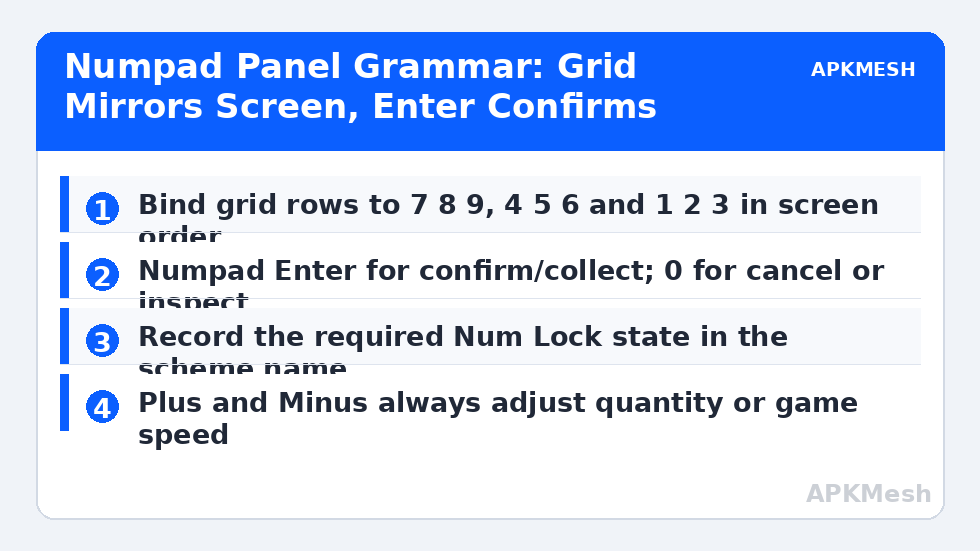
Open the game’s main management screen and count its regular buttons. Most mobile management interfaces arrange build menus, upgrade panels or production queues in rows of three or four, which maps naturally onto the numpad’s three-column core. Place emulator tap spots on those buttons and bind them in matching positions: the top row of the interface to 7, 8 and 9, the middle row to 4, 5 and 6, and the bottom row to 1, 2 and 3. The numpad’s printed layout is itself a map of the screen, so after a day of play your hand navigates by shape rather than by memory of arbitrary letters.
Reserve the numpad’s special keys for global actions. Numpad Enter, large and at the corner, is ideal for confirm or collect-all style buttons you press often. Numpad Plus suits the next production tier or speed-up action, the slash and asterisk keys suit panel switching, and numpad 0, wide under the thumb side of the hand, suits a hold-to-inspect or a cancel action. Write the arrangement on a small diagram for the first week; management games are played in long, relaxed sessions, and a visible map speeds the learning more than repeated editor visits do.
| Numpad key | Suggested role | Placement logic | Example use |
|---|---|---|---|
| 7 8 9 | Top row of on-screen panel | Matches screen position | Build menu: housing, work, services |
| 4 5 6 | Middle row of panel | Matches screen position | Production choices or unit types |
| 1 2 3 | Bottom row of panel | Matches screen position | Upgrade, sell, demolish row |
| 0 | Cancel / inspect (hold) | Wide key, easy to rest on | Close panel or inspect a building |
| Enter | Confirm / collect | Largest key, corner position | Collect finished production |
| + and – | Quantity or game speed up and down | Paired opposites together | Buy amount, simulation speed |
The Num Lock Trap and Other Silent Failures
A numpad with Num Lock off stops sending numbers and starts sending navigation commands: 8 becomes up-arrow, 2 becomes down-arrow, and so on. In an emulator scheme bound to number keys, half your panel suddenly scrolls a menu instead of pressing buttons, and because a few keys still seem to work, the fault is often blamed on the emulator or the game update. Before any troubleshooting session, glance at the Num Lock indicator. Some players solve it permanently by binding the scheme to the navigation identities instead, or by choosing an emulator and keyboard combination that reports keypad keys distinctly regardless of lock state; whichever you choose, note the required Num Lock state in your scheme name, for example FarmPanel-NumLockON.
A second silent failure is the laptop Function layer. On many laptops the numpad is printed as secondary legends on letter keys and only exists while a Fn key is held or a numpad mode is toggled, which makes it useless as a relaxed control panel. If your machine has no true numpad, a modest separate USB numpad is a surprisingly good purchase for this genre, because it adds the grid without replacing your keyboard; just confirm it sends real numpad codes rather than top-row number codes, which some ultra-cheap models do.
Lag risk: —
Camera, Cursor and the Second-Hand Question
Management games split control between selecting things and moving the view. With the numpad running the panels, your left hand and mouse are free for camera duty: mouse drag to pan, wheel to zoom, left hand on arrow-style camera keys if the emulator scheme offers them. Some players go further and assign the numpad’s navigation identities, with Num Lock off in a second scheme, to camera movement in grid steps, which suits tile-based builders where the camera moves in cell-sized jumps. Keep that as a separate scheme rather than a mode you toggle by Num Lock mid-session; a scheme whose meaning depends on a lock light is a scheme you will eventually misread at a critical moment.
Idle and incremental games deserve a lighter touch. Their core loop is a handful of repeated buttons, so map only those: buy-one, buy-max, prestige or ascend confirm, and an upgrade-all if the game provides it. Resist mapping an auto-clicking behaviour onto any of them; repeated manual presses are the game in this genre, and automation is both against many titles’ rules and the fastest way to make the panel you built pointless.
One Panel Across Many Games
The deepest benefit appears when you play several management titles. Keep the same grammar everywhere: Enter always confirms or collects, 0 always cancels or inspects, Plus and Minus always adjust quantity or speed, and the grid always mirrors the panel. Individual games will force exceptions, but a shared grammar means a new title feels familiar within an hour. Keep a single notes file listing each game’s exceptions and its required resolution, because tap spots assume the interface stays where you placed them, and a game that offers multiple interface sizes needs its scheme built at the size you actually play.
When a game updates its interface, update only the moved spots and rename the scheme with the month. Management interfaces change slowly compared with shooters’ HUDs, so a numpad scheme, once built with spatial care, is one of the longest-lived profiles in an emulator player’s collection.
Share the panel grammar with any second player who uses the same PC, or at least leave the diagram beside the keyboard. Management games invite casual co-piloting, with one person driving the mouse while another works the panel, and that only stays relaxing when both people agree on what Enter, 0 and the grid rows mean. A shared, visible grammar turns the numpad from a personal quirk into the household’s control panel for the whole genre.
Related Keymapping Guides
Return to the APKMesh homepage for the rest of the collection, and read alongside:
- configuring mouse wheel zoom for strategy games to complete the camera half of a management setup
- quick-buy and shop macros for strategy titles for the rules-aware view of repeated buying actions
- remapping MMORPG skill rotations and hotbars where the numpad also serves as a second ability cluster
Frequently Asked Questions
Why do half my numpad keys suddenly scroll instead of pressing buttons?
Num Lock is off, so the numpad is sending navigation codes such as arrow keys instead of numbers. Your emulator scheme is bound to the number identities, so the presses land as movement. Turn Num Lock back on, and record the required state in your scheme name so the cause is obvious next time.
Can I use a laptop’s embedded numpad for this?
Rarely well. Embedded numpads share keys with letters and usually need a Function key or a special mode, which breaks the relaxed, blind-reach quality that makes a real numpad valuable. A separate USB numpad is a better answer for laptop players, provided it reports true numpad key codes rather than top-row numbers.
What should numpad Enter and 0 be used for?
Give Enter the action you repeat most, usually confirm or collect, because it is the largest and easiest key to find without looking. Give the wide 0 key a resting role such as cancel or hold-to-inspect. Keeping those two roles identical across every management game builds a grammar your hand can trust.
Should the numpad mirror the on-screen layout exactly?
Where the interface is a regular grid, yes: spatial matching is what makes the panel learnable by touch. Where a game’s buttons are irregular, mirror the most-used cluster and put global actions on the special keys instead. Forcing an exact mirror onto a chaotic interface creates a scheme that is logical on paper and awkward in the hand.
Do numpad schemes survive game updates?
Better than most, because management interfaces change slowly and their buttons tend to stay in place. When an update does move a panel, reposition only the affected tap spots, rename the scheme with the month, and keep the old export until you have played a full session on the new layout.