Some Android games steer by tilting the phone, aim by moving it, or balance a character by rocking the device in your hands. On a PC there is nothing to tilt, so you have to emulate tilt gyro controls emulator input with devices that do exist on a desk: the mouse, keys that lean a virtual device, or a gamepad stick acting as the tilt source. Done well, a tilting racer becomes a precise mouse-steered game. Done badly, the virtual device never returns to level, the horizon drifts, and every straight line becomes a wrestling match.
BlueStacks and LDPlayer approach this differently in their menus, but the underlying idea is shared: a tilt control converts your chosen input into simulated accelerometer or gyroscope movement inside Android. This guide explains how to place that control, how to choose between hold-to-tilt keys and continuous mouse tilt, and how to calibrate the neutral position so level means level. It also covers the games where gyro is only an aiming aid layered on top of ordinary controls, which need a gentler touch than games where tilt is the whole steering system.
Find the Tilt Control and Give It a Neutral Position
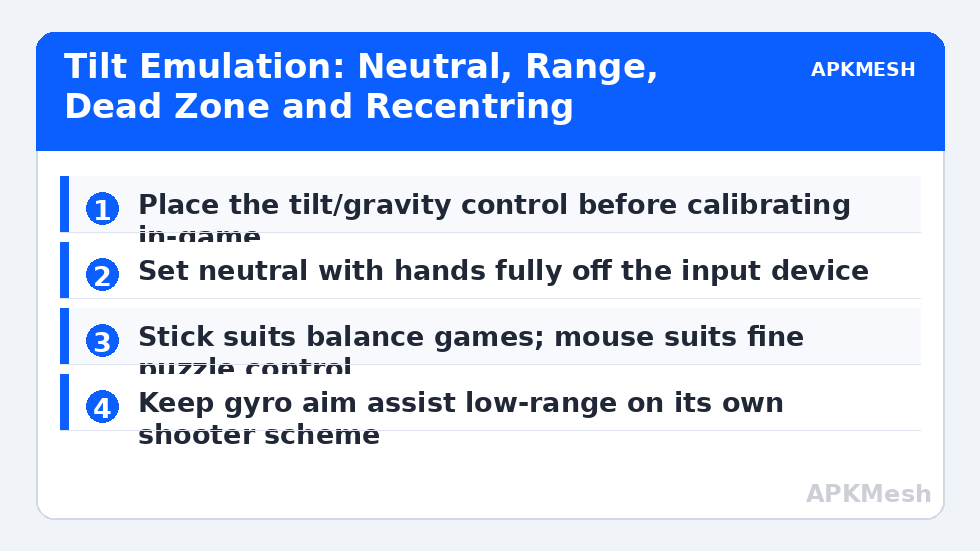
Open your emulator’s controls editor with the game running and look for the tilt, gravity sensor, or accelerometer control type rather than improvising with a D-pad. Place it where the game expects tilt input to act, which for steering games is usually over the main play area rather than on a button. The most important setting is neutral: the virtual device must know what level looks like. Set your input device to its rest position before you confirm the control, keep your hands off the mouse during that moment, and then test on a straight piece of track or a level menu screen where drift is easy to see.
If the game offers its own gyro calibration screen, use it after the emulator control is placed, not before. Calibration order matters because the game is calibrating against whatever signal the emulator is sending; calibrate the game against a wandering emulator signal and both layers will be wrong in opposite directions. Change one layer at a time, and if you must reset, reset the game calibration first and the emulator control second, testing between the two.
| Tilt style | Best PC input | Emulator setting focus | Watch out for |
|---|---|---|---|
| Steering by tilt | Mouse position or stick X axis | Tilt range and return-to-centre speed | Over-tilting at full lock on corners |
| Gyro aim assist | Small mouse movements while aiming | Low sensitivity, separate from main aim | Double movement when mouse aim and gyro both act |
| Balance / rolling ball | Stick or WASD lean keys | Gradual tilt ramp, not instant full tilt | Oscillation from tapping corrections |
| Tilt puzzles / labyrinth | Mouse with a limited tilt zone | Small maximum angle | Ball accelerating beyond recovery |
| Menu tilt effects | Leave unmapped | None | Mapping cosmetic tilt wastes a control |
Mouse Tilt, Key Tilt or Stick Tilt: Choosing the Source
Mouse tilt suits games that need fine, continuous control, such as labyrinth puzzles and gentle flight or driving models. You move the mouse away from a centre point to lean, and return it to centre to level out. Its weakness is the absence of a physical centre: without a spring pulling you back, your neutral position wanders across the desk. Solve this by binding a recentre key you can tap without looking, and by choosing a tilt range small enough that the whole usable mouse area fits comfortably on your pad.
Key tilt, usually A and D or the arrow keys leaning left and right, suits arcade racers where tilt is essentially a steering wheel with two directions and the game itself smooths the transitions. Stick tilt suits players who already own a pad and want the self-centring spring a stick provides. That spring is a genuine advantage for tilt emulation: release the stick and the virtual phone returns to level by itself. For long sessions in balance-heavy games, the stick is often the least tiring and most predictable source, even for players who normally prefer keyboard and mouse for everything else.
Lag risk: —
Gyro Aim Assist Is a Different Problem
In shooters that offer gyro aiming, tilt is not replacing the main camera control; it is adding fine movement on top of it. Mapping full-range tilt controls here creates double input: the mouse moves the camera and the tilt moves it again, and the result feels slippery. Instead, assign the tilt source a narrow range and low sensitivity so it functions as a micro-adjustment for the final part of an aim, the part where mouse movements alone feel coarse. Test by aiming at a distant small target: you should be able to settle the crosshair with tilt after the mouse has done the large movement, without the sight swimming when your hand rests.
Some players prefer tilt disabled entirely in shooters and enabled only in driving or flight titles. That is a respectable choice. Gyro assist rewards practice, but an emulator setup that mixes mouse look, tilt aim and a shooting-mode toggle is one of the most complex schemes you can build, and complexity is itself a cost during a match. Keep a separate scheme for gyro-aim games rather than adding tilt to your main shooter profile, so an experiment never contaminates the profile you trust.
Drift, Dead Zones and Recovery Drills
Drift has three common homes: the emulator tilt control’s neutral was set while the input was not at rest, the game’s own calibration has aged across a device or profile change, or a stick source has genuine hardware drift near centre. Diagnose in that order, because the first two are free to fix. Apply a small dead zone to tilt input if the editor offers one, just large enough that resting micro-movements do not lean the virtual device. Too large a dead zone creates a different fault, a flat spot where small leans do nothing and then arrive all at once, so increase it in tiny steps and test slow, gentle inputs after each change.
Learn a recovery habit for mid-game drift: point the vehicle or character somewhere safe, tap your recentre key or release the stick, breathe, and resume. Attempting to steer against drift with constant opposite input works for a few seconds and then fails suddenly when the drift changes. A deliberate recentre, even at the cost of one corner, is the skill that makes tilt games playable for a whole evening rather than for ten frustrating minutes.
Related Keymapping Guides
Head back to the APKMesh homepage to browse the full collection, and continue with:
- racing wheel and pedal setup for another way to steer the same tilt-based racers
- configuring D-pad and joystick sensitivity for the dead-zone thinking that tilt controls also need
- flight stick and HOTAS setup when a tilt flight game deserves real axes instead
- mouse steering for racing games without a wheel as the direct alternative for tilt racers
Frequently Asked Questions
Why does my vehicle drift to one side when I am not touching anything?
The neutral position of your tilt control was probably set while the mouse or stick was not truly at rest, or the game’s own gyro calibration needs redoing. Recentring the emulator control with hands off the input, then recalibrating inside the game, fixes most drift. Persistent drift on a stick points to hardware wear near its centre.
Is mouse or controller stick better for emulating tilt?
The stick is better for balance and steering games because its spring returns you to level automatically. The mouse is better for puzzles and fine control where you want to hold a precise angle. Keys suit simple arcade steering. Match the source to the game’s tilt style rather than forcing one device onto every title.
Can I use gyro aim and mouse aim together in a shooter?
Yes, if the tilt range and sensitivity are kept deliberately small so gyro acts only as a fine adjustment after the mouse has made the main movement. Full-range tilt plus mouse look creates double input and a swimming sight. Keep gyro shooters on their own control scheme so the experiment cannot spoil your main profile.
What dead zone should tilt controls use?
Start with the smallest dead zone that stops resting drift, and increase it in tiny steps only if the virtual device still leans at rest. A dead zone that is too large creates a flat spot where gentle leans are ignored and then arrive suddenly, which feels worse than slight drift in most games.
Why does tilt feel fine in menus but wrong in a race?
Menus prove the signal exists, not that its range suits gameplay. Racing needs the full tilt range, return speed and dead zone tuned under motion. Test on a straight and on one repeated corner, adjusting range first, then dead zone, and only recalibrate the game’s own gyro setting after the emulator layer behaves.