There is a point in driver troubleshooting where updating on top of the old installation stops working: the emulator still flickers, the Vulkan renderer still crashes, the new driver still reports the old version. That is when a clean install gpu driver ddu emulator workflow earns its keep. Display Driver Uninstaller — DDU — removes every trace of the existing NVIDIA, AMD, or Intel graphics driver in Safe Mode, so the fresh driver installs onto a genuinely blank slate instead of inheriting whatever was corrupted. This guide covers when DDU is justified, how to prepare so the process cannot strand you, and the exact sequence, because a powerful cleanup tool used casually creates the problems it is meant to solve.
When a Clean Install Is the Right Tool (and When It Is Not)
Start with proportionality. Most driver problems yield to the ordinary official update in our graphics driver update guide, or to the driver’s built-in clean-install option. Reach for DDU when you have specific evidence of a damaged installation: switching GPU vendors (the classic AMD-to-NVIDIA upgrade, where leftover components genuinely conflict); a driver update that failed or rolled back midway; persistent display-driver crash events in Event Viewer after a normal reinstall; graphical corruption that survives both a driver reinstall and a shader-cache clear; or Windows Update repeatedly forcing a mismatched older driver over your manual install. Absent evidence like that, DDU is theatre — it feels thorough while risking more than the simple path.
Understand what DDU is and is not. It is a respected free utility from Wagnardsoft with a long public track record, and it works by removing driver files, registry entries, and leftover folders that normal uninstallers leave behind. It is not a general PC cleaner, it does not fix faulty hardware, and it cannot rescue a dying graphics card whose corruption appears in the BIOS screen too — that last pattern is hardware, and no software procedure changes it.
Preparation: The Steps That Make DDU Boring
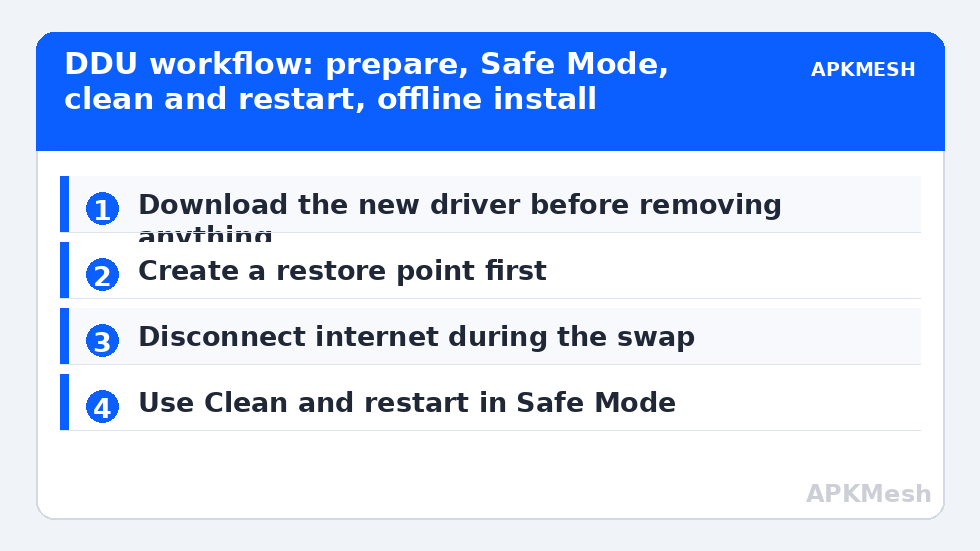
- Download everything before you remove anything. Get the fresh driver installer from the GPU maker’s official site (NVIDIA, AMD, or Intel) and the latest DDU from Wagnardsoft’s official page. Save both somewhere obvious like the Desktop. You will have no nice display driver — and if you rely on Wi-Fi through a USB adapter with driver quirks, possibly no network — mid-process.
- Create a system restore point (search “Create a restore point” → Create). DDU also prompts you to do this; do not wave the prompt away.
- Disconnect from the internet or pause Windows Update. The single most common DDU failure story is Windows automatically installing its own driver the moment the old one vanishes, recreating the mess before your chosen driver lands. Unplugging the cable or disabling Wi-Fi for the duration prevents it.
- Know your sign-in. Safe Mode with a Microsoft account PIN usually works, but if you have only ever used a PIN or Windows Hello, make sure you know the actual account password too.
Lag risk: —
The Procedure, in Safe Mode, in Order
- Hold Shift and click Restart, then navigate Troubleshoot → Advanced options → Startup Settings → Restart, and press 4 for Safe Mode. (If your network adapter is needed to fetch anything you forgot, you skipped the preparation step — go back rather than improvising.)
- Run DDU. On first launch it may suggest options; the defaults are sane. Untick anything that would remove unrelated components if you see such a choice.
- Select the device type (GPU) and the vendor of the driver you are removing.
- Click Clean and restart — the recommended option. DDU removes the driver and reboots you into normal Windows.
- Stay offline. Install the driver you downloaded earlier. For NVIDIA, choosing Custom → Perform a clean installation adds a second layer of reset for profiles. For AMD, the factory reset option in the installer plays the same role.
- Reconnect the internet only after the new driver is fully installed and you have rebooted once more.
| Symptom | Try first | DDU justified? |
|---|---|---|
| Stutter after a normal driver update | Clear the shader cache; test a second session | Not yet |
| Emulator renderer crashes after vendor GPU swap | — | Yes, textbook case |
| Driver install fails or rolls back repeatedly | Built-in clean install option once | Yes, if that fails |
| Corruption visible in BIOS/boot logo | Hardware diagnosis | No — likely hardware |
| Windows Update keeps downgrading the driver | Reinstall current package | Yes, with offline step |
Verify Like You Mean It
After the final reboot, open dxdiag and the GPU’s own control software and confirm the driver version is the one you installed — not a Windows Update substitute. Then run the emulator for at least ten minutes in the renderer mode that previously failed (Vulkan users should test Vulkan specifically; a driver stack can be healthy for DirectX and broken for Vulkan). Check Event Viewer for fresh display-driver reset events during that session. If symptoms are unchanged after a verified clean install, you have gained real information: the driver installation was not the fault, and the hunt moves to thermals, RAM stability (start with our RAM timings and stick diagnosis), or the emulator build itself. Record what you did and the versions involved, since that record is gold if you later ask for help in a forum or from the emulator’s support community. The pairing tweak most worth doing while you are here is clearing the old shader cache as described in our DirectX shader cache guide, because the new driver will rebuild caches anyway and stale files are a known source of “the clean install changed nothing” reports. More sequencing guidance sits on the APKMesh homepage.
One last piece of housekeeping closes the job properly. Open the GPU control panel once and re-apply any per-program settings you actually used — a clean install resets custom profiles, colour adjustments, and frame-rate caps to defaults, which is another reason a before-and-after comparison done immediately afterwards can mislead. Note the working driver version somewhere durable, too. If a future Windows feature update replaces the driver and problems return, that note turns a weekend of guesswork into a ten-minute reinstall of the exact build you proved stable today.
Frequently Asked Questions
Is DDU safe to use on my only PC?
Yes, with the preparation in this guide: restore point created, new driver downloaded in advance, internet disconnected during the swap. The realistic worst case is Windows running at a low resolution on its basic display driver until you install the downloaded package — inconvenient, not dangerous. The dangerous version of DDU is the improvised one with nothing downloaded beforehand.
Do I need Safe Mode, or can DDU run in normal Windows?
Safe Mode is strongly recommended because far fewer driver components are loaded and locked there, so removal is complete. Running DDU in normal mode leaves more behind and can trigger the very half-removed state you are trying to escape. The extra two minutes to reach Safe Mode is the cheapest thoroughness in this whole procedure.
Will DDU remove my Intel integrated graphics driver too?
Only if you select Intel and run it again — DDU removes the vendor you choose, one at a time. On a laptop with both integrated and discrete graphics where both stacks are suspect, clean and reinstall one, verify, then the other. On most machines only the discrete gaming driver needs the treatment.
How often should I do a DDU clean install?
Only on evidence of a broken installation, a GPU vendor change, or a failed conventional reinstall — for most users that means rarely, perhaps never in a machine’s life. As routine maintenance it adds risk and downtime while removing nothing that matters, and it guarantees a full shader-cache rebuild stutter afterwards.
DDU finished but Windows installed its own driver anyway. What now?
Do not stack installs. Disconnect from the internet, check which version Windows placed there, and if it is not the one you chose, simply install your downloaded driver over it — a healthy base now exists, so the DDU pass has done its job. Then reconnect. Repeated forced downgrades can be tamed in Device Installation Settings.