Yesterday the emulator held a steady frame rate in your regular games. Today, after Windows cheerfully announced an update overnight, the same scenes judder and the frame counter sits noticeably lower. Knowing how to fix fps drops after windows update emulator users run into starts with resisting the urge to rebuild your emulator settings from scratch. Your settings did not change — the ground underneath them did. Updates replace graphics drivers, reset power plans, re-enable features you had turned off, and spend hours on background optimisation that competes with your games. Check those four things in order and most post-update regressions disappear without touching the emulator at all.
What a Windows Update Can Actually Change
A feature update is closer to a partial reinstall of Windows than to a small patch. It can swap your carefully installed graphics driver for a generic one from the Windows catalogue, flip the power plan back to Balanced, turn virtualization-based features back on, reset Game Mode and hardware-accelerated scheduling choices, and rebuild search indexes and shader caches from zero. Each one shaves performance in a different way, and on a low-end PC with no spare headroom, shaving ten percent in three places feels like the emulator broke overnight.
- Graphics driver replaced or reset. The most common culprit, and the one with the largest effect on emulator rendering.
- Power plan reset to Balanced. CPU boost behaviour becomes conservative, which hurts sustained emulator loads.
- Background settling work. Indexing, .NET optimisation and update cleanup saturate disk and CPU for hours after the update.
- Hypervisor features re-enabled. Memory Integrity or Virtual Machine Platform returning can change how the emulator accesses virtualization.
- Caches invalidated. Shader and driver caches rebuild during your first sessions, causing temporary stutter that fades.
Note what your baseline actually was before assuming disaster. A drop from a locked sixty frames to a locked sixty frames with occasional dips during the first evening is cache rebuilding, not damage. A sustained drop in every scene, days later, is a changed setting. If your stutter is specifically tied to heavy fights rather than a recent update, the combat-focused guide to fixing emulator stuttering and FPS drops in combat is the better tool.
Step 1: Let the Update Finish, Then Measure Honestly
Restart the PC once more after any major update, even if Windows does not ask. Then leave it idle for ten to fifteen minutes while connected to power, so background optimisation can run without competing with a game. Open Task Manager during a test session and watch the CPU and disk graphs: if a process such as a search indexer, an optimisation service or an update worker is consuming a large share of the disk while you play, your frame drop has a temporary owner and the correct fix is patience plus a restart, not settings surgery.
- Restart once after the update completes.
- Leave the PC idle and plugged in for ten to fifteen minutes.
- Launch the emulator and test your usual game in your usual scene for five minutes.
- Check Task Manager for background processes competing for CPU or disk during the test.
- Record the result, so later steps can be judged against a real before-and-after.
Step 2: Restore the Graphics Driver and Power Plan
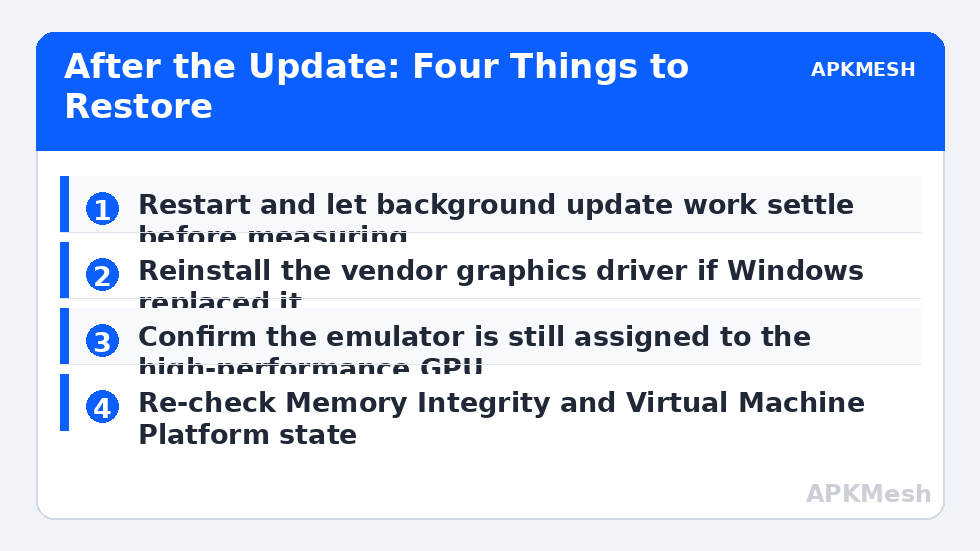
Open Device Manager, expand Display adapters, open your GPU properties and read the driver date and provider. If the provider is Microsoft rather than your GPU vendor, or the date changed to match the update, download the current driver directly from Intel, AMD or NVIDIA and install it, choosing the clean or factory-reset option if the installer offers one. Restart afterwards. This single step restores the majority of genuine post-update frame losses, because emulator rendering depends heavily on complete vendor OpenGL, DirectX and Vulkan support that generic drivers only approximate.
Next, open Windows power settings and confirm your plan. Updates frequently return laptops to Balanced and can disable the higher-performance behaviour you had selected. Choose the performance-oriented plan while plugged in, and on a laptop also check the battery slider or vendor control centre, since those can override the classic power plan. While you are in graphics territory, open Windows Graphics settings and confirm your emulator is still assigned to the high-performance GPU on dual-graphics laptops — updates are known to reset per-app assignments, sending the emulator to the integrated GPU. That one reset can halve frame rates while looking exactly like an emulator fault.
Step 3: Re-Check the Features the Update May Have Re-Enabled
If virtualization-related toggles changed, the emulator’s path to the CPU changes with them. You do not need to strip features out blindly; you need to know their current state and whether it matches the state your emulator was tuned for. Check Memory Integrity under Windows Security, Device security, Core isolation, and note whether it is on. Check the optional features list for Hyper-V and Virtual Machine Platform if you had previously turned them off to resolve an engine conflict like the one in fixing hypervisor and failed-to-start-engine errors.
Change one thing at a time, restart, and retest with the same scene you measured in Step 1. If performance returns after toggling one feature, you have found your post-update ritual: after each major Windows update, check that one toggle. If nothing in this section changed on your machine, leave it all alone. Guessing here creates the mixed hypervisor states that cause engine errors, which are worse than a modest frame drop.
Before blaming the update for a machine that was already marginal, sanity-check your emulator allocation against your real hardware:
Lag risk: —
Step 4: Rebuild Caches by Playing, and Know When to Roll Back
Shader caches and driver optimisations rebuild through use. Expect the first session in each game after a driver change to contain compilation stutters that were not there before, easing noticeably by the second or third session. This is normal and self-limiting. What is not normal is a uniformly lower frame rate in menus and light scenes, which points back to the driver, GPU assignment or power checks rather than caches.
Rollback belongs at the very end of the process. Windows offers a short window to return to the previous build after a feature update, through Settings, System, Recovery. Use it only if the regression is severe, began immediately after the update, and survived every targeted fix above. Document what you tried first; if you ever report the problem or seek help, that record is what separates a diagnosable fault from a vague complaint. And if your frame problems predate the update in one specific title only, treat it as a per-game issue instead — see fixing low FPS in only one game for that pattern.
Once performance is restored, make the routine permanent: after each major Windows update, spend two minutes on the driver, power and GPU-assignment checks before your first long session. You will catch the next regression while it is still a small correction instead of a ruined evening. The APKMesh homepage calculator is a useful final check whenever an update also prompts you to revisit how many cores and how much memory your instances should claim.
Frequently Asked Questions
How long after a Windows update should I wait before changing emulator settings?
Give the update one full restart and about fifteen minutes of idle time first, so indexing, optimisation and driver installation can finish. Many apparent performance regressions in the first hour are unfinished background work. If emulator frame rates are still clearly below your remembered baseline after that settling period, start with the graphics driver and power checks in this guide.
Should I roll back every Windows update that hurts emulator performance?
No. Rollback is a last resort because updates also carry security fixes. First confirm the cause with the driver, power plan and feature checks, since those explain most post-update drops and are reversible individually. Only consider pausing or rolling back a specific update if the problem began immediately after it and none of the targeted fixes restore normal performance.
Why did my graphics driver change without me installing anything?
Windows Update can deliver graphics driver packages automatically, especially on laptops and prebuilt systems. The new driver may be generic, older than the vendor build you had, or missing the vendor control panel settings you relied on. Installing the current driver directly from Intel, AMD or NVIDIA replaces it with the complete package and restores those settings.
Can I stop Windows from ever changing my settings again?
You can pause updates temporarily and you can note your working settings, but permanently blocking updates is a poor trade for a gaming PC that also browses and signs into accounts. A better habit is a two-minute post-update check: power plan, graphics driver version, virtualization-related features, and one short emulator test session before a long play session.
My FPS dropped in Windows games too, not just the emulator. Does that change the fix?
Yes. A drop across native games and emulators alike points at a system-level change such as the graphics driver, power plan or thermal behaviour rather than anything inside the emulator. Fix the system layer first using the same order in this guide, then retest the emulator without touching its internal settings, which were probably never the problem.