A 4GB RAM laptop leaves LDPlayer 9 almost no headroom: Windows 10 or 11 idles at 1.8–2.4GB on its own, so the emulator has to live inside roughly 1.5GB of free memory without pushing the system into swap. The right ldplayer 9 settings 4gb ram laptop configuration is therefore not about squeezing out maximum FPS — it is about stopping Windows from paging to disk mid-game, because disk paging, not the GPU, is what causes the one-second freezes most low-RAM users report. Every setting below is chosen with that constraint first.
The Exact Settings Table for 4GB RAM
Open LDPlayer’s settings from the gear icon on the right toolbar, then work through the tabs in this order. Restart the emulator after changing CPU, RAM, or resolution values; renderer and FPS changes apply on the next launch too.
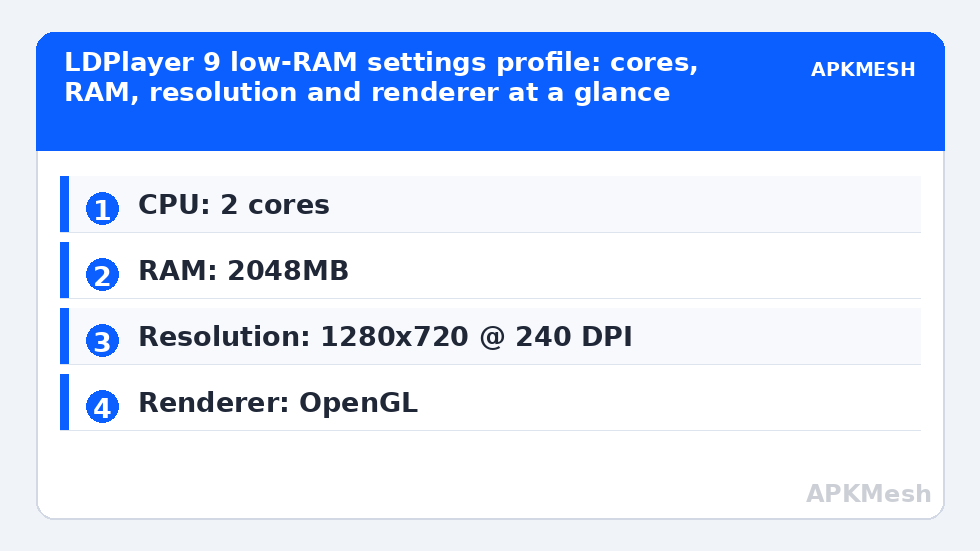
| Setting | Recommended value | Why |
|---|---|---|
| Resolution | 1280×720, 240 DPI | 720p cuts GPU fill-rate work roughly in half versus 1080p |
| CPU cores | 2 cores | Leaves 2 threads for Windows on a typical quad-thread laptop CPU |
| RAM allocation | 2048MB (2GB) | The most LDPlayer can take without starving the OS |
| Graphics renderer | OpenGL (try DirectX if textures glitch) | OpenGL is usually lighter on integrated Intel graphics |
| Graphics card | Your integrated GPU (default) | Do not force discrete GPU on dual-GPU laptops; thermals throttle faster |
| FPS | 60 FPS cap, “enable high frame rate” off | Prevents the emulator rendering frames the iGPU cannot finish |
| ASTC textures | Off / software decoding | Hardware ASTC paths can stutter on older Intel iGPUs |
| Disk cache | Enable, keep default size | Reduces repeated asset reads from a slow HDD |
| Root mode | Off unless a specific app needs it | Root adds overhead and triggers some games’ integrity checks |
LDPlayer 9 Settings 4GB RAM Laptop: CPU and RAM First
LDPlayer’s Performance tab asks for cores and memory, and the instinct to max both out is exactly wrong on this hardware class. Assigning 4 cores on a 4-thread laptop CPU makes Windows compete with the emulator for the same threads, and the result is worse than 2 cores: frame times spike whenever a background service wakes up. Two cores with 2GB RAM is the balanced ceiling. If your laptop genuinely has 8 threads (many Ryzen 3 and Core i3 mobile chips do), you can try 3 cores, but never assign every thread the machine owns.
Close everything else before launching. A browser with ten tabs can hold 1.5GB hostage. On a 4GB machine, the pre-flight routine — close the browser, pause cloud sync, disable the game overlay — is worth more than any in-emulator toggle.
Lag risk: —
Resolution, DPI and Why 720p Is Not a Compromise
At 1280×720 with 240 DPI, menus stay readable and touch targets remain big enough for mouse play, while the integrated GPU renders about 44% fewer pixels than at 1600×900. On Intel UHD 620-class graphics this is routinely the difference between a shaky 35 FPS and a stable 55–60 FPS in mid-weight titles. Puzzle, strategy and turn-based games can drop to 960×540 for even more headroom, but shooters need the extra clarity of 720p for distant targets.
Set the display to landscape tablet mode rather than phone mode; several games choose their UI layout from the aspect reported at launch, and tablet mode at 16:9 avoids stretched HUD elements on a laptop screen.
Renderer Choice on Integrated Graphics
LDPlayer offers OpenGL and DirectX rendering. On Intel integrated graphics, OpenGL is the safer default for most 2D and mid-3D games. Switch to DirectX only when you see concrete symptoms: flickering textures, black model faces, or a game that refuses to start. Vulkan is exposed on some builds through the game’s own settings rather than LDPlayer’s; leave it alone on 4GB hardware. After any renderer switch, fully exit LDPlayer (check the system tray) before relaunching, because the Android instance caches the graphics pipeline.
Windows-Side Tweaks That Support These Settings
- Virtual memory: set a fixed pagefile of 4096–6144MB on the system drive. On 4GB RAM machines the pagefile is a safety net, and a fixed size avoids resize stutters.
- Power plan: use High Performance or the vendor’s equivalent while plugged in; Balanced throttles the iGPU earlier.
- Storage: if the laptop still has a mechanical HDD, expect longer load times regardless of settings — keep at least 15% of the drive free.
- Drivers: update the Intel graphics driver from Intel’s site rather than Windows Update; emulator fixes ship in those packages regularly.
For the general principles behind core and memory assignment, see our guide on how to allocate CPU cores and RAM correctly in Android emulators. If your laptop uses Intel UHD graphics specifically, the dedicated emulator settings for Intel UHD graphics article goes deeper on driver-level options. You can also compare how a different emulator behaves on the same hardware in our LDPlayer vs MuMu Player comparison. All of these live under Emulator Settings.
When It Still Stutters: A Short Diagnostic Order
- Open Task Manager while the game runs. If total RAM usage sits above 92%, Windows is paging — lower the emulator RAM to 1536MB and retest.
- If GPU usage is pinned at 100% but RAM is fine, drop resolution one step and disable in-game shadows and anti-aliasing.
- If CPU usage spikes on one core only, the game itself is single-threaded; reduce FPS cap to 45 or 30 for stability rather than chasing 60.
- If freezes last whole seconds with disk activity at 100%, the pagefile or game data is on a failing or saturated HDD — free space and defragment (HDD only, never an SSD).
Accept the machine’s ceiling gracefully: on 4GB RAM, a locked 45–60 FPS in light and mid-weight games is a good outcome. Demanding 3D titles with large open worlds will remain a compromise no settings file can fix.
Per-Genre Adjustments on 4GB Hardware
The baseline table gets every game running; genre decides the final dial. Shooters (the most demanding common case) should keep 720p and accept the “Smooth/Balanced” in-game preset — render distance matters more than texture quality when you are spotting targets, so if a title separates those settings, protect draw distance and cut textures first. MOBAs are lighter on the GPU but sensitive to frame-time spikes during team fights; they tolerate 900p on UHD 630-class graphics if the laptop is plugged in and cool, and they benefit from the FPS cap staying at 60 rather than floating — a locked 60 beats a wandering 50–75 for input consistency. Gacha and turn-based RPGs barely tax the system; here you can raise texture quality and even resolution, because their scenes are mostly static art. Rhythm games are the exception where input latency outranks visuals: cap at 60, disable any frame-generation or smoothing options, and prefer wired audio, since Bluetooth latency stacks with display latency in a genre scored in milliseconds.
One more lever specific to LDPlayer on weak machines: its built-in “disk cleanup” and the option to trim the instance’s virtual disk after uninstalling games. On a 4GB laptop the disk is often as old as the RAM, and a fragmented, nearly full virtual disk produces the asset-streaming hitches users mislabel as lag. Run cleanup seasonally, keep 15% of the host drive free, and the emulator’s loading behavior stabilizes noticeably.
Frequently Asked Questions
What is the best RAM allocation for LDPlayer 9 on a 4GB laptop?
Set 2048MB. Going higher starves Windows and triggers disk paging, which feels worse than the extra emulator memory helps. If the laptop runs Windows 11 with several background apps, 1536MB can actually feel smoother because the OS stops swapping.
Should I use 2 or 4 CPU cores in LDPlayer on a low-end laptop?
Use 2 cores on a 4-thread CPU. Assigning every thread to the emulator forces Windows to fight for the same cores, producing frame-time spikes. Only raise it to 3–4 cores if your CPU has 8 threads or more.
OpenGL or DirectX for LDPlayer on Intel integrated graphics?
Start with OpenGL; it is typically lighter on Intel iGPUs. Switch to DirectX only to fix specific visual bugs like flickering textures or black models, and restart the emulator fully after changing.
Can a 4GB RAM laptop run LDPlayer 9 at 60 FPS?
Yes, in light and mid-weight games at 720p with the settings on this page — expect a typical range of 45–60 FPS. Heavy 3D games will run lower, and no configuration changes that hardware reality.
Why does LDPlayer freeze for a second every few minutes on my laptop?
That pattern almost always means Windows is paging to disk because RAM is exhausted. Lower the emulator’s RAM allocation, close browser tabs and sync apps before playing, and set a fixed-size pagefile of at least 4096MB.