Online games played through an emulator inherit two network stacks: Android’s inside the guest, and Windows’ underneath, and ping behaviour is decided mostly by the boring physical layer everyone skips — whether the PC is on Wi-Fi at all. Network adapter tweaks to lower ping for emulator play therefore start with an unglamorous truth (a cable beats every setting ever written) and proceed through the small set of adapter and Windows options with real mechanisms: power management putting the NIC to sleep, Wi-Fi band and roaming behaviour, interrupt moderation, and the duplex/speed mismatches that quietly cap a wired link. This guide ranks them by effect and names the famous tweaks (registry TCP hacks, “gaming” DNS promises) whose contribution is misunderstood.
Step Zero: Measure, and Know Your Floor
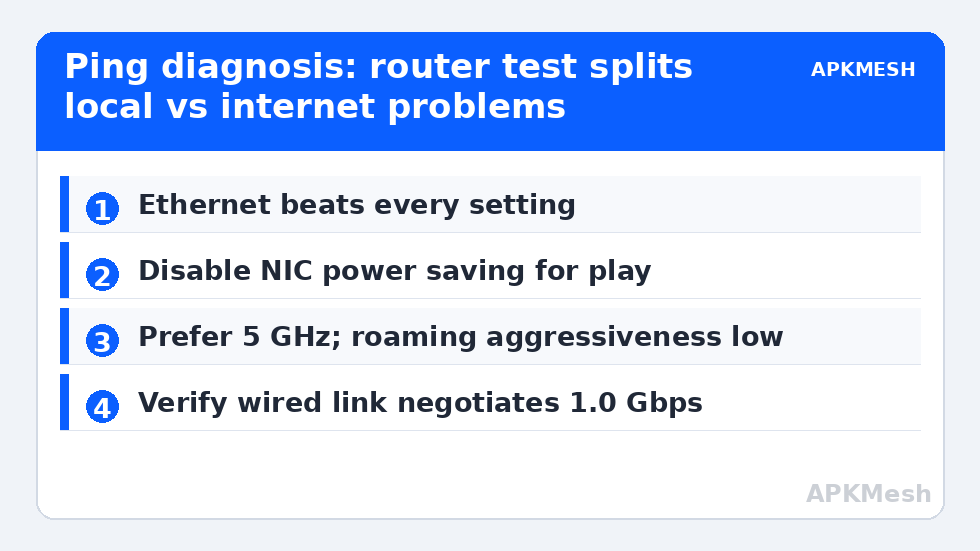
Run a baseline before changing anything: ping your router (ping 192.168.1.1 -n 50 — use your gateway’s address) and a public target, from an idle machine and again while the emulator plays online. Router ping isolates the local link: on Ethernet it should be under 1ms with near-zero variance; on good Wi-Fi, 1–4ms with occasional spikes; on bad Wi-Fi, spikes into tens or hundreds of ms that no adapter setting will fix because the air is the problem. Game-server ping adds the internet path, which your adapter cannot influence beyond the first hop. Knowing which segment owns your spikes tells you whether this guide can help at all.
The Cable Verdict
If the PC can reach the router with an Ethernet cable, use it and skip most of this page: wired links remove jitter almost entirely, and emulator traffic (NAT’d through the host) is indistinguishable from native. Powerline adapters are the acceptable middle option in houses where a cable run is impossible; modern Wi-Fi 6 with line-of-sight to the router is workable; a 2.4GHz connection through two walls is a lost cause that settings will polish, not save. Every tweak below assumes you have done what physics allows.
Lag risk: —
Adapter Settings With Real Mechanisms
- Stop the NIC from sleeping: Device Manager → your adapter → Power Management → untick “Allow the computer to turn off this device to save power.” Also in the active power plan’s advanced settings (the plan family is covered in our Ultimate Performance power plan guide), set Wireless Adapter Settings → Power Saving Mode to Maximum Performance while plugged in. Sleepy adapters produce periodic latency spikes that look exactly like server lag.
- Wi-Fi band discipline: prefer 5GHz (or 6GHz) for the play machine — less interference, more bandwidth; keep 2.4GHz for range/IoT. If the router band-steers into a single SSID and keeps parking you on 2.4GHz, split the SSIDs in the router so the choice is yours. In the adapter’s Advanced tab, set Preferred Band to 5GHz where the option exists.
- Roaming aggressiveness (Intel adapters): set to Lowest on a stationary desktop/laptop so the card stops scanning for and hopping between access points mid-session. Scanning alone causes periodic ping spikes on single-AP home networks because the radio leaves the channel to look around; a related setting, setting the adapter’s Throughput Booster/packet bursting, is vendor-specific — test, don’t assume.
- Wired links: verify negotiated speed: Settings → Network → Ethernet should show 1.0 Gbps on gigabit gear. A link negotiated at 100 Mbps usually means a damaged cable or a 4-wire run; replace the cable before touching drivers. Leave Speed & Duplex on Auto Negotiation — hard-forcing a speed mismatches the switch and creates errors; auto is correct on modern hardware.
- Interrupt Moderation: coalesces interrupts to save CPU; the default (enabled/adaptive) is right for almost everyone. Disabling it can shave microseconds at real CPU cost — irrelevant at emulator scale. Mentioned only to close the topic: leave it.
Emulator-Side Networking Notes
The host adapter is half the story. Inside the emulator, NAT mode (default everywhere) adds negligible latency and is the right choice for online play; bridged mode gives the guest its own LAN IP, useful for LAN discovery and local servers, not a ping reducer on the internet path. If a specific game misbehaves behind NAT (strict NAT type in matchmaking), bridged mode or the host router’s UPnP settings are the relevant fixes — separate problems from raw latency. One more honest note: a VPN running on the host re-routes the emulator’s traffic through the VPN path; if your ping doubled after installing one, that arithmetic is the explanation, and split-tunnelling the emulator out is the fix.
The Famous Tweaks, Graded
- Changing DNS (8.8.8.8 / 1.1.1.1): changes how fast names resolve, not in-game ping (connections are already resolved). It can fix slow first-connection and some ISP resolver failures. Do it for reliability, not latency.
- Registry TCP parameters (TcpAckFrequency, TCPNoDelay via Interfaces keys): legacy advice from the WoW era targeting Nagle interaction with specific game clients. On modern Windows and emulator NAT traffic, effect is nil-to-placebo and the keys are per-interface GUID spelunking with typo risk. Skip.
- Disabling Nagle via emulator settings: emulators do not expose it; games’ traffic patterns here are UDP-dominated anyway, and Nagle concerns TCP.
- “Gaming” router QoS/SQM: genuinely valuable when the household saturates the uplink (someone’s cloud backup during your match). SQM (fq_codel/CAKE) on a capable router fixes bufferbloat, which is the one large, real home-network latency win after cabling up.
These networking notes sit alongside the rest of the system work in our PC Optimization hub; for stutters that turn out to be frame pacing rather than network, the measurement protocol is how you tell the difference before spending an evening in adapter properties.
Log your baseline numbers (idle and in-game router ping, game ping) into the same notes file as your performance baselines. Network conditions drift — neighbours add routers, ISPs change routing, firmware updates alter behaviour — and last month’s measurements are the only way to tell whether a new problem is yours, your street’s, or your provider’s.
When the spikes trace to the provider’s path rather than your premises, the evidence you collected (timestamps, router-vs-internet split) is exactly what an ISP support ticket needs to be taken seriously.
Frequently Asked Questions
What ping should I expect playing through an emulator vs a phone?
On the same network, effectively the same — the emulator adds well under a millisecond of NAT overhead on any healthy host. If the emulator shows meaningfully higher ping than a phone beside it on the same Wi-Fi, the host’s adapter state (band, power saving, roaming scans) is the difference, which is exactly what this guide adjusts.
My ping is fine but I get periodic spikes every minute or so. What causes that?
The usual suspects, in order: Wi-Fi roaming/background channel scans (set roaming aggressiveness low), adapter power saving waking/sleeping, a cloud-sync or update task bursting the uplink, and router bufferbloat under household load. The router-ping test during a spike localises which: spikes present to the router = local link; spikes only beyond the router = uplink/internet path.
Does a “gaming” Ethernet cable or gaming router port help?
Cable category matters only for reaching gigabit negotiation (any intact Cat5e+ does); “gaming” branding on cables adds nothing electrical. Router “gaming ports” with QoS prioritisation can help on a congested network, but proper SQM/QoS configuration matters more than which numbered socket you use.
Should I disable IPv6 for lower ping?
No. Modern games and Windows handle IPv6 fine, and disabling it can break services that prefer it while delivering no latency change on IPv4 paths. This is legacy advice that survives by repetition. If a specific ISP’s IPv6 implementation is broken, that’s a targeted diagnosis, not a default tweak.
Will a Wi-Fi extender improve emulator ping?
Usually it worsens latency (each wireless hop adds delay and halves throughput) while improving signal bars. A wired access point or a mesh node with dedicated backhaul is the better spend. If an extender is what you have, place it within strong signal of the router, not at the dead-zone edge.