
Multi-instance play fails in a predictable way: the first instance runs beautifully, the second is fine, the third turns the whole PC into a slideshow, and the fourth crashes the emulator — or Windows. Fixing an emulator multi instance lag fix pc problem is not about a magic setting; it is about budgeting. Your PC has a fixed pool of CPU threads, RAM, GPU throughput and disk bandwidth, and every instance draws from all four pools simultaneously. This guide shows the budget maths, the per-instance settings that respect it, and the crash diagnostics for when you have already overspent.
Emulator Multi Instance Lag Fix PC: Budget Before You Clone
Work out your instance ceiling with arithmetic, not enthusiasm:
| Resource | Reserve for Windows | Per light instance | Per gaming instance |
|---|---|---|---|
| CPU threads | Half your threads | 1–2 threads | 4 threads |
| RAM | 4GB (Win11) / 3GB (Win10) | 1.5–2GB | 3–4GB |
| GPU | — | 10–20% of a mid iGPU | 40–70% |
| Disk | 15% free space | Shared reads OK on SSD; painful on HDD | — |
Worked example, 16GB RAM / 12-thread CPU / SSD: reserve 4GB and 6 threads for the host, leaving 12GB and 6 threads. That funds either three light instances (2 threads / 2GB each with room to spare) or one gaming instance plus two light ones — not four gaming instances. If your maths says two, run two. Every crash story in this genre starts with a budget that never balanced. The fuller allocation theory is in how to allocate CPU cores and RAM correctly.
Lag risk: —
Step 2: Build Instances Deliberately, Not by Cloning Chaos
- One master, many clones: set up a single clean instance (signed in, games installed, settings tuned low), then clone it. Cloning a bloated master multiplies its problems.
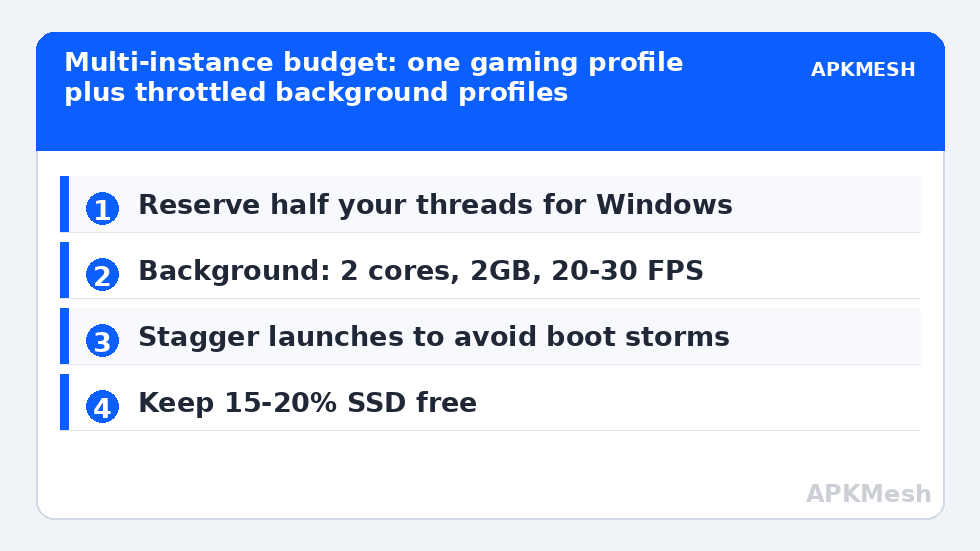
- Stagger the spec: your active instance gets the gaming profile; background instances get the light profile (1–2 cores, 1.5–2GB, 720p or lower, FPS capped at 20–30). BlueStacks’ Eco Mode and LDPlayer’s per-instance frame settings exist precisely for this.
- Lower background resolution aggressively: 960×540 on background instances halves their GPU draw; you are watching thumbnails, not playing them.
- Separate the games’ demands: do not run two heavy 3D titles concurrently on an integrated GPU; pair one heavy instance with idle-game instances instead.
Step 3: The Three Crash Signatures and Their Fixes
Signature 1 — everything freezes, disk at 100%: RAM oversubscribed; Windows is paging all instances at once. Cut per-instance RAM, close host apps, or drop an instance. A fixed pagefile of 8–16GB on SSD softens but does not cure this.
Signature 2 — one instance dies, others survive: usually that instance’s own allocation spike (a game update, a heavy scene) or a corrupted virtual disk. Recreate that instance from the master clone rather than nursing it.
Signature 3 — whole emulator exits with a virtualization error: hypervisor contention — another VM tool (WSL2 distributions actively running, VirtualBox, Docker) grabbed VT resources, or Memory Integrity changed state after a Windows update. Run one virtualization stack at a time on marginal hardware.
Step 4: Disk and Thermal Discipline
Each instance is a multi-GB virtual disk that grows. On a nearly-full SSD, write amplification and garbage collection slow everything; keep 15–20% free and periodically compact or recreate elderly instances — data inside guest Android fragments across the virtual disk in ways defrag tools cannot fix (never defragment an SSD host-side for this; recreating the instance is the cure). Thermally, three instances at full tilt will throttle a thin laptop exactly like one heavy game played three times as long; elevated stands and FPS caps on background instances keep clocks up. If your instances host important accounts, protect the setup with the routine in backing up and restoring emulator data.
A Sane Reference Configuration (16GB / 12-thread / iGPU)
- Instance A (active play): 4 cores, 4GB RAM, 1600×900, 60 FPS cap, Performance mode.
- Instance B (idle game): 2 cores, 2GB RAM, 960×540, 30 FPS cap, Eco/low profile.
- Instance C (idle game): 2 cores, 2GB RAM, 960×540, 20 FPS cap, Eco/low profile.
- Total: 8 threads of 12, 8GB of 16GB — headroom intact, host responsive.
Scale the pattern, not the numbers, to your machine, and browse Emulator Settings for your emulator’s specific Eco and frame controls.
Scheduling and Human Factors
Most multi-instance setups fail socially before they fail technically: everything is launched at once, at full spec, at 7pm, and the human concludes the PC “can’t do multi-instance”. Two habits fix more setups than hardware does. First, stagger launches — let instance A finish booting and settle (its first two minutes are its greediest) before starting B. Boot storms stack every instance’s peak demand into the same sixty seconds. Second, play in shifts: background instances earn their keep during your active instance’s queues, menus, and matchmaking, so resist alt-tabbing into heavy scenes on two instances in the same minute; the GPU spike is what produces the shared freeze both windows blame on each other.
When to Split Across Emulators Instead
A legitimate advanced pattern is running the background instance in a different, lighter emulator than your main. This isolates crashes (one emulator’s bad update cannot take both instances), lets the background live in a genuinely leaner runtime, and sidesteps per-emulator instance-count quirks. The costs are real — two keymapping systems to learn, two backup routines, and no shared clone tooling — so adopt it only when a single-emulator stack demonstrably cannot hold your pattern. If you go this route, the resource comparison in our NoxPlayer vs BlueStacks analysis and the LDPlayer vs MuMu comparison will help you assign which emulator plays which role.
Network and Account Considerations at Scale
Instances share more than hardware: they share your IP address and, if you are careless, account fingerprints. Games with strict multi-account policies may treat several simultaneous instances from one machine and connection as one actor regardless of your intent; read the rules of the specific titles you run before assuming parallel accounts are welcome — bans are the one multi-instance cost no settings guide can refund. On the network side, several instances patching or downloading simultaneously will saturate a modest connection and each other’s latency; stagger game updates to off-peak moments, and if an instance is purely local (an offline title), consider whether it needs network access at all. Operational discipline — budgets, staggering, rules — is the real content of “running instances without crashing”; the crashes were never really about the button you clicked to clone.
Frequently Asked Questions
How many emulator instances can a 16GB RAM PC run?
Realistically three to four light instances, or one full gaming instance plus two light ones, on a 12-thread CPU with an SSD. The limit is the combined budget of threads, RAM and GPU — not instance count in the emulator’s UI, which will happily let you oversubscribe into a crash.
Why do all my instances freeze at the same time?
Simultaneous freezing with the disk at 100% means host RAM is exhausted and Windows is paging every instance. Reduce each instance’s RAM allocation, close host applications, or run one fewer instance. Adding emulator RAM makes this worse, not better.
What FPS should background instances use?
20–30 FPS. Background instances are usually idle or farming games whose screens you glance at; every frame above 30 is GPU and CPU taken from the instance you are actually playing. Use your emulator’s Eco Mode or per-instance frame setting.
Does each instance need its own Google account?
No — instances can share an account, and clones inherit the master’s sign-in. But running the same game account in two instances simultaneously can trigger the game’s own session protections; keep one active session per game account.
SSD or more RAM — which upgrade helps multi-instance most?
If you are paging or on a mechanical drive, the SSD first: it removes the freeze signature entirely. If you are already on an SSD and total allocations exceed physical RAM, more RAM is the cure. Diagnose with Task Manager before spending.