To configure mouse wheel zoom in an emulator for strategy games, you are translating between two input philosophies: the game’s pinch gesture, where zoom is continuous and centred on your fingers, and the wheel’s discrete notches. Done well, each notch becomes a predictable zoom step centred near your cursor, and map play starts to feel like a desktop RTS. Done badly — steps too large, zoom centred on a screen corner’s pinch point, direction inverted — the wheel becomes a nausea machine and players revert to dragging the game’s zoom slider like it is 2009. Both BlueStacks and LDPlayer address this with a zoom (pinch) control in their editors, and this guide covers placing it, sizing its steps, choosing its centre behaviour, and the keyboard fallbacks for games whose pinch implementation fights the translation.
Know your game first: some strategy titles include a native zoom slider or buttons (emulator-friendly), some support mouse wheel if the emulator exposes the Android pinch correctly, and a stubborn few accept only literal two-finger pinch on the map area. Test which species you own by opening the map and trying the wheel before mapping anything; the result tells you whether you need the zoom control at all or merely need to stop a scheme from eating the wheel events.
The Pinch/Zoom Control: Placement and Step Size
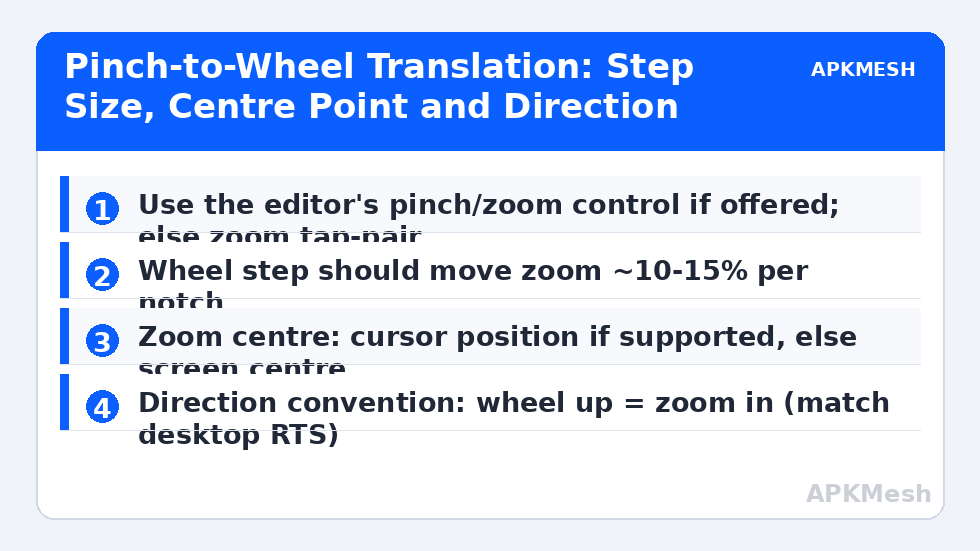
In the Controls Editor, the zoom control (labelled Pinch Zoom or Zoom in current builds) is placed as a region on the map area: it defines the two virtual fingers’ territory. Size the region generously — the central 60% of the map — because pinch gestures outside a small region read as drags; the two points spread and contract within your region as the wheel turns. Step size is the setting that decides feel: each wheel notch should change zoom by roughly 10-15% of the game’s zoom range. At 5% you scroll forever to cross the map’s zoom span; at 30% you lurch. If the editor expresses step as a distance or percentage, start at the middle of its range and run the calibration drill below; if it offers no step control, the game’s own pinch sensitivity (where present in its settings) becomes your step knob — set the game side, not the wheel side, because the wheel hardware is shared with Windows.
Direction: wheel up (away from you) zooms in, matching desktop RTS and map applications. If the translation inverts this on your build, fix it in the zoom control’s direction option, not by retraining your hand — but verify against the game’s native slider behaviour, because a few mobile titles define pinch counter-intuitively and their slider agrees with them, not with you.
Lag risk: —
Zoom Centre: The Setting That Decides Whether It Feels Native
Desktop map players zoom toward the cursor: the point under the mouse stays under the mouse. Emulator pinch controls typically zoom toward the region’s centre (screen centre in practice), which means wheel zooming also pans your view — the feature you were examining slides away as you zoom into it. Where your editor offers a ‘zoom at cursor’ behaviour, enable it; where it does not, adapt your technique: centre the target on screen before zooming, in small steps, re-centring between notches. It is a two-second habit that removes the main friction of the translation. Players of map-heavy titles (grand strategy, city builders, tower defence with large maps) should also bind a ‘centre on capital/HQ’ camera bookmark if the game offers one, giving a fast reset when zoom-pan drift accumulates.
Zoom limits deserve one check: mobile games clamp zoom at both ends, and an aggressive step size near the clamps wastes notches against the wall. If your drill shows dead notches at full zoom-out, reduce step size slightly — finer steps near the limits also make tactical framing (just outside a city’s range rings, for instance) more precise.
| Symptom | Likely cause | Adjustment |
|---|---|---|
| Zoom lurches in huge jumps | Step size too large | Reduce step toward 10% of range per notch |
| Endless scrolling to zoom out fully | Step size too small | Raise step; check for dead zones in wheel (notched vs free-spin) |
| View slides away while zooming | Centre-zoom translation | Enable zoom-at-cursor if offered; else centre target first |
| Wheel does nothing on the map | No zoom control placed / scheme eats wheel | Place pinch control over map region; check for wheel-bound tap spots |
| Zoom inverted vs other apps | Direction option flipped | Set wheel up = zoom in in the control |
| Zoom works in menus, not in battle map | Different game screens | Some titles restrict pinch per mode; use fallback keys there |
Fallbacks: Keyboard Zoom and the Mouse-Drag Partnership
Keep a keyboard fallback bound even with a perfect wheel setup: two tap spots on the game’s zoom +/- buttons (or a pinch control’s key-driven variant where offered) on the + and – keys or PgUp/PgDn. Fallbacks matter when a game’s battle screen ignores pinch but shows zoom buttons, when you are on a laptop trackpad with a miserable wheel emulation, and when you need a precise single step while your mouse hand is busy dragging a selection. Pair zoom with drag deliberately: pan by mouse drag (the map as a grabbed sheet), zoom by wheel, centre by bookmark key — the holy trinity of desktop map control, reconstructed from emulator parts. Our gesture guide covers the drag side’s tuning, including why analogue drags stay on the mouse while discrete zoom happily lives on the wheel.
Calibration Drill: Two Minutes on the World Map
Open the game’s world or largest map. From full zoom-out, count notches to full zoom-in: you want the span covered in about 7-10 notches; adjust step size until the count lands there. Then pick a named location at the screen’s edge, centre it, and zoom in three notches — it should stay within the central third of the screen; if it exits the frame, your centre behaviour needs the re-centring technique or the zoom-at-cursor option. Finally, zoom fully in and out five times quickly and confirm no direction confusion and no missed steps at speed (missed notches at speed suggest the emulator is dropping wheel events under load — a performance issue to chase with the input-lag checklist rather than a zoom setting). Save the scheme, note step size in your profile note, and play a full session before judging further; hands learn zoom step sizes like they learn sensitivity, by repetition.
Related Keymapping Guides
More from this category is collected in the Keymapping Guides archive. These companion guides go deeper on the topics touched above:
- swipe and double-tap gestures on keys and mouse
- quick-buy shop macros for strategy titles
- MOBA minimap and camera handling
Frequently Asked Questions
My mouse wheel does nothing in the emulator’s strategy game. Why?
The scheme probably lacks a pinch/zoom control over the map region, or a control is consuming wheel events. Place the editor’s zoom (pinch) control across the central map area and test again; also confirm the game itself supports pinch zoom on that screen.
How big should one wheel step be?
Aim for the game’s full zoom range in about 7-10 notches — roughly 10-15% of the range per notch. Fewer notches feels lurching; more feels like wading. Calibrate by counting on the world map, then fine-tune to taste.
Why does the view drift when I zoom?
Most emulator pinch controls zoom toward the region centre, not your cursor. Enable zoom-at-cursor if your editor offers it; otherwise adopt the habit of centring your target on screen before zooming in steps.
Can I zoom with keyboard keys instead?
Yes — bind tap spots to the game’s zoom buttons on + and – or PgUp/PgDn, or use the zoom control’s key option where available. Keep the fallback even with a good wheel setup for trackpads and for game screens that ignore pinch.
Does a free-spinning (smooth) wheel work for emulator zoom?
It works, but notched wheels give more predictable steps because each detent maps to one zoom step. If your mouse has a free-spin toggle, use notched mode for strategy games and reserve free-spin for document scrolling.