

Hardware-Accelerated GPU Scheduling changes who manages the GPU’s work queue: instead of the Windows CPU scheduler batching draw calls and handing them over, the graphics card’s own scheduler takes over VRAM queue management. If you want to enable HAGS in Windows for emulators, the honest summary is this: on most systems the change is worth between zero and a few percent in frame-time consistency, it occasionally reduces input latency slightly, and on a handful of older GPU and driver combinations it makes stutter worse. This guide covers enabling it, checking whether your hardware supports it, and measuring whether it actually helped your emulator — because flipping the toggle and assuming a gain is how bad tweaking advice spreads.
What HAGS Actually Does, and Why Emulators Notice It (or Don’t)
Under the legacy WDDM scheduling model, the CPU prepares command buffers and the OS scheduler submits them to the GPU. That batching adds a small amount of latency and CPU overhead. Hardware-Accelerated GPU Scheduling (introduced with WDDM 2.7 in Windows 10 version 2004, and carried into Windows 11) moves scheduling onto a dedicated processor on the GPU itself and gives the card direct management of its video memory. The CPU does less bookkeeping per frame, and frames can be submitted with slightly lower latency.
Android emulators are an interesting case because they are not native games. BlueStacks, LDPlayer, MuMu and Nox render an Android scene through a translation layer into OpenGL, DirectX, or Vulkan calls, and the emulator’s render thread is often CPU-bound on low-end machines. If your bottleneck is the CPU — which on a 4-core laptop running at 90–100% it usually is — HAGS can only help at the margins, because it removes scheduling overhead, not rendering work. If your bottleneck is the GPU or VRAM management, particularly on cards with 2–4GB of VRAM, the effect is sometimes more visible as smoother frame pacing rather than higher average FPS.
Realistic expectations
| System type | Typical HAGS effect on emulators | Why |
|---|---|---|
| Modern desktop GPU (RTX 30/40, RX 6000/7000), fast CPU | 0–3% FPS, slightly better frame-time consistency | Scheduling was never the bottleneck |
| Low-end laptop, iGPU or GTX 1050/1650 class | 0–5% FPS, occasional input-latency improvement | CPU overhead reduction helps a little |
| Old GPU (GTX 900 series, RX 400/500), old drivers | Neutral to negative; rare stutter/crashes | Early driver implementations of the feature |
| Any system where the emulator is CPU-bound at 100% | Effectively zero | The queue is not the problem; the work is |
Check Support Before You Touch the Toggle
HAGS requires three things: Windows 10 version 2004 or newer (any Windows 11 works), a GPU whose hardware supports it — NVIDIA GTX 1000 series and newer, AMD RX 5600 series and newer (support on older GCN cards is spotty), Intel 10th-gen integrated graphics and newer — and a reasonably current graphics driver. Ancient drivers simply hide the option.
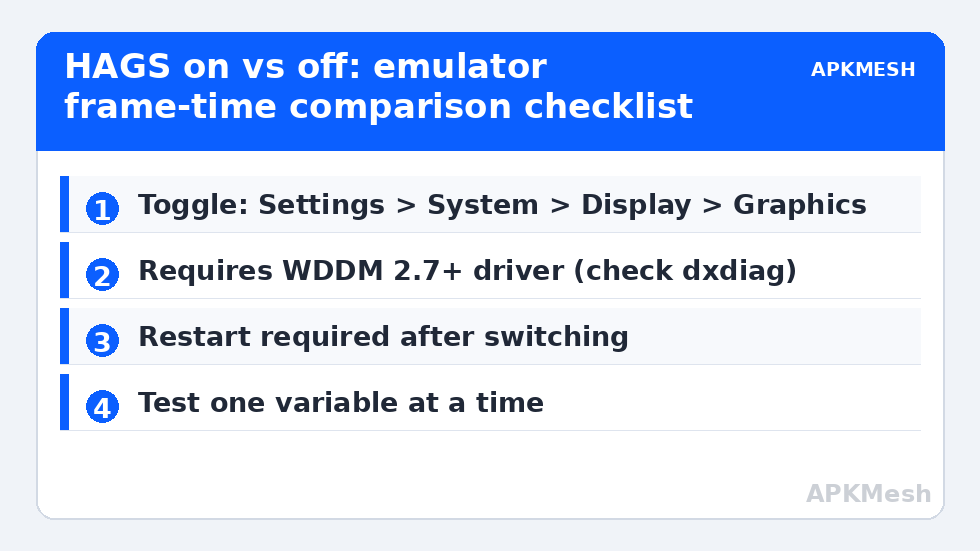
- Press Win + R, type dxdiag, and check the Display tab. Note the Driver Model: you need WDDM 2.7 or higher.
- Update your graphics driver from the official source only — NVIDIA’s site or GeForce app, AMD’s official driver page, or Intel’s Driver & Support Assistant. Never use third-party “driver updater” sites; they are a common malware vector and frequently install wrong builds.
- Confirm your Windows build under Settings → System → About.
How to Enable HAGS in Windows for Emulators, Step by Step
The path is identical in effect on Windows 10 and 11, with slightly different menu wording.
- Open Settings → System → Display.
- Scroll down and click Graphics (on Windows 10 it is “Graphics settings” near the bottom of the Display page).
- Click Change default graphics settings (Windows 11) or look for the toggle directly on the Graphics settings page (Windows 10).
- Turn on Hardware-accelerated GPU scheduling.
- Restart the PC. The toggle does nothing until reboot; this is the most common reason people report “HAGS did nothing” within five minutes of enabling it — they never restarted, or they benchmarked before the reboot.
On Windows 11 you will also see an “Optimizations for windowed games” toggle nearby. That is a separate feature (it moves windowed games to the flip presentation model). It can be tested independently; do not change both at once or you will never know which one caused a change.
Lag risk: —
Per-App GPU Preference: The Setting People Confuse with HAGS
On the same Graphics page you can add individual programs and set them to “High performance.” This tells Windows which GPU to use on dual-GPU laptops — the integrated Intel/AMD graphics or the discrete NVIDIA/AMD card. This is unrelated to HAGS but far more impactful when it is wrong: an emulator silently running on the iGPU of a gaming laptop loses most of its performance. Add your emulator’s executable (for BlueStacks, the main player executable in its install folder; for LDPlayer, the player exe) and set it to High performance. On a desktop with one GPU this setting does nothing.
Measure Before and After — Properly
Run this protocol or you are guessing: pick one game scene in your emulator that is repeatable (a training ground, a fixed map area, a benchmark mode if the game has one). Play or idle in it for three minutes with an FPS overlay (the emulator’s built-in FPS counter or MSI Afterburner) and write down average FPS and, more importantly, the 1% low or frame-time graph behaviour. Toggle HAGS, reboot, repeat in the same scene. If the average moved by less than the run-to-run variance (usually ±3%), the honest answer is that HAGS made no measurable difference on your machine — leave it on or off based on stability, and move on to tweaks with larger effects, such as the ones in our Ultimate Performance power plan guide or cleaning up background load with the background services guide.
When to turn it back off
- New micro-stutter that was not present before, especially in Vulkan mode.
- Driver crashes (event log shows display driver resets) that started after enabling.
- Screen-recording or streaming the emulator becomes unstable — capture pipelines interact with scheduling.
Reverting is the same path: toggle off, reboot. There is no registry edit needed at any point in this process; any guide telling you to edit the registry to enable HAGS is describing the pre-release mechanism and should be ignored. For the full set of Windows-level adjustments ranked by expected impact, see our PC Optimization category hub, and for a structured comparison method, the before-and-after benchmarking guide.
Frequently Asked Questions
Does HAGS work on integrated Intel graphics?
On Intel 10th-generation (Ice Lake) integrated graphics and newer with current drivers, yes, the toggle appears and functions. On older Intel HD/UHD generations (8th/9th gen), the option is typically absent because the driver does not expose WDDM 2.7 scheduling. The effect on iGPU systems is usually negligible either way.
Should HAGS be on or off for BlueStacks and LDPlayer?
There is no universal answer, which is why generic advice fails. Test it on your machine with a fixed scene and three-minute runs. On most modern systems leaving it on is harmless and occasionally helps frame pacing; on older GPUs, off is safer. Neither setting will rescue a CPU-bound emulator.
Why don’t I see the HAGS toggle at all?
Almost always one of three causes: the graphics driver is too old (update from the GPU maker’s official site), the GPU predates hardware scheduling support, or Windows is older than version 2004. dxdiag’s Driver Model line (needs WDDM 2.7+) tells you which.
Does HAGS reduce input lag in emulators?
Slightly, in some configurations — by removing a scheduling hop it can shave a fraction of a frame of latency. It is not comparable to switching from Bluetooth to a wired controller or raising the emulator’s FPS cap. Expect subtle, not dramatic, differences, and only where the GPU queue was actually a limiting factor.
Is it safe to leave HAGS enabled permanently?
Yes. It is a supported, first-party Windows feature with a Settings toggle, not a hack. If a specific game or capture tool misbehaves, turn it off — the change is fully reversible after a reboot and touches nothing else on the system.