Two different operations hide under the phrase “disk cleanup” in emulator forums, and confusing them leads to real harm: running a defragmenter against an SSD (pointless wear) or never defragmenting a mechanical drive whose emulator file has shattered into thousands of fragments (real stutter). Using disk cleanup and defrag utilities on virtual hard disks properly means treating the stack as three layers — inside the guest Android, the virtual disk file on the host, and the host filesystem itself — and applying the right tool to the right layer, which differs fundamentally between SSD and HDD hosts. This guide sorts the layers, gives the correct procedure for each, and names the popular advice that should be ignored.
Layer One: Inside the Guest (Android)
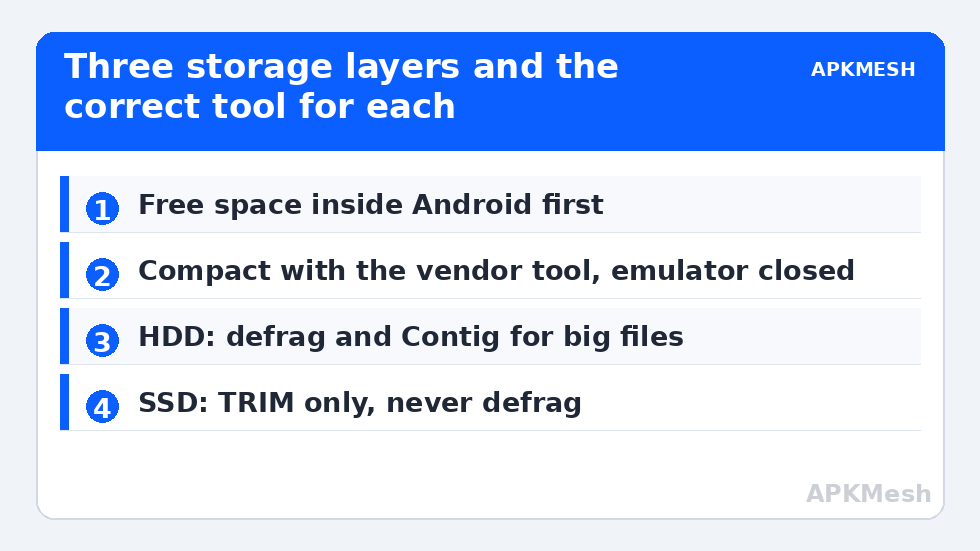
Android manages its own filesystem (ext4/f2fs) inside the virtual disk. There is no defragmentation concept to apply — flash-oriented filesystems do not benefit, and no legitimate Android tool offers it. What the guest layer needs is space hygiene: clear app caches, remove dead games, and free blocks so the host-side compaction (layer two) has something to reclaim. That routine is covered in depth by our temp and virtual disk cleanup guide; do it first, because layers two and three only rearrange what layer one has released.
Layer Two: The Virtual Disk File (Compaction)
The VDI/VMDK/VHDX file grows to its high-water mark and keeps host space hostage until compacted. Compaction is the emulators’ vendor tool (disk cleanup in LDPlayer/BlueStacks/MuMu multi-instance managers and settings) run with instances fully closed. The sequence that works: free space inside Android → close emulator → run vendor cleanup → verify the host file size dropped. If your emulator lacks a compaction feature, the fallback is cloning the instance to a fresh disk via the vendor’s backup/restore (the clone is written densely) — not third-party VDI surgery on your only copy.
Lag risk: —
Layer Three: The Host Filesystem — Where Defrag Actually Belongs
If the host drive is an HDD
Here defragmentation is legitimate and, for emulator files, sometimes dramatic. A virtual disk written incrementally over months — grown a few hundred MB at a time, interleaved with other files — can fragment into thousands of extents, turning the guest’s every read into a scavenger hunt across the platter. Windows’ Optimize Drives (dfrgui) handles normal fragmentation automatically on a weekly schedule; verify it is enabled for the drive. For a severely fragmented large file, the targeted tool is Microsoft’s Sysinternals Contig, which defragments individual files: contig -a analyses the instance’s disk file, and contig on the file consolidates it — with the emulator closed and enough contiguous free space available (free 15–20% first, or consolidation has nowhere to build). Expect loading and streaming improvements specifically, not miracles in steady-state FPS.
If the host drive is an SSD
Never defragment. Fragmentation costs an SSD nothing (no seek penalty), and defrag writes shorten its life for zero gain. Windows knows this: Optimize Drives sends TRIM (retrim) to SSDs instead of defragmenting, which is the correct maintenance. Verify TRIM is on with fsutil behavior query DisableDeleteNotify (0 = enabled). Leave the schedule alone; Microsoft’s tooling already distinguishes the media types, and third-party “SSD defrag/optimiser” utilities range from useless to harmful. The placement comparison itself — why the emulator belongs on the SSD in the first place — is the SSD vs HDD guide.
The Pagefile Sibling Problem
On HDD systems the same fragmentation mechanics afflict pagefile.sys, with the twist that an actively used pagefile cannot be defragmented in place by normal tools. The pattern — stutter correlated with paging on a fragmented mechanical drive — has its own dedicated treatment in our pagefile fragmentation guide, including the delete-and-recreate manoeuvre done safely. On SSDs, again: non-issue, do not touch.
A Sane Maintenance Cadence
- Monthly: guest-layer hygiene + vendor disk compaction for active instances.
- Quarterly (HDD hosts): check Optimize Drives status; analyse the largest instance file with Contig if loading has degraded.
- Never scheduled: manual SSD defrag, registry cleaners, “disk optimiser” suites.
Everything here composes with the broader routines in the PC Optimization hub; storage is one layer of the stack, maintained on its own calendar.
Free Space Is a Performance Feature, Not Just Tidiness
Both media types degrade when nearly full, by different mechanisms. An HDD’s outer tracks are roughly twice as fast as its inner tracks; a drive at 90% capacity forces new and growing files — exactly what a virtual disk is — onto the slow real estate, and leaves defragmentation no contiguous workspace to consolidate into. An SSD past ~85% full has fewer erased blocks ready, so write amplification rises and sustained writes (instance clones, game downloads, shader cache growth) slow down. This is why every procedure in this guide starts with freeing space: it is not housekeeping aesthetics, it is restoring the physical conditions the tools need to work. If your emulator drive lives permanently above 90%, no utility compensates — delete or relocate something structural (an unused instance is usually 10–30GB of exactly that) before reaching for optimisers.
A related trap: storing the emulator’s virtual disks inside a synced cloud folder (OneDrive/Desktop sync by default on some installs). The sync client and the emulator then contend for the file, sync uploads churn the disk during play, and partial-sync states can corrupt an open disk image. Keep instance data in a plain local folder outside any sync path; back it up deliberately with the vendor’s export instead.
One measurement before any of this: confirm the symptom is I/O-shaped. If loading screens crawl but in-scene FPS is untouched and Task Manager shows the disk pegged during those loads, you are in the right guide. If the whole session stutters uniformly with the disk idle, stop here and diagnose CPU, thermals, and memory instead — reorganising a disk that is not the bottleneck only costs an afternoon.
Finally, keep expectations layered: guest hygiene returns gigabytes, host consolidation returns seek time on HDDs, and neither returns CPU cycles. File each result in your notes with the before/after loading times so the maintenance earns its calendar slot with evidence.
Frequently Asked Questions
How fragmented is too fragmented for a virtual disk file?
There is no universal count, but as a working rule: a multi-GB instance file in more than a few hundred fragments on an HDD is worth consolidating; over a thousand, definitely. Contig’s -a analysis gives you the number. Judge by symptom too — degraded loading on an HDD whose file is highly fragmented is a strong joint signal.
Can I defrag the drive while the emulator is running?
No. The virtual disk file is open and changing; defragmenters will skip locked files or, worse, you will compact/consolidate against a moving target. Close the emulator completely (check the tray and Task Manager for lingering processes) before any layer-two or layer-three file work.
Windows Optimize Drives says my SSD needs optimisation. Should I worry?
“Needs optimisation” for an SSD means a retrim is due, which is normal housekeeping Windows performs on schedule. Let it run or click Optimize — it will TRIM, not defrag. The label is confusing; the action is correct and harmless.
Will compacting the virtual disk delete my game saves?
No — compaction removes unused blocks from the host file; the guest filesystem and its data are untouched. The safety rules are procedural: use the vendor tool, with the instance closed, after freeing space inside the guest, and keep a backup of any instance you cannot afford to lose before disk surgery of any kind.
My HDD is healthy but the emulator still loads slowly. What else?
Check the file’s fragmentation (done above), the drive’s free-space percentage (HDDs slow drastically past ~85% full as files are forced to the slow inner tracks), and SMART health via the drive maker’s tool. If all three are clean, the bottleneck is likely not storage — measure with the overlay method instead of buying an SSD on hope.