

Emulator settings screens talk endlessly about CPU cores and RAM, then go quiet about the resource your games actually exhaust first: graphics memory and the texture budget it feeds. On a discrete GPU that budget is a fixed pool of VRAM; on the integrated graphics most low-end laptops carry, it is a negotiated share of system RAM that expands and contracts under pressure. Understanding emulator gpu memory texture settings explains a whole family of mysteries — textures that turn blurry mid-match, pop-in that worsens the longer you play, crashes that arrive exactly when a new map area loads — and this guide turns that understanding into concrete settings.
Where Emulator Textures Actually Live
An Android game loads textures into the guest’s memory, the emulator’s graphics layer translates and uploads them to the host GPU, and the host driver manages the real allocation. On integrated graphics there is no separate VRAM chip: the driver carves its working set out of the same system RAM your emulator instance and Windows are using, with a BIOS or driver-set ceiling that varies by vendor. This is why texture problems and RAM problems are secretly the same problem on iGPU laptops, and why a machine can show GPU memory pressure while its RAM graph still looks survivable — the graphs are watching one pool from two windows.
Discrete-GPU laptops behave more simply: the card’s VRAM is finite and separate, and exceeding it produces the classic symptoms of texture thrashing as assets shuttle across the PCIe bus. Either way, the levers available to you are the same three: how many pixels you render, how large the textures you ask games to load are, and how much decoding work you push onto hardware versus software.
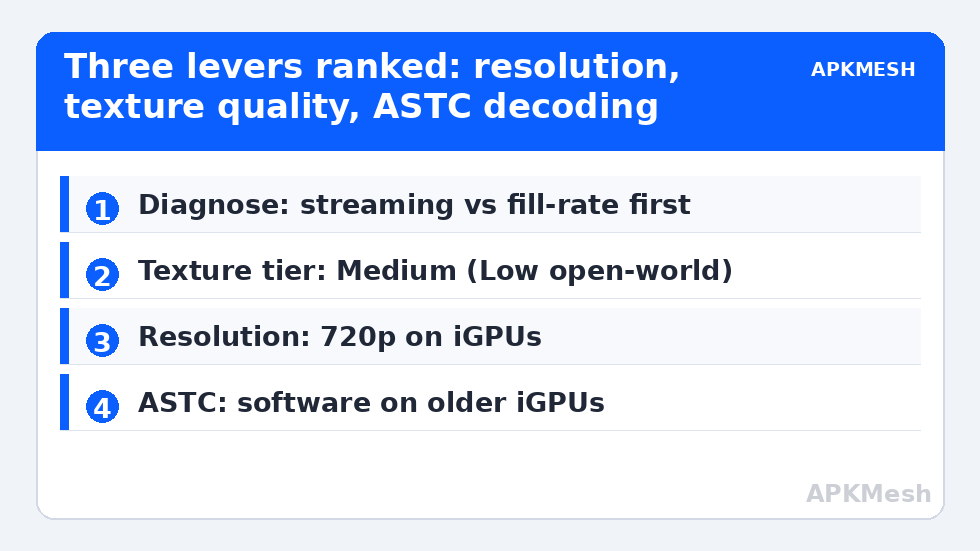
The Three Levers, In Order of Power
| Lever | Low-end setting | Memory effect |
|---|---|---|
| Resolution | 1280×720 on iGPUs | Render targets and post buffers scale with pixel count |
| In-game texture quality | Medium (Low for open-world titles) | The single largest texture-pool consumer under your control |
| ASTC decoding | Software decoding on older iGPUs | Trades a little CPU for avoiding flaky hardware paths |
| Anisotropic filtering / in-game effects | Off or lowest | Extra sampling passes multiply texture traffic |
| Multi-instance count | Fewer, throttled followers | Every instance keeps its own texture set resident |
Resolution leads the list because everything downstream multiplies from it, which is the same reason it leads the renderer discussion in the OpenGL, DirectX and Vulkan comparison. Texture quality is the lever players resist — nobody enjoys lowering it — but note the asymmetry: texture quality costs memory constantly, while resolution costs fill-rate per frame. A game stuttering only when new areas load is asking for the texture lever; a game slow everywhere is asking for the resolution lever. Diagnose before you sacrifice.
Lag risk: —
Reading the Symptoms Correctly
Blurry textures that sharpen a second after you stop moving mean the streaming system is working but starved — it loads low-resolution stand-ins first and upgrades them as budget allows. Permanent blur at a fixed quality setting usually means the game selected a lower texture tier for your reported GPU memory at launch; restarting after freeing memory (closing other instances, closing the browser’s hardware-accelerated tabs) can renegotiate that tier. Vanishing textures and black surfaces are a different fault class — renderer translation trouble — and belong to the renderer-switching remedy, not the memory levers.
Windows gives you one useful witness: Task Manager’s GPU panel reports shared GPU memory usage on integrated systems. Watch it during the exact moment a new area loads. If shared usage slams into its ceiling as the stutter hits, you have confirmed the diagnosis and can spend the texture or resolution lever with confidence instead of superstition. The same observational habit underpins the Intel-specific tuning in emulator settings for Intel UHD graphics, where shared memory is the whole ballgame.
Dual-Channel RAM: The Hidden Texture Setting
Because integrated GPUs drink from system RAM, memory bandwidth is texture bandwidth. A laptop running a single RAM stick feeds its iGPU through half the channels the design offers, and bandwidth-bound moments — texture streaming above all — pay for it disproportionately, with typical iGPU gains from a matched second stick quoted in the 20–40 percent range for the most bandwidth-sensitive workloads. No emulator toggle replicates that. If your laptop has a free slot and you play texture-heavy titles, the second stick is the most honest recommendation in this entire article, ahead of every software setting combined.
Short of hardware, housekeeping still helps: keep total instance allocations sized so Windows is not paging (a page fault during texture upload is the worst version of the stutter), keep 15 percent of the SSD free for the driver’s shader and texture caches to breathe, and avoid running a second emulator instance whose texture set competes with your main game. GPU memory discipline is mostly the art of not inviting rivals to the pool.
Per-Title Texture Profiles
Texture appetite varies enormously by genre, so carry these choices per game rather than globally — the profile system described in emulator per-game profile settings is the right container. Open-world and racing titles stream constantly and deserve the Medium-or-Low texture tier plus your full resolution discipline. Arena shooters load a bounded map set and can often afford High textures at 720p once the round starts, because nothing new streams mid-fight. Card, board, and 2D titles barely touch the texture budget at all; their settings are free to prioritise crispness. Record each title’s tier in its profile notes on your setup page at APKMesh, because texture verdicts, like renderer verdicts, expire when games patch.
Shader Caches and the First-Session Effect
One neighbouring pool deserves a mention because its symptoms impersonate texture trouble: the shader cache. On a first launch, after a driver update, or after switching renderers, the system compiles shaders for scenes as it meets them, producing stutters in exactly the new-area moments where texture streaming also struggles. The distinguishing test is repetition — shader stutter fades on the second run through the same area as the cache fills, while texture-memory stutter faithfully repeats every run. Misdiagnosing one as the other leads players to lower texture quality for a problem that would have cured itself by the third match.
Housekeeping follows from that distinction: do not clear shader or graphics caches as a routine tonic, because you are deleting the very asset that makes second sessions smooth. Clear them only when corruption is the actual diagnosis — persistent visual artefacts after a driver change are the classic case — and then budget one rough session while the cache rebuilds before judging any other setting.
How Much of This Is the Game’s Fault?
A closing calibration: some titles are simply profligate with textures, shipping phone builds that assume flagship memory budgets and stream carelessly on anything less. When one game stutters at texture loads while everything else on the same instance behaves, believe the evidence — that title gets the aggressive profile (Low textures, firm resolution discipline) while the rest of your library keeps its prettier settings. Per-game mercy is not inconsistency; it is the entire philosophy of tuning on hardware that cannot brute-force its way past a careless port, and it is why this category keeps steering readers toward profiles instead of global verdicts.
Frequently Asked Questions
How much GPU memory does an emulator need?
There is no separate number to set in most emulators – the graphics layer draws what it needs from the GPU. On integrated graphics that pool is shared system RAM, so a 720p instance with medium textures typically lives comfortably inside the share an 8GB machine can offer, while 1080p with high textures cannot.
Why do textures turn blurry during long sessions?
The game’s streaming system loads low-resolution stand-ins when its texture budget is exhausted and upgrades them as memory frees up. Long sessions fill the budget with accumulated areas and effects. Lowering in-game texture quality one tier or closing other instances usually restores sharp textures immediately.
Does lowering texture quality improve FPS?
Indirectly. Texture quality mainly decides memory pressure and streaming stutter, not raw frame rate. If your bottleneck is fill-rate, resolution is the lever that moves FPS. If your stutters arrive when new areas load, texture quality is the correct fix and often feels like an FPS improvement.
What is ASTC and should it be on or off?
ASTC is the texture compression format Android games ship in. Emulators can decode it in hardware or software. On older integrated GPUs the hardware path can glitch or stutter, so software decoding is the safer setting; on modern GPUs and Iris Xe-class graphics, hardware decoding is typically fine.
Can I increase the GPU memory available to my emulator?
On some laptops a BIOS setting caps the integrated GPU’s share of RAM, and raising it can help texture-heavy games – but many modern systems manage the share dynamically and offer no such option. The universally effective routes are freeing system RAM, lowering texture demand, and using dual-channel memory.