A single global emulator profile is a compromise wearing a uniform: the shooter wants frames and tight mouse control, the gacha game wants battery-saving calm, and the strategy title wants screen space more than either. Modern emulators quietly solve this with per-title configuration, and learning to use emulator per game profile settings is the highest-leverage habit a low-end PC owner can build — because on weak hardware, settings spent on the wrong game are settings stolen from the right one. This guide shows how to build profiles in BlueStacks and LDPlayer, what belongs in each, and how to keep a growing profile library sane.
What a Per-Game Profile Actually Stores
Depending on the emulator, a title’s profile can carry its own resolution and DPI, its graphics engine mode and renderer, its frame-rate cap and high-frame-rate permission, its keymapping scheme, and sometimes its device model. Instance-level resources — CPU cores and RAM — usually stay global to the instance, which is why the cleanest low-end layout is one tuned instance whose games differ by profile, rather than five instances each pretending to be a different PC.
BlueStacks surfaces much of this through the game’s own settings entry and its Game controls editor, and remembers choices per title. LDPlayer stores keymapping and several display choices per game and per instance. The exact menu geography varies by version; the concept does not. If your emulator remembers nothing per title, the fallback is a written settings card per game — unfashionable, effective, and still better than a global preset.
Building Profiles by Genre
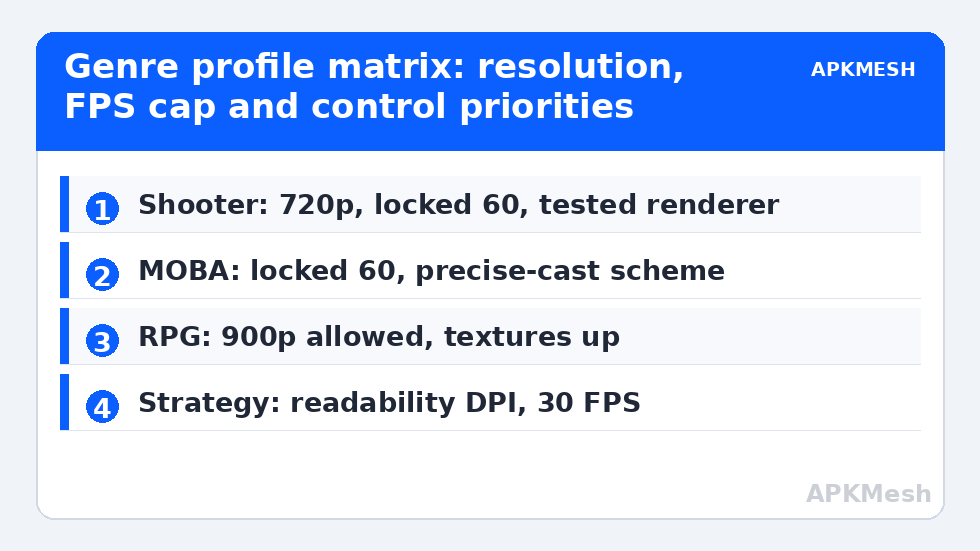
| Genre | Resolution | FPS target | Profile priorities |
|---|---|---|---|
| Competitive shooter | 1280×720 | 60 locked, 90 only if held | Keymapping precision, lowest effects, renderer tested per title |
| MOBA | 1280×720 to 1600×900 | 60 locked | Skill-cast scheme, frame stability over peaks |
| Gacha / turn-based RPG | 1600×900 acceptable | 30–60, Eco friendly | Texture quality up, autos and menus unhurried |
| Strategy / city builder | Highest readable | 30 is plenty | DPI for text size, zoom controls mapped to wheel |
| Rhythm | 1280×720 | 60 locked | Lowest latency path, no smoothing, wired audio |
Notice what the table is really doing: it spends the GPU budget only where the genre converts it into advantage. A turn-based RPG at 900p with pretty textures costs little because its scenes are mostly static; the same budget in a shooter buys the frame stability that decides gunfights. The renderer row interacts with our OpenGL vs DirectX vs Vulkan renderer guide — test renderer per game, record the winner in the profile, and never re-litigate it globally.
Lag risk: —
The Keymapping Half of the Profile
Frames get the attention, but controls are where profiles quietly win hours. Save a distinct scheme per title rather than stretching one layout across games with different verbs: the shooter needs free-look discipline and a fire button under the left mouse, the MOBA needs its casting mode chosen deliberately, the strategy game needs zoom and edge-pan where your hand expects them. Export or screenshot finished schemes before big game updates, because updates occasionally reset bindings, and rebuilding a scheme from memory mid-season is nobody’s idea of fun.
Sensitivity belongs in the profile too. Mouse sensitivity that feels right at 720p will feel wrong if you later raise that title to 900p, because the pointer travels a different pixel distance across the same physical screen. When you change a game’s resolution, budget two matches to re-dial sensitivity before judging the change a failure.
Frame Caps: Locked Beats Ambitious
The most common profile error is setting every game’s cap to the maximum the emulator offers. A cap is a promise the hardware must keep under the worst scene, not the best. On integrated graphics, a shooter locked at 60 with headroom feels smoother than the same game floating between 55 and 90, because frame-time consistency is what your hands perceive as responsiveness. Set the cap per title at the highest rate the game holds in its busiest mode for ten minutes, and write the observed worst-minute behaviour in your notes alongside the profile.
Profiles also interact with the multi-instance world: a background instance’s games should carry idle-friendly profiles — low caps, Eco permitted — even if the same title gets the full treatment in your main instance. The budgeting logic behind that split is covered in running multiple instances without crashing, and it pairs naturally with the synchronised farming setups in instance sync and clone settings.
Keeping a Profile Library Sane
- Change one variable per session and note it; profiles edited in five places at once cannot teach you anything.
- Date your notes. A renderer verdict from before a major game update is a historical document, not a fact.
- Back up before updates — emulator and game updates both occasionally reset per-title choices.
- Retire profiles for uninstalled games during a monthly tidy, so the library reflects what you play.
- Share carefully: a friend’s profile encodes their resolution, GPU, and taste; import it as a starting hypothesis, never as a verdict.
Treat the library as part of your setup’s documentation on APKMesh in spirit: small, current, and written for the machine you actually own. Ten minutes of note-taking after a tuning session saves the full evening of re-testing that memory loss eventually charges everyone.
A Worked Example: One Laptop, Three Games
Concrete numbers make the system easier to trust, so here is a real-shaped example for a typical 8GB, four-thread laptop with integrated graphics. The instance itself is allocated four threads’ worth of patience — in practice two cores heavily used — and 4GB of RAM, and that allocation never changes; everything below lives in profiles. The competitive shooter runs 1280×720 at 240 DPI, Vulkan after a per-title test, a 60 cap it holds through final circles, effects low, and a keymapping scheme with free-look sensitivity recorded as a number in the notes. The MOBA runs the same resolution with a locked 60, its casting mode set to the precise-cast variant its heroes reward, and slightly higher texture quality because its camera distance makes textures more visible than motion. The gacha RPG runs 1600×900, texture quality high, a 60 cap in menus that Eco habits reduce to 30 during auto-battles, and a control scheme that is mostly a single confirm key, because that is honestly all the game asks for.
Total tuning time for that library, once the instance existed, was under an hour — and most of it was the shooter’s renderer test. That is the economic argument for profiles on low-end hardware: the machine cannot be upgraded this evening, but its effort can be aimed, title by title, at the places each genre actually converts settings into experience.
Profiles on Shared and Family PCs
One underappreciated beneficiary of per-game thinking is the shared household laptop, where two players want contradictory things from the same title — one a quiet 30 FPS story mode, the other a tuned competitive setup. Where the emulator supports only one scheme per game per instance, the clean answer is one instance per player rather than a weekly settings war: instances are cheap, storage is the only real cost, and each person’s profiles, sensitivities, and accounts stay entirely their own. It is the same separation principle this category keeps arriving at — identity, settings, and accounts bundled per purpose — applied to the most diplomatic problem in home computing.
Frequently Asked Questions
Do per-game profiles change CPU and RAM allocation?
Usually not – cores and RAM are allocated per instance, while profiles carry display, graphics, frame-rate, and control choices per title. The practical layout is one well-allocated instance whose games differ by profile. If you truly need different allocations per game, that means separate instances.
What FPS cap should each game profile use on integrated graphics?
The highest rate that game holds steadily through its busiest scene for at least ten minutes – commonly a locked 60 for shooters and MOBAs, 30-60 for RPGs, and 30 for strategy titles. A locked lower rate feels smoother than a floating higher one.
Why did my keymapping reset after a game update?
Major updates occasionally change a game’s control scheme version or its package structure, and the emulator falls back to a default layout. Export or screenshot your finished schemes before updating, and keep sensitivity values in your notes so a rebuild takes minutes, not an evening.
Should the renderer be set globally or per game?
Per game, wherever the emulator allows it. Renderer performance and glitches are title-specific – one game may run cleanest on Vulkan while another shows black textures until it is switched to OpenGL. Test each title once, record the winner in its profile, and leave it alone.
How many profiles should I maintain?
One per game you actively play, reviewed monthly. Profiles for uninstalled or abandoned titles just add clutter and stale assumptions. A small, current library you trust beats an exhaustive archive of settings for machines and game versions that no longer exist.