The download finishes, you double-click the installer, and Windows 11 gives you one of several unhelpful endings: a progress bar that rolls back, a driver prompt that never completes, or a plain statement that installation failed. Knowing how to fix emulator wont install windows 11 problems starts with separating the installer into its stages. It unpacks files, registers services, installs a virtualization driver, and creates the first instance — and each stage fails for different reasons. Windows 11 itself is not the obstacle; every major emulator supports it. The obstacle is almost always a leftover from a previous attempt, a security control doing its job on an unverified file, or a prerequisite the installer assumes but your machine does not currently meet.
Read the Failure Point Before Retrying
Retrying the same installer in the same state produces the same failure, only slower. First, note exactly where it stops. An installer that fails within seconds has usually not verified — the file is incomplete, blocked, or from a source Windows does not trust. One that reaches most of the way then rolls back is typically failing at driver or service registration. One that completes but whose emulator then refuses to launch has actually installed; your problem is a launch fault, not an installation fault, and guides such as fixing an emulator that closes immediately after launch apply instead.
- Fails instantly: re-download the installer from the official website; check its size against the site listing and delete partial downloads.
- Blocked by Windows or SmartScreen: confirm the file is the genuine official installer, then use the More info and Run anyway path only for that verified file.
- Rolls back late: leftover services or folders from a previous version are conflicting with registration.
- Driver prompt loops: restart, clear the previous partial driver state with a full uninstall, and install again without other virtualization tools running.
- Not enough space: free space on the target drive before anything else; installers need room well beyond the final installed size for temporary extraction.
Step 1: Prepare a Genuinely Clean Installation State
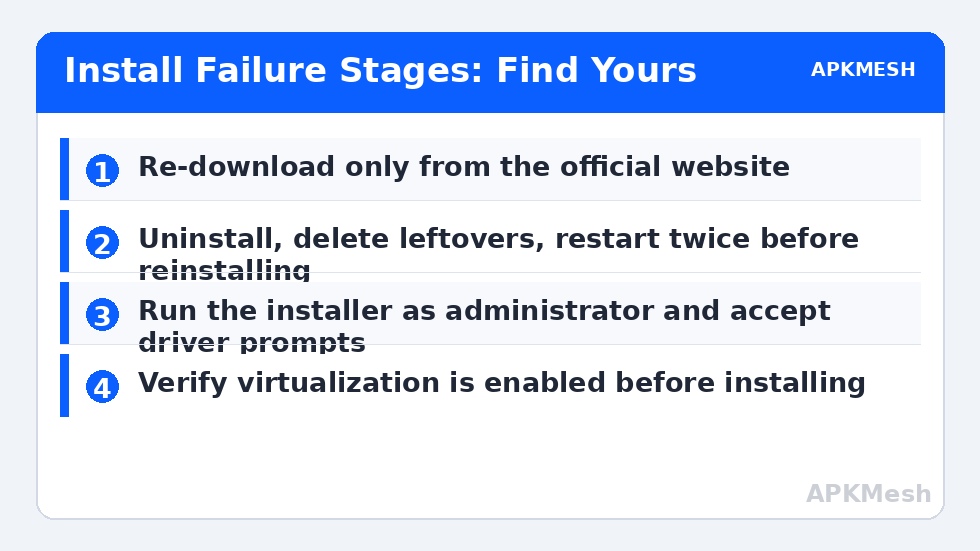
Uninstall any existing copy of the emulator through Windows Settings, Apps, then restart. After the restart, check the usual install locations and your user AppData folders for leftover emulator directories and remove them — uninstallers routinely leave configuration and virtual disk folders behind, which is correct when upgrading but harmful when a damaged state is the problem. Restart once more. It feels excessive, but driver and service removal only completes across a reboot, and installing into a half-removed state is the single most common cause of repeated rollback failures.
- Uninstall the emulator from Settings and restart the PC.
- Delete leftover emulator folders from Program Files, ProgramData and AppData if present.
- Confirm at least fifteen to twenty gigabytes free on the install drive.
- Temporarily close other emulators, virtual machine tools and overlay-heavy utilities.
- Download a fresh installer from the official website only.
Step 2: Install With the Right Permissions and Prerequisites
Right-click the fresh installer and choose Run as administrator for the installation itself. Driver and service registration legitimately require elevation, and a standard launch that cannot elevate cleanly can fail mid-way leaving another partial state. Accept the Windows security prompts for the driver installation; an emulator without its virtualization driver cannot function, and on Windows 11 these prompts are a normal part of the process for genuine software.
Before installing, confirm the prerequisites installers silently assume. Virtualization should be enabled in your firmware — Task Manager, Performance, CPU will tell you its state, and if it reports disabled, resolve that using the VT error fix for BlueStacks 5, which covers the BIOS steps for all major brands. Windows itself should be fully updated and not pending a restart, because a queued update can lock driver registration. If install failures only began after a system change, the timing matters: the post-update checks in fixing FPS drops after a Windows update include the feature states that also affect fresh installs.
Step 3: Handle Security Software Honestly
Antivirus and Windows Defender sometimes quarantine emulator components because virtualization drivers and process-injection techniques resemble, at a mechanical level, things malware also does. The honest response is verification, not blind disabling. Confirm your installer came from the official domain, check the quarantine history to see exactly which component was blocked, and if it is a core emulator file from a verified install, restore it and add the emulator’s install folder as an exclusion. The category guide on Windows Defender and antivirus blocking emulators covers that process in full. Never download a pre-patched or cracked emulator build to bypass security prompts — that trade converts a ten-minute installation problem into a genuine malware risk.
Once installed, launch the emulator before reinstalling anything else, let the first instance finish its initial setup completely, and only then sign in and add games. If installation still rolls back from a fully clean state with a verified installer, capture the exact error text or code and search the emulator vendor’s support pages for that specific string; at that level of specificity, vendor knowledge bases outperform general guides, and your clean-state work means their advice will apply directly rather than being confounded by leftovers.
Lag risk: —
Verify the Installation Properly
- The emulator launches to the home screen after a full PC restart, not only immediately after installing.
- A test game installs and runs for several minutes.
- Closing and reopening the emulator works repeatedly, with no repair prompts.
- Windows Security history shows no new quarantines of emulator components during normal use.
A successful install on Windows 11 should be boring afterwards. If yours required an unusual workaround, write down what it was. The next major Windows or emulator update is the moment that note earns its keep, because you will know exactly which prerequisite your particular machine is sensitive about instead of starting from zero.
A clean installation also gives you a trustworthy baseline for everything that follows: the first time a game stutters or an update lands, you will know the foundation was sound. Bookmark the APKMesh homepage for the spec calculator before you create additional instances, because installing successfully is only half the job — allocating cores and memory your PC can genuinely spare is what keeps a fresh install feeling fast a month later.
Frequently Asked Questions
Is Windows 11 really incompatible with Android emulators?
No. All major emulators publish Windows 11 compatible builds. Installation failures on Windows 11 are almost always local: an incomplete download, insufficient free space, a blocked driver prompt, leftover files from a previous install, or security software intervening. A clean download from the official site installed with adequate space resolves the large majority of cases.
Should I disable my antivirus permanently to install the emulator?
Never permanently. If security software is blocking the install, first confirm you have the genuine installer from the official site, then use the guidance for exclusions rather than disabling protection outright. Add the installed emulator folder as an exclusion only after a clean install succeeds, and keep real-time protection on for everything else on the system.
Why does the installer ask to reboot and then fail again after rebooting?
A reboot loop usually means a driver or service registration is failing repeatedly, often because leftover components from an older version conflict with the new one, or a Windows feature state changed underneath it. Uninstall fully, restart, remove leftover emulator folders, restart again, and install the current build fresh rather than layering it over the damaged state.
Can I install the emulator on a drive other than C?
Most emulators allow choosing the install or data location, and installing to a roomier SSD is sensible. Keep the path simple, avoid external USB drives for the main installation because disconnection and speed issues cause strange failures, and ensure the chosen drive still has generous free space after installation for virtual disks to grow.
The installer says my PC does not meet requirements but my specs look fine. Why?
Installers check specific items, not general power: virtualization support, free disk space, Windows build version, and sometimes administrator rights. Read the exact requirement named in the message rather than the headline. If virtualization is the named item, resolve that first; a CPU can be fast in every other respect and still block installation with VT disabled.