If your emulator stutters in busy scenes even though the CPU meter never quite hits 100 percent, memory bandwidth is a suspect most guides skip. This dual channel ram upgrade guide emulator pc owners actually need starts from a simple fact: a single stick of RAM gives your processor one 64-bit path to memory, while two matched sticks give it two paths working in parallel. Android emulators copy textures, translate code blocks, and shuffle frame buffers constantly, so that second path matters more here than it does in ordinary desktop use. This guide covers how to check what you have now, how to buy the right second stick or kit, how to install it safely, and how to verify the upgrade actually switched on.
Why Dual Channel Matters More for Emulators Than for Browsing
A native Windows game loads its assets once and leans heavily on the graphics card’s own memory. An emulator is different. It runs a full Android system in a virtual machine, keeps a translated copy of game code in host RAM, mirrors frame buffers between the guest and the host renderer, and — if you use an integrated GPU — shares system memory as video memory. Every one of those jobs competes for the same memory bus. When that bus is a single channel, the CPU cores and the integrated graphics queue up behind each other, and the symptom is familiar: frame times that spike whenever a new area loads, a spell effect fires, or several players appear on screen at once.
With two sticks in dual channel, the memory controller interleaves data across both modules, roughly doubling the theoretical bandwidth available. Integrated graphics benefit the most because they have no VRAM of their own; systems pairing an Intel UHD or AMD Vega/Radeon iGPU with a single stick are the classic case where a second stick transforms emulator smoothness. Systems with a discrete graphics card still gain, mostly in CPU-side frame consistency, but the jump is smaller. Neither case raises your peak frame rate in a menu screen — the gain shows up in the worst moments, which is exactly where stutter lives.
What to expect, honestly
| System type | Typical dual-channel effect | Notes |
|---|---|---|
| iGPU laptop, single 8GB stick | Largest gain; smoother 1% lows, fewer asset-load hitches | iGPU shares RAM, so bandwidth doubles for both CPU and GPU |
| iGPU desktop, single 16GB stick | Clear gain in busy scenes | Capacity was fine; bandwidth was the limit |
| Discrete GPU, single stick | Modest gain in CPU-bound titles | Renderer uses VRAM, CPU still benefits |
| Already dual channel, 2x8GB | No gain from re-buying | Spend on capacity or speed instead, if anything |
Check Your Current Setup Before Spending Anything
Plenty of low-end PCs were sold with two slots and only one stick fitted, which makes this the cheapest upgrade in PC gaming — but only if you confirm the empty slot exists. Work through these checks first.
- Open Task Manager → Performance → Memory. Note the total capacity, the speed (for example 3200 MT/s), and the line that says Slots used, such as 1 of 2.
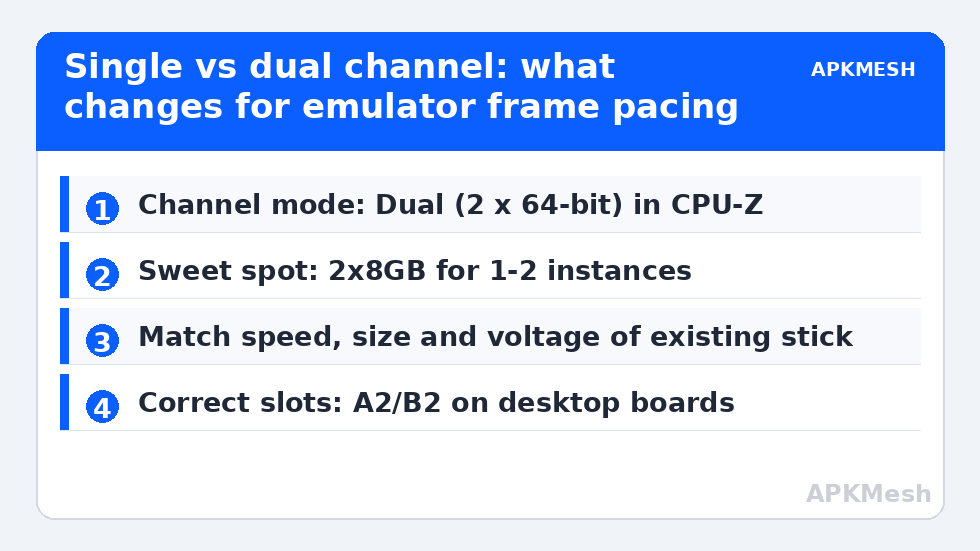
- Download the free CPU-Z tool from its official site and open the Memory tab. The Channel field tells the truth: Single or Dual (shown as 2 x 64-bit on newer versions). The SPD tab shows what is fitted in each slot, including part number and timings.
- Check the form factor. Desktops use long DIMM sticks; laptops use short SO-DIMM sticks. They are not interchangeable, and DDR4 and DDR5 are not interchangeable either — the notch position differs so a wrong-generation stick physically will not seat.
- On a laptop, confirm the RAM is not soldered. Many thin models have one soldered module plus one slot, or fully soldered memory with no upgrade path. Your manufacturer’s spec page for the exact model settles this in a minute.
Write down your existing stick’s capacity, speed, and CAS latency (the CL number, such as CL22 or CL16) from CPU-Z. You will match against those figures in the next step. While you are diagnosing memory behaviour, our guide to allocating the pagefile correctly is worth reading too, because a starved pagefile produces crashes that look like RAM faults but are not.
Lag risk: —
Buying the Right Stick: Match, Pair, or Replace
You have three honest options. The cheapest is adding one stick that matches your existing module’s capacity, speed, and voltage as closely as possible. Memory controllers are tolerant, and a same-size, same-speed stick from a different reputable brand usually pairs fine; when speeds or timings differ, both sticks run at the slower stick’s settings, which is acceptable. The cleanest option is a matched 2-stick kit sold as a pair — the manufacturer has binned those modules together, so dual channel and the rated XMP profile are as close to guaranteed as this gets. The third option, replacing one small stick with a larger single stick, is the one to avoid for this upgrade: 1x16GB is almost always worse for emulation than 2x8GB, because capacity was rarely your problem.
Capacity guidance for emulator PCs is straightforward. A total of 16GB (2x8GB) is the sweet spot for one or two emulator instances alongside Windows. If you run three or more instances, record gameplay, or keep a browser with many tabs open during sessions, 32GB (2x16GB) gives the headroom that stops paging. Speed matters second: for DDR4, 3200 MT/s is the common sweet spot; for DDR5, 4800–5600 MT/s is typical on low-end machines. Do not chase extreme speeds your CPU’s memory controller cannot run stably — a stable 3200 beats a crashing 3600 every session.
Installing the Stick Safely, Desktop and Laptop
The physical job takes ten minutes, and the only real risks are static and force. Shut the PC down fully, unplug it, and on a laptop remove the charger and, if the design allows, disconnect the internal battery connector after opening the case. Touch a metal part of the chassis to discharge static, and handle sticks by their edges.
- Desktop: open the case, find the empty slot your motherboard manual designates for a two-stick layout (usually the second slot from the CPU if the first stick sits in the fourth — the A2/B2 pairing). Open the retention clips, align the notch, and press both ends firmly until the clips snap in.
- Laptop: remove the bottom panel screws (keep a note of differing lengths), pry gently with a plastic tool, and locate the SO-DIMM slot. Slide the stick in at roughly a 30-degree angle, then press it flat until the side clips click.
- Before closing everything, connect power and boot once with the panel loose. If the machine beeps or boot-loops, power off and reseat the stick — incomplete seating causes most failed first boots.
Once Windows loads, return to Task Manager and CPU-Z. You want three confirmations: total capacity doubled (or increased as expected), the channel mode now reads Dual, and the speed matches your kit’s rating. If the speed shows a lower JEDEC figure such as 2133 or 2666, the sticks work but the rated profile is not loaded — that is a BIOS setting covered in our XMP and DOCP profile guide, and it applies to matched kits especially.
Verify the Gain in Your Emulator, Not in a Synthetic Test
Synthetic memory benchmarks will show a big bandwidth number, but your question is narrower: did the emulator get smoother? Repeat the same scene you used before the upgrade — a fixed training area, a busy town, a repeatable race — for three minutes, watching the frame-time behaviour rather than the headline FPS counter. The typical signature of success is unchanged average FPS with visibly fewer spikes when assets stream in, and steadier performance in multi-instance sessions because each instance is no longer starving the others. If nothing changed at all and CPU-Z still reports Single channel, the sticks are in the wrong slots or one is not detected; if it reports Dual and nothing changed, your bottleneck was never bandwidth, and the honest next step is the structured method in our startup programs audit to cut background load, paired with the timings diagnosis in our RAM timings and stick diagnosis guide. Start every session from a clean baseline by returning to the APKMesh homepage guides in order rather than stacking tweaks blindly.
Frequently Asked Questions
Can I mix an 8GB stick with a 16GB stick and still get dual channel?
Partially, on most modern Intel and AMD systems. Flex modes run the matched portion (8GB + 8GB of the larger stick) in dual channel and the remaining 8GB in single channel. Emulators often land in the fast region, but behaviour varies, so a matched pair remains the predictable choice. If budget forces the mix, it is still better than a single stick alone.
Will dual channel RAM fix emulator crashes?
Only crashes genuinely caused by memory pressure or bandwidth stalls, which are the minority. Most crashes trace to drivers, overheating, or a starved pagefile. Dual channel improves smoothness and worst-case frame times; treat it as a performance upgrade, not a stability cure, and diagnose crashes separately with logs and temperature monitoring.
Is 2x8GB really better than 1x16GB for the same money?
For emulator workloads, yes, in almost every test scenario that matters. Both give 16GB of capacity, but the pair delivers roughly double the memory bandwidth, which integrated graphics and emulator translation layers use heavily. The single stick only wins if you plan to add a second 16GB stick very soon.
My laptop has soldered RAM. What are my options?
If one module is soldered and one slot is free, fit a stick matching the soldered module’s size and speed to unlock dual channel for that capacity. If memory is fully soldered, there is no RAM upgrade path; focus instead on storage speed, startup load, and emulator allocation settings, which still offer real gains.
Do I need to change any BIOS settings after adding a second stick?
Usually the machine detects the new module automatically and dual channel engages with no input. The one setting worth checking is the memory profile: if your kit is rated faster than the JEDEC default it boots at, enable XMP, DOCP, or EXPO so you actually receive the speed you paid for, then stability-test.