
A gaming laptop that runs an emulator beautifully for eight minutes and then quietly loses a fifth of its speed is not broken — it is hot, and its processor is protecting itself. Learning how to undervolt laptop cpu emulator performance problems away means giving the chip slightly less voltage than the factory default for the same clock speeds, so it produces less heat and can hold its boost clocks for an entire session instead of a few minutes. This guide explains the mechanism, the safety rules, the tools, and the slow, boring, correct way to find a stable setting — because undervolting done impatiently is just a new way to crash.
Why Laptops Throttle in Emulators Specifically
Emulation is unusually cruel to laptop cooling. A native PC game often leaves the CPU partly idle between frames while the GPU does the heavy lifting. An emulator keeps the CPU busy almost continuously: translating Android/ARM instructions, running the virtual machine, feeding the renderer, and handling audio and input, all at once. That sustained all-core load is precisely the workload that pushes a thin laptop to its thermal or power limit, at which point the firmware cuts clock speeds to keep temperatures inside specification. The result is the classic pattern: smooth early gameplay, then a gradual slide into stutter that no settings change inside the emulator seems to fix.
Factory voltage settings make this worse than it needs to be. Because every silicon chip differs slightly, manufacturers ship one voltage table that must work for the worst chip in the batch. Most individual chips can run the same frequencies at meaningfully lower voltage. Undervolting claims that margin back. It is not overclocking — you are not asking the chip to go faster than designed, only to do its designed work with less electrical headroom wasted as heat.
Safety framing before you touch anything
- Undervolting cannot physically damage a CPU in the way overvolting can; the worst realistic outcome is instability — freezes, crashes, corrupted sleep states — which a reset reverses.
- It can void nothing in most jurisdictions, but some vendors’ support staff dislike it; it is fully reversible, so you can return to stock before any service visit.
- Many laptops from roughly 2020 onward lock voltage control in firmware as a security mitigation (the Plundervolt fix). If your tool shows locked controls, that is final — do not hunt for bypasses from random forums.
- Never combine an undervolt experiment with any other change. One variable at a time, or you will never know what crashed.
Confirm Heat Is Actually Your Problem First
Undervolting treats thermal and power-limit throttling. It does nothing for a machine that is GPU-bound, RAM-starved, or running the emulator on the wrong graphics processor. Prove the diagnosis before prescribing the cure, using the same clock-and-temperature method described in our guide to resolving thermal throttling on gaming laptops and the overlay setup in the MSI Afterburner monitoring guide.
- Log CPU temperature, per-core clock speed, and package power while playing your emulator for at least fifteen minutes.
- Throttling confirmed looks like this: temperature pinned near the limit (typically 95–100°C on Intel, around 90–95°C on many AMD mobile parts), clocks sagging well below the early-session boost, and frame rates sagging in step.
- Also do the free fixes first: clean the fan intakes and fins, raise the rear of the laptop, and use the manufacturer’s performance fan profile. If those alone restore sustained clocks, stop — you never needed undervolting.
Lag risk: —
The Tools, and the Settings That Matter
On Intel laptops the long-standing tool is ThrottleStop, which exposes core and cache voltage offsets and, just as importantly, shows the reason flags for throttling in its Limit Reasons window. Intel’s own XTU does similar work on unlocked parts but is heavier. On AMD Ryzen mobile processors, voltage control is more restricted; tools such as the Universal x86 Tuning Utility work through curve optimiser offsets on supported chips rather than a flat voltage offset. Whichever you use, download it only from its official source — tuning utilities are a favourite disguise for malware.
| Setting | What it does | Sensible starting point |
|---|---|---|
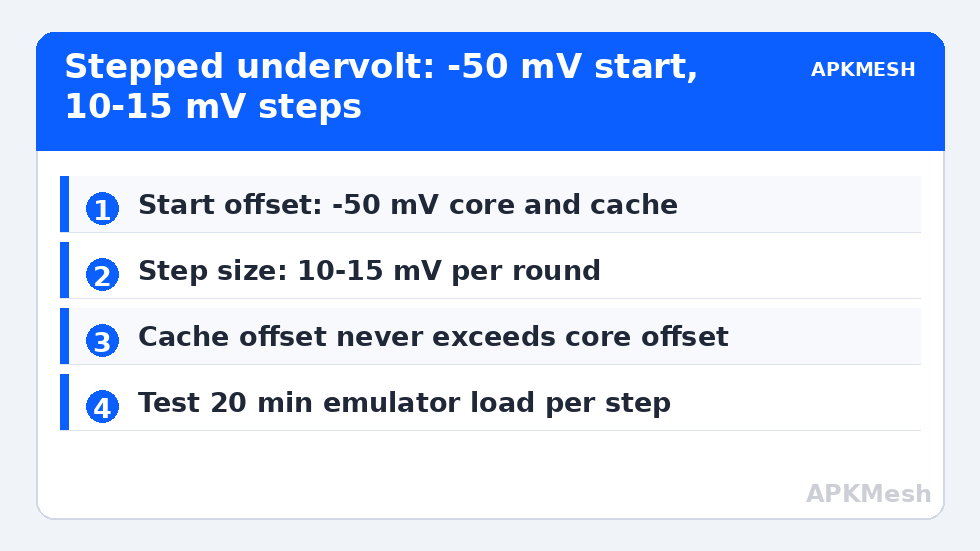
| Core voltage offset | Lowers voltage supplied to CPU cores | -50 mV, then test |
| Cache voltage offset | Lowers voltage to the cache/uncore | Match core offset, never exceed it |
| Step size between tests | How far you push each round | 10–15 mV at a time |
| Stability test per step | Proves the step before going further | 15–20 min emulator load + a CPU stress run |
The cache offset deserves emphasis because it is where beginners crash. On Intel parts the cache typically tolerates less undervolt than the core; setting both to an ambitious equal figure like -150 mV in one jump is the standard recipe for a frozen laptop. Keep the cache at or below the core’s magnitude, and step both down gradually.
The Patient Method: Step, Test, Record, Repeat
Set a restore point and write your starting values in a notes file before changing anything. Then apply a modest core and cache offset of -50 mV, save it in the tool, and test: run your emulator’s heaviest scene for twenty minutes, run a short CPU stress test, let the machine sleep and wake, and use it normally for the rest of the day. Stability is not proven by five minutes of success — some undervolt crashes only appear at idle or during sleep transitions, when voltage behaviour changes. If the day is clean, step down another 10–15 mV and repeat. When you finally hit instability, back off one full step and treat that as your daily setting, keeping a safety margin rather than living on the edge you found.
What success looks like in the log: the same scene now holds temperatures several degrees lower, clocks stay at or near their early-session boost for the full half hour, and the throttling reason flags that used to light up stay dark. Typical successful offsets on mobile Intel chips land somewhere in the -70 to -125 mV region for the core, but treat any number you read — including that range — as another machine’s story, not your target. Your chip’s stable point is whatever your own stepped testing proves. For a broader set of cooling improvements that stack with undervolting, work through our cooling and thermal paste guide as well, and keep your overall expectations calibrated with the measurement protocol on the APKMesh homepage guides.
When Undervolting Is Locked or Fails: The Fallback Levers
If firmware has locked voltage control, you still have honest options. Capping the emulator’s frame rate to a level the laptop can sustain (60 instead of 90 or 120) removes the throttle cycle entirely on many machines. Reducing the CPU power limit (PL1) slightly through ThrottleStop or the vendor utility trades a little peak speed for a flat, consistent clock that never crashes into the thermal wall mid-game — consistency an emulator values more than bursts. Lowering the emulator’s rendering resolution and allocated cores reduces the load itself. And the physical path — cleaning, elevation, and eventually fresh thermal paste — attacks the same heat problem from the other side, with no firmware cooperation required. Pair those changes with the Windows visual effects trims to shave background GPU load on integrated graphics.
Frequently Asked Questions
Is undervolting safe for my laptop’s CPU?
Yes, when done in small tested steps. Lower voltage cannot burn a chip out; it can only make it unstable, and instability is reversible by restoring the offset to zero. The genuine risks are data loss from a crash during unsaved work and wasted time chasing an over-ambitious figure. Test incrementally, keep a margin below the crashing point, and the process is safe.
Why is the voltage option greyed out in ThrottleStop or XTU?
Most likely your laptop’s firmware locked voltage control following the Plundervolt security mitigation, which is common on machines from 2020 onward and on many business models. A BIOS update sometimes changes availability, but usually the lock is permanent. Do not use unofficial BIOS mods to bypass it; use power-limit and FPS-cap levers instead.
How much cooler will my laptop run after undervolting?
Typical results are a few degrees to around ten degrees Celsius under sustained load, varying widely by chip, cooling design, and how generous the factory voltage was. The more meaningful metric is clock behaviour: many users see no temperature drop at all because the chip spends the savings on holding higher boost clocks instead — which is the actual goal.
Should I undervolt the GPU as well?
It can help on discrete-GPU laptops where the GPU shares heat pipes with the CPU, using a voltage/frequency curve editor such as MSI Afterburner’s. Treat it as a separate project with its own stepped testing, done only after the CPU undervolt is stable for several days. Changing both at once makes any crash impossible to attribute.
Will undervolting improve battery life?
Slightly, under load, because the processor draws less power for the same work. At idle the difference is negligible since modern CPUs already drop to very low voltages on their own. Buy undervolting for sustained performance and quieter fans during emulator sessions, not as a battery strategy.