
On an older laptop with one small, nearly full SSD, the pagefile is a large neighbour that will not move out — unless you tell it to. Knowing how to move pagefile to second drive emulator PCs benefit from is a niche skill, but for the specific machine it fits — cramped system drive, a second internal drive fitted, emulator crashes or stutter when memory runs deep — it can be the difference between a playable setup and a frustrating one. This guide is deliberately honest about when moving the pagefile helps, when it does nothing, and when it actively hurts, because pagefile advice on the internet is mostly folklore repeated since the Windows XP era.
What the Pagefile Actually Does During Emulation
Windows commits memory to programs beyond what physical RAM can hold, and the pagefile is the backing store that makes those promises keepable. When RAM fills, the least-used pages are written to the pagefile so active work — your emulator’s current scene — can stay in fast memory. Emulators are heavy committers: a single instance may reserve several gigabytes, and multi-instance setups multiply that. If the pagefile is too small, Windows hits the commit limit and programs crash with out-of-memory errors even while the RAM graph looks merely “high.” If the pagefile sits on a slow or completely full drive, the paging that does happen arrives late, and the symptom is a hard hitch rather than a crash.
That framing gives you the decision rule for this whole guide. Moving the pagefile helps when its current location is the problem: a system SSD at 95 percent capacity where Windows cannot grow the file, or a machine whose only fast storage is the second drive. It does nothing when the pagefile already lives on a healthy SSD with room to spare. And it hurts when the “second drive” is a spinning hard disk slower than the system SSD — paging to an HDD is dramatically slower, so you would be relocating the safety net onto a trampoline made of gravel. Size comes before location: read our pagefile sizing guide first if you have never set a deliberate size.
Before You Move: The Checklist That Prevents Regret
- Confirm the second drive is internal and permanent. Never place the pagefile on a USB stick, an external drive, or a card reader. If that device is absent at boot, Windows creates a temporary pagefile and your settings silently stop applying.
- Compare speeds honestly. Second drive faster or equal (another SSD, an NVMe in a caddy where the old optical drive sat): moving is reasonable. Second drive slower (HDD): move only to escape a critically full system drive, and plan to return the pagefile once space is freed.
- Leave a small pagefile on the system drive. Windows wants a pagefile on the boot volume for crash dumps. Keeping a modest 800MB–2GB system-drive pagefile alongside the main one on the second drive avoids cryptic warnings and keeps dump capture working.
- Check free space on the target. The drive must hold your chosen pagefile size permanently, not just today.
Lag risk: —
The Move, Step by Step
- Press Win + R, type sysdm.cpl, and go to Advanced → Performance Settings → Advanced → Virtual memory → Change.
- Untick Automatically manage paging file size for all drives.
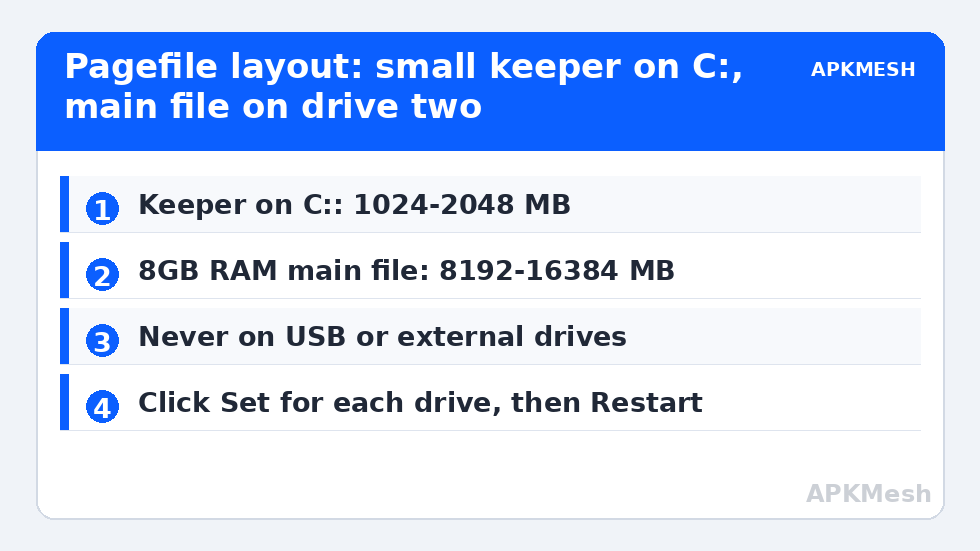
- Select the system drive (usually C:), choose Custom size, and set Initial and Maximum to the small keeper values, for example 1024 MB and 2048 MB. Click Set.
- Select the second drive, choose Custom size, and enter your main allocation. For an 8GB RAM machine, 8192 MB initial and 16384 MB maximum is a sane range; for 16GB RAM, 4096–8192 MB is usually plenty. Click Set — this button is the step everyone forgets, and without it nothing changes.
- Click OK through the dialogs and restart the PC. The pagefile layout only changes at boot.
- After restarting, return to the same dialog and read the Currently allocated total at the bottom, then check both drives in Explorer: pagefile.sys should now exist at the expected size on the second drive and at the small size on C:.
| Machine profile | C: keeper pagefile | Second-drive pagefile |
|---|---|---|
| 8GB RAM, cramped 128GB SSD + HDD | 1024–2048 MB | 8192–16384 MB on the HDD only as a stopgap |
| 8GB RAM, SSD + second SSD | 1024–2048 MB | 8192–16384 MB on the second SSD |
| 16GB RAM, SSD + second SSD | 1024–2048 MB | 4096–8192 MB on the second SSD |
| Any, second drive is external USB | Do not move — keep the pagefile internal | |
After the Move: Fast Startup, Hibernation, and Honest Testing
Two neighbours of the pagefile deserve a mention. Fast Startup uses the separate hiberfil.sys file, not the pagefile, so moving the pagefile does not affect it — but if your machine behaves oddly after shutdown-versus-restart, test with Fast Startup off, since it preserves a kernel session across “shutdowns” and can mask whether your new paging layout has truly loaded. Hibernation likewise uses hiberfil.sys; disabling hibernation (powercfg /hibernate off) is itself a legitimate way to free several gigabytes on the cramped system drive that pushed you toward this move in the first place.
Now test like an engineer, not a believer. Run your heaviest realistic emulator session — the same instances, the same game — while watching Task Manager’s Performance → Memory panel. The Committed figure should stay comfortably under its limit, and the out-of-memory crashes or full-drive warnings that motivated the move should be gone. Frame rates will not rise; that was never the promise. If you later free real space on the system SSD — our temp-file cleanup guide regularly recovers double-digit gigabytes — consider moving the main pagefile back if the second drive is the slower device. And when the underlying constraint is an old single-drive laptop, the longer-term answer in our second SSD and ReadyBoost guide may serve you better than any paging arrangement. Return via the APKMesh homepage for the full optimisation sequence.
Frequently Asked Questions
Does moving the pagefile to a second drive make emulators faster?
Not directly. The pagefile is a safety net, not a speed component; paging is always far slower than RAM. Moving it helps only when the old location caused failures — a full system drive that prevented the file growing, or crashes at the commit limit. Expect stability, not FPS, and be suspicious of any guide promising frame-rate gains from this change alone.
Should I put the pagefile on my fastest drive or my emptiest drive?
Fastest first, provided it has permanent room for the file. A pagefile on a fast drive makes the rare paging events that do occur finish sooner. The exception is a fastest drive that is critically full: then a slower drive with space is the lesser evil as a stopgap while you clean up or upgrade storage.
Can Windows boot if I remove the pagefile from C: entirely?
Yes, Windows boots and runs with the pagefile only on another volume, but you lose crash-dump capture on the system drive and may see warnings. There is no performance prize for removing the C: file completely, so keep the small keeper pagefile described in this guide and avoid the edge cases entirely.
I set the sizes but the pagefile stayed on C:. What went wrong?
Almost always one of two things: the Set button was not clicked for each drive before pressing OK, or the PC was shut down with Fast Startup instead of restarted, delaying the change. Redo the dialog carefully, click Set after each drive’s entry, then use Restart explicitly and verify the Currently allocated figure and the pagefile.sys locations.
Is it safe to put the pagefile on the same drive as my emulator?
Yes. Sharing a drive between the emulator’s virtual disk and the pagefile is normal and harmless on an SSD, where there is no moving head to thrash. On a hard drive the two workloads can contend during heavy paging, which is another argument for fixing the RAM shortage itself rather than perfecting the paging layout.