
Many lightweight emulators ship without Google Play — some omit Google Mobile Services (GMS) for licensing reasons, others strip it to stay small — and the first thing most users want back is the Play Store, because sideloading every update by hand gets old fast. Knowing how to install play store lightweight emulator builds correctly means knowing which of three situations you are in, because the fix for each is different: GMS present but hidden, GMS installable as a package, or GMS effectively unavailable so a legitimate alternative store is the honest answer. This guide walks all three, using only official or open-source components — no patched “modded Play Store” bundles, which are a malware staple.
First: Diagnose What Your Emulator Actually Has
Open Android Settings > Apps inside the emulator and search for three components:
- Google Play Store (com.android.vending)
- Google Play Services (com.google.android.gms)
- Google Services Framework (com.google.android.gsf)
If all three exist but the Store icon is missing from the launcher, the fix is trivial: the Store is disabled or hidden. Enable it in the same Apps screen, or install a third-party launcher inside the emulator which will surface it. If Play Services exists but the Store doesn’t, you need only the Store APK matching your Android version. If none exist, you need the full trio in the right order — or a different strategy entirely for emulators whose system image rejects GMS.
Method A: The Built-In Installer (Check First)
Several lightweight emulators and Android-x86 derivatives hide a GMS installer in settings, a toolbox app, or the vendor’s forum-pinned utility. Search the emulator’s settings for “Google”, “GMS” or “Play” toggles before downloading anything. Some Chinese-market builds ship a one-tap Google installer because their domestic app stores are separate. If a built-in option exists, use it: the vendor has already matched versions to the system image, which is where manual installs usually fail.
Lag risk: —
Install Play Store Lightweight Emulator Method B: Manual GMS Installation
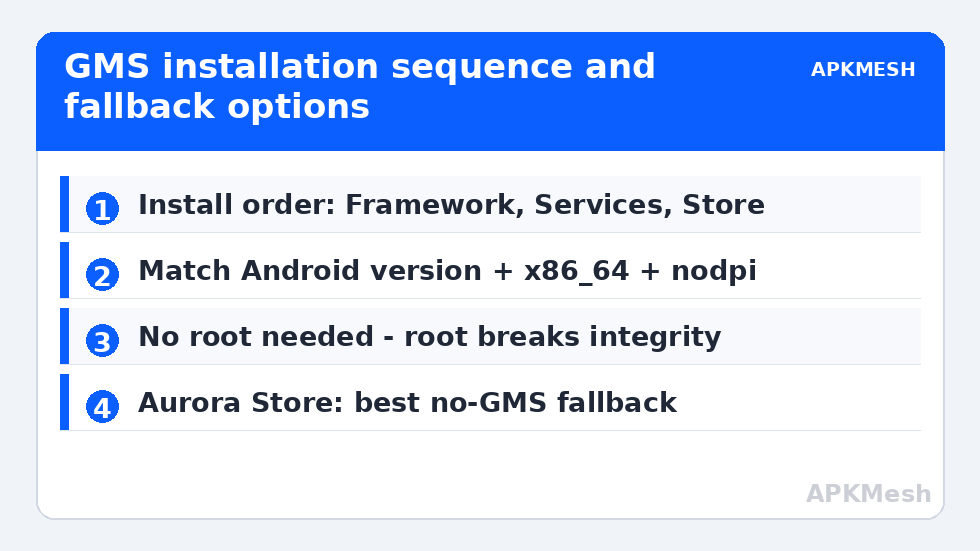
- Match the Android version. On APKMirror (a legitimate APK repository that verifies signatures), find Google Services Framework, Google Play Services, and Google Play Store builds for your exact Android version and CPU ABI (most PC emulators are x86_64; Play Services also needs the right DPI variant — pick “nodpi”). Signature-verified, untampered APKs from the original publishers are the only acceptable source.
- Install in dependency order: Services Framework first, then Play Services, then Play Store. Installing the Store first produces the classic “Play Store keeps stopping” loop.
- Reboot the emulator fully (close it, don’t just restart Android inside) so the framework registers.
- Sign in and wait. First sign-in triggers silent updates of all three components; give it ten minutes on Wi-Fi before judging. Clear the Store’s cache if downloads sit at “pending”.
- Expect partial success on some images. Google certifies devices, not emulator images; uncertified builds may show “Device is not certified” and some apps (banking, DRM-heavy games) will refuse to run regardless. No APK shuffle fixes certification.
Root access, which many lightweight emulators offer as a toggle, is not required for this method and should stay off: root breaks Play Integrity checks that games increasingly use. If you later need root for a specific tool, remember the trade-off runs both ways — see also our safe-install guidance in using custom APK installers safely.
Method C: When GMS Refuses — Legitimate Alternatives
Some stripped images simply will not run Play Services stably (it crashes on boot or drains a core forever). Accept it and use a reputable alternative storefront inside the emulator:
| Alternative | What it offers | Watch-outs |
|---|---|---|
| Aurora Store (open source) | A front-end that downloads apps from Google Play’s own servers using your account or an anonymous session | Some paid/DRM apps won’t install; account sign-in carries small ban risk per its own docs — anonymous mode is safer |
| F-Droid | Open-source apps only, fully legal and auditable | No commercial games; that is the point |
| Amazon Appstore / Samsung Galaxy Store builds | Commercial catalogs that run without GMS | Smaller libraries; another account to manage |
| Vendor’s own store | Often preinstalled on lightweight emulators | Vet permissions carefully; quality varies widely |
For many users the pragmatic hybrid is Aurora for free apps plus the vendor store for the rest. Our roundup of lightweight emulators under 500MB notes which ones include working Play support out of the box — choosing one of those is often easier than retrofitting GMS. More setup help lives in Emulator Settings.
Troubleshooting the Classic Failures
“Play Services keeps stopping.” Wrong ABI or DPI variant, or install order was broken. Uninstall all three, reboot, redo in order with x86_64 nodpi builds for your Android version. Error DF-DFERH-01 / server errors. Clear cache and data for Store, Play Services and Framework, reboot, sign in again. Downloads stuck on pending. Disable the emulator’s built-in download manager conflicts by clearing its data too, and confirm the emulator’s date/time is set to automatic — wrong clocks break Google’s TLS and account checks silently.
Keeping Play Services From Eating a Weak Machine
Success has a cost: Play Services is not light. On a stripped emulator on a weak PC, the full GMS stack idles at a few hundred MB of guest RAM and wakes periodically to sync, check for updates, and scan apps (Play Protect). On 4GB hardware that tax is visible. Mitigations that keep the Store functional without the full burden: disable auto-update of apps inside Play Store settings so updates happen on your schedule, not mid-game; turn off Play Protect’s periodic scans if your sources are exclusively the verified ones from this guide (understand you are trading a safety net for cycles — on a sandbox instance with a throwaway account this is a defensible trade, on a primary account it is not); and freeze the bundled Google apps you never open (Google TV, Play Games if unused) in Android’s app settings so they stop waking. If the tax still hurts, the Aurora Store route from Method C delivers most of the convenience at a fraction of the runtime cost, because it needs no resident Play Services at all.
A Word on “GMS Installer” APKs From Random Sites
Search results for this topic are polluted with one-tap “Google installer” APKs hosted on file-sharing sites. A tool whose entire job is to install system-level components is the single worst category of app to source casually. If a built-in vendor installer exists, use it; if you install manually, use the signature-verified components described above. There is no third safe door.
Frequently Asked Questions
Is it legal to install Google Play on an emulator that didn’t include it?
Installing Google’s own unmodified apps obtained from reputable repositories for personal use is a common practice, but the components are Google’s proprietary software and emulator images are not Google-certified devices. Expect some apps to detect the uncertified status and refuse to run; there is no legitimate bypass for certification.
Why must I install Framework, then Services, then the Store?
Each layer depends on the previous one registering first. The Store talks to Play Services, which talks to the Services Framework. Installing out of order leaves the Store crashing on launch until you redo the sequence with a reboot between.
Which Play Services variant do I pick for a PC emulator?
Match three things: your Android version, the x86_64 ABI (most PC emulators), and the “nodpi” variant. APKMirror labels each clearly on the download page. Choosing an ARM or wrong-DPI build is the most common cause of install failures.
Can I use Aurora Store instead of installing Play?
Yes — Aurora Store is an open-source client that fetches apps from Google Play’s servers, and it is the cleanest option on images where Play Services won’t run. Use its anonymous mode unless you need your library; paid and DRM-protected apps may still fail.
Do I need root to install Google Play on a lightweight emulator?
No. The standard APK install sequence needs no root, and enabling root actually breaks Play Integrity checks that many games and finance apps require. Leave root off unless a separate tool genuinely needs it.