MEmu Play has quietly become the emulator of choice on aging hardware, and the reason is architectural: its engine tolerates two-core CPUs and older instruction sets better than rivals that assume a modern gaming PC. This memu play optimization old intel cpu guide is written for the machines people actually retire emulators on — Core i3/i5 processors from the 4th to 7th generations, 8GB RAM if you are lucky, and Intel HD Graphics doing all the visual work. The goal is a stable 60 FPS in the games these CPUs can honestly run, achieved by removing bottlenecks in the right order.
Know Your Ceiling Before You Tune
Older Intel CPUs bottleneck emulators in three specific places. First, single-thread speed: Android’s main game thread and the emulator’s translation layer both lean on one strong core, and a 3.1GHz Haswell core simply retires instructions slower than a modern one. Second, instruction sets: MEmu uses AVX where available; pre-Sandy Bridge chips lack AVX entirely and are effectively unsupported for smooth play. Third, the integrated GPU shares the CPU’s thermal and power envelope, so a long session throttles both. Accepting these limits focuses your tuning: you are optimizing frame stability, not chasing 120 FPS.
MEmu Play Optimization Old Intel CPU: The Settings
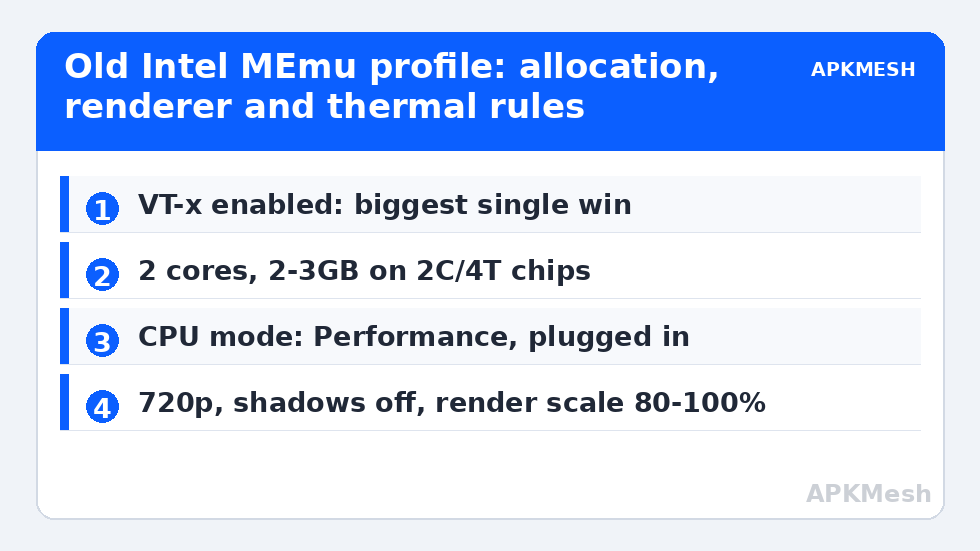
Create a fresh instance in MEmu’s Multi-MEmu manager and choose the Android 9 (or Android 7.1 on the very weakest chips — it is lighter) image. Then in Settings:
| Setting | Value for 2C/4T Intel (HD 4400/530) | Value for 4C/4T Intel (HD 620) |
|---|---|---|
| CPU cores | 2 | 2–3 (leave one core for Windows) |
| Memory | 2048–3072MB | 3072–4096MB |
| Resolution | 1280×720 @ 240 DPI | 1280×720 or 1600×900 @ 240 DPI |
| Graphics mode | OpenGL (Compatible) | OpenGL; test DirectX per game |
| Render cache | Enable | Enable |
| Frame rate | 60 cap | 60 cap |
| Root mode | Off | Off |
| Disk cache policy | Default (stability) | Default |
MEmu’s “Performance” CPU mode in its system settings (as opposed to “Energy saving”) matters on laptops: Energy saving aggressively downclocks the virtual CPU between frames and produces exactly the periodic stutter users then misdiagnose. Set Performance while plugged in.
Lag risk: —
The BIOS and Windows Layer (Where Old PCs Hide Their Speed)
Virtualization: VT-x must be on. On business laptops of this era it is frequently disabled by default or buried under a “Security” tab in BIOS. MEmu’s title bar and diagnostics will tell you if it is off. This one toggle is worth more than every other tip in this article combined — a lesson shared with every emulator in our Emulator Settings library.
Hyper-V conflict: on Windows 10/11 Pro, Hyper-V and Device Guard steal the virtualization layer. MEmu offers a build tolerance for this, but old CPUs pay the highest tax; if you do not need Hyper-V for work, turn it off (Windows Features) and disable Memory Integrity under Core Isolation, then reboot.
Drivers: Intel stopped updating HD 4400/530 drivers years ago, but HD 620/630 drivers still receive occasional fixes — install from Intel, not the laptop vendor’s frozen 2018 package. A five-year-old graphics driver is a common root cause of emulator crashes blamed on MEmu itself.
In-Game Settings Discipline
Old Intel iGPUs have weak fill rate and no spare memory bandwidth, so in-game settings should be changed in this order: resolution scaling first (many games have an internal render scale — 80% is nearly invisible and worth ~15% performance), then shadows off, then effects/particles to low, then textures to medium (textures cost memory, not much GPU time, and medium keeps games readable). Leave anti-aliasing off; at 720p on a laptop screen, MSAA is an expensive blur. The renderer background is in our OpenGL vs DirectX vs Vulkan explainer, and allocation maths in allocating CPU cores and RAM correctly. If your chip is a UHD 620/630, the dedicated Intel UHD graphics settings article continues from here.
Heat: The 20-Minute Cliff
Old laptops accumulate dust-clogged heatsinks and dried thermal paste. The signature is unmistakable: the game runs at 60 FPS for 15–25 minutes, then slides to 40 with rising fan noise. No emulator setting fixes physics. Practical mitigations: play plugged in with the rear of the laptop raised for airflow, cap FPS at 60 (or even 45) so the system never sprints, and clean the vents. A repaste on a 2015 laptop is a legitimate afternoon project that can restore double-digit percentages of sustained clock speed — but open the machine only if you are comfortable doing so.
Storage and Memory: The Two Silent Taxes on Old PCs
Older Intel machines usually pair their CPU with a mechanical hard drive and a single stick of RAM, and both choices tax MEmu independently of its settings. The HDD tax is seek latency: MEmu’s instance is a giant virtual disk, and every texture stream asks the platter to be somewhere else. Beyond the SSD upgrade already recommended, two free mitigations help — keep the instance on a freshly-defragmented, at-least-20%-free partition (defragment the host drive only if it is an HDD, never an SSD), and avoid running Windows’ own disk-heavy chores (update installs, antivirus full scans) during play sessions; schedule them for mornings.
The memory tax is channels. A single 8GB stick runs the CPU’s memory controller in single-channel mode, halving the bandwidth available to the integrated GPU that shares it. If the laptop has a free SODIMM slot, a matched second stick is the best money an old Intel emulation machine can receive — it raises both system RAM and effective GPU throughput in one purchase. Until then, MEmu’s allocation must respect the 8GB total strictly: 3GB to the instance, the rest guarded for Windows and the pagefile safety net described in the Windows layer section above.
Which Games Belong on This Hardware (and Which Don’t)
Curating the library is an optimization too. Older Intel machines shine with the enormous back catalog of 2D and early-3D Android: tower defense, card battlers, JRPGs, MOBAs at modest settings, and the lighter battle royales on their smoothest presets. They struggle honestly with the current flagship open-world titles whose minimum specs assume a modern phone — a 2024 flagship phone is, transistor for transistor, a faster gaming machine than a 2014 desktop i3, and no emulator closes that gap from the wrong side. The satisfying pattern for these PCs is a mixed diet: demanding new releases played on the phone they were built for, and the deep back catalog — often the better games — given the big screen, keyboard and chair that only the PC provides.
One specification quietly decides whether these settings can breathe: memory configuration. Many surviving machines from this era run a single RAM stick, which halves memory bandwidth — and the integrated GPU shares that same bandwidth, so textures and frame buffers compete with the emulator itself. If a second-hand matching stick is an option, dual-channel memory is the single cheapest genuine upgrade for an old Intel rig, often worth more than any setting in this guide. Check CPU-Z’s Memory tab for ‘Single’ versus ‘Dual’ before spending anything elsewhere.
Frequently Asked Questions
Can a Core i3 4th-gen run MEmu Play at 60 FPS?
In light and mid-weight games, yes — at 720p with 2 cores and ~3GB allocated, VT enabled, and in-game effects lowered, a Haswell i3 typically holds 50–60 FPS. Heavy modern 3D titles exceed what that CPU/iGPU pair can do regardless of settings.
Android 7.1 or Android 9 instance for an old CPU?
Android 7.1 is lighter and boots faster on very weak chips, but an increasing number of games require Android 8+. Use 7.1 only if your specific games still support it; otherwise Android 9 is the pragmatic floor.
Why does MEmu get slower after about 20 minutes?
That is almost always thermal throttling: the CPU and iGPU share a cooling solution, sustained load raises temperatures, and clocks drop. Lower the FPS cap, improve airflow, and clean the vents; settings inside MEmu cannot override hardware temperature limits.
Should old Intel systems use OpenGL or DirectX in MEmu?
Start with OpenGL Compatible mode. Intel’s older Windows OpenGL drivers are imperfect, so if a game shows glitches or worse lows, test DirectX for that title — on HD 4400/530-era drivers DirectX occasionally wins.
Does an SSD make a big difference for MEmu on an old PC?
Yes, disproportionately. Emulator instances are giant virtual disk files; an SSD removes asset-streaming hitches and cuts load times several-fold. On old hardware it is the single best upgrade, ahead of RAM.