
Ultrawide and high-resolution monitors expose a settings pair that laptop users can ignore: resolution and DPI are independent controls in every major emulator, and mismanaging them on a big screen costs you either blurry text, tiny touch targets, or a GPU bill your hardware never agreed to pay. Getting emulator resolution dpi wide monitor settings right means understanding that resolution decides how many pixels are rendered, while DPI (really, the density Android reports) decides how big Android thinks UI elements should be. Confuse the two and you get a 4K canvas displaying a phone interface designed for a postage stamp — rendered at ruinous cost.
Emulator Resolution DPI Wide Monitor: The Two Controls, Separated
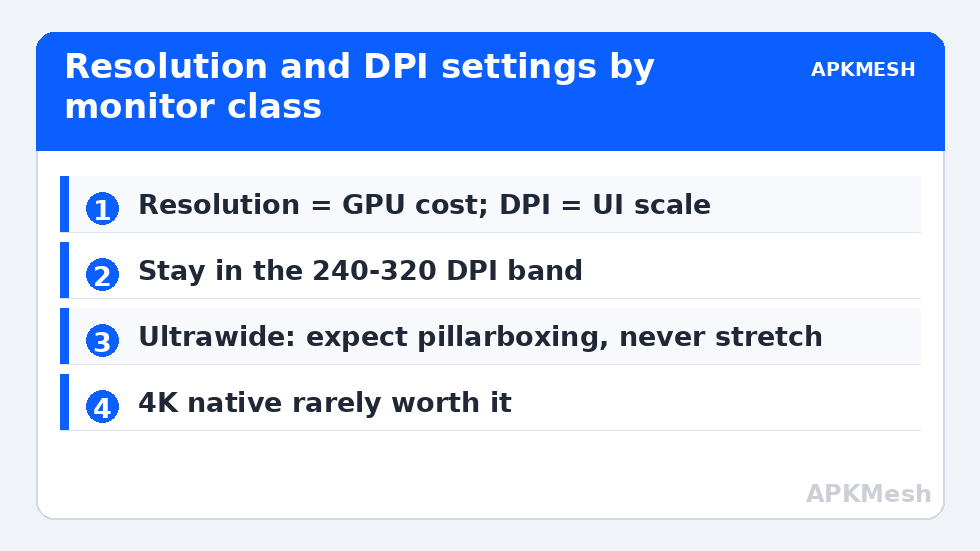
Resolution (e.g., 2560×1080 on a 34″ ultrawide, 3440×1440, or 1920×1080 on a standard panel) sets the framebuffer size. Every step up multiplies GPU fill work. DPI in emulator settings maps to Android’s density bucket: at 240 DPI Android lays out UI as if the screen were a typical tablet; at 320 or 480 it enlarges elements and text relative to the canvas; at 160 it shrinks them. Games that render in 3D care mostly about resolution. Apps, menus, and the games’ HUDs care about both.
| Monitor | Sensible emulator resolution | DPI | Notes |
|---|---|---|---|
| 24″ 1080p | 1920×1080 (or 1600×900 for weak GPUs) | 240 | Fullscreen 1:1 mapping is sharpest |
| 27″ 1440p | 2560×1440 discrete GPU; 1920×1080 iGPU (windowed) | 240–320 | 320 keeps text comfortable at 1440p |
| 34″ 3440×1440 ultrawide | 2560×1080 windowed, or custom 21:9 per game support | 240 | Most games are 16:9 or 20:9; pillarboxing is normal |
| 32″ 4K | 2560×1440 or 1920×1080 upscaled | 320 | Native 4K emulation is a discrete-GPU luxury |
| 15″ 1080p laptop | 1600×900 / 1280×720 | 240 | Performance first; see laptop guides |
The Aspect Ratio Problem on Ultrawide
Android games are built for phone aspects between 16:9 and ~20:9. A 21:9 (or 32:9) emulator window asks the game to draw more horizontal world than its designers budgeted for. Three outcomes occur, and you do not get to choose: the game fills the width and stretches (rare, ugly), fills and crops vertically (loses HUD elements), or pillarboxes with black bars (most common, correct). Emulators add their own wrinkle — some offer a “stretch to window” that distorts everything. Leave stretching off, set a custom resolution matching a supported aspect (2560×1080 is widely accepted as 21:9 by games that support it), and accept bars elsewhere. In competitive shooters, some players deliberately run 16:9 windows on ultrawide panels because the game’s FOV and HUD scaling are tuned for it.
Lag risk: —
DPI Mistakes That Break Games
Setting DPI too high (480 on a 1080p canvas) makes Android report a small, dense screen: UI elements balloon, some games’ touch zones misalign with their visuals, and a few titles refuse their tablet UI and fall back oddly. Too low (120–160 at 1440p) shrinks system dialogs and in-game text below readability and can push buttons off safe areas in portrait games. The stable band used by real devices is 240 (xhdpi-class tablets) to 320; stay inside it unless a specific app demands otherwise. Note that several emulators require a full restart before density changes register, and some games read density only at first launch — clear the game’s data if a DPI change seems ignored.
Performance Budgeting on Big Screens
Pixel counts explain most “my new monitor made the emulator slow” reports: 3440×1440 is 2.4× the pixels of 1920×1080, and integrated graphics that cruised at 1080p will not cruise there. The hierarchy of fixes, in order of visual cost-effectiveness: reduce emulator resolution one tier (the monitor upscales; at gaming distances the softness is minor), disable in-game anti-aliasing at high resolutions (the pixel density does the work instead), then reduce shadows/effects. Keep the FPS cap matched to the panel and see enabling high refresh rates in BlueStacks and LDPlayer if your monitor is 120Hz+. Renderer choice interacts here too — fill-rate-heavy scenes punish weak paths, per our renderer comparison.
Multi-Monitor and Windowed Play Notes
Dragging an emulator between a 1080p and a 4K monitor without changing settings produces either a postage stamp or a blurry giant, because the canvas resolution is fixed while the window scales. Players who move around should pick per-monitor resolutions deliberately (two instances, one tuned per screen, is the tidy solution; budget them with multi-instance discipline). More display and settings guidance lives in Emulator Settings.
Portrait and Rotated Games on Wide Screens
Not every emulator session is a landscape shooter. Portrait games — match-3s, vertical shooters, many gacha titles — on a 34″ ultrawide become a narrow column with meters of black on either side, and the DPI question inverts: at a tall portrait resolution like 1080×1920, Android’s layout uses the width in density-independent pixels to pick its UI mode, so a 240 DPI setting yields a comfortable phone-like column, while pushing resolution to the panel’s full height only spends GPU on pixels the game’s art never had. For portrait play, run a modest custom resolution (1080×1920 or even 720×1280), set DPI to 240, and position the window rather than maximizing it. Some players keep a dedicated portrait instance profile for these titles — cheap to store, kinder to the GPU, and it prevents the constant settings churn of a single instance serving two orientations badly.
Text Clarity: The Subpixel Footnote
If emulator text looks fringed on a high-resolution panel despite correct settings, the cause is usually Windows display scaling interacting with the emulator window (a 125% or 150% scaled desktop resamples the window). Set the emulator executable’s DPI behavior (Properties > Compatibility > High DPI settings) to “Application” so it renders at native panel pixels, and let the emulator’s own resolution/DPI controls — not Windows — decide its internal layout.
When a Game Ignores Your Settings Entirely
A minority of titles hard-code their render resolution or read the device profile’s declared screen instead of the emulator’s canvas, producing a game that stays stubbornly blurry or stubbornly tiny whatever you set. The tells are an in-game resolution option that changes nothing, or HUD scaling that follows the spoofed phone model rather than your DPI. Countermeasures are limited but real: change the emulator’s device profile to a mainstream model (the game’s lookup tables are keyed to known devices), clear the game’s data so it re-detects its environment, and check the in-game “graphics” reset option some engines hide in settings. If none of that moves it, the title is rendering at its designed target and the correct response is to lower your emulator canvas to match — rendering 1080p to display a 720p game is the purest waste in this entire topic.
Frequently Asked Questions
What is the best resolution for emulators on a 1440p monitor?
With a discrete GPU, run 2560×1440 at 240–320 DPI for a sharp 1:1 image. On integrated graphics, run the emulator at 1920×1080 windowed or fullscreen-upscaled — the GPU savings are large and the softness is modest at normal viewing distances.
Does higher DPI increase FPS or quality?
Neither, directly. DPI controls Android’s UI scaling — how large text and controls are drawn relative to the canvas. It affects readability and touch-target size, and in a few games which UI layout is chosen. Rendering cost is governed by resolution.
Why is my ultrawide emulator window showing black bars?
Most Android games only support aspect ratios up to about 20:9, so on a 21:9 or wider canvas they pillarbox rather than stretch. That is correct behavior. Set a 2560×1080 custom resolution for games that do support 21:9, and never enable force-stretch options.
My game UI is tiny after switching monitors. What fixes it?
Raise the emulator’s DPI setting (try 320) and restart the emulator fully; if a game ignores the change, clear its data so it re-reads the density at first launch. Also confirm the emulator resolution actually matches your new monitor’s tier.
Is native 4K worth it for Android emulation?
Rarely. Android games’ textures and HUDs are authored for phone resolutions, so 4K mostly multiplies GPU cost without adding detail. 1440p is the practical ceiling for clarity; spend the saved GPU budget on frame rate stability instead.