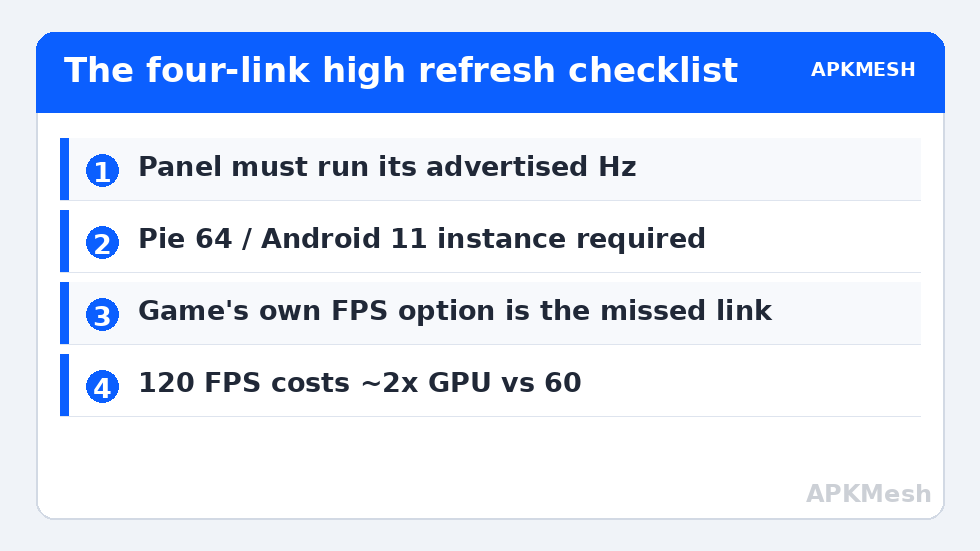
High refresh support in emulators is a chain of four separate settings — Windows display rate, emulator frame cap, the game’s own FPS option, and the Android instance’s display configuration — and the chain breaks at whichever link you forgot. Learning to enable high refresh rate emulator pc setups properly means auditing all four, in order, then verifying with an on-screen counter instead of trusting that one toggle did the job. This guide covers BlueStacks 5 and LDPlayer 9 specifically, on Android 11 / Pie 64 class instances where 90Hz and 120Hz modes are actually supported.
Link 1: Windows and the Panel Itself
Right-click the desktop > Display settings > Advanced display: confirm the panel’s refresh rate is set to its advertised value. A shocking number of “my 144Hz monitor only shows 60” cases are a panel left at 60Hz since unboxing, or a cable (older HDMI) that cannot carry 1440p at 144Hz — DisplayPort or HDMI 2.0+ is required for high-rate, high-resolution combinations. Laptops with hybrid graphics add a twist: the internal panel may be wired to the iGPU, capping rates regardless of the discrete GPU’s power. Check this before blaming any emulator.
Enable High Refresh Rate Emulator PC: The Emulator Frame Cap
BlueStacks 5: Settings > Performance — enable “Enable high frame rate” and drag the FPS slider to your target (90 or 120; the slider on recent builds goes well beyond 120). The instance must be Pie 64-bit or Android 11; Nougat instances cap lower. Also confirm the in-instance Android setting: some builds expose a display refresh preference under the instance’s device settings.
LDPlayer 9: Settings > Game settings — set Frame rate to 90 or 120 FPS and check “Enable high frame rate mode (may increase power/heat)”. LDPlayer ties some high-rate features to its Android 9/12 images; update the emulator if the option is missing. In both emulators, restart the instance after changing the cap — the Android display service reads it at boot.
Lag risk: —
Link 3: The Game’s Own Setting (the One Everyone Misses)
Most competitive titles ship with their own frame rate option in graphics settings, defaulting to 60 or even “High” (which may mean 60). BGMI/PUBG Mobile class titles label tiers (Smooth/Extreme = 60, 90 FPS options on supported device profiles), Call of Duty: Mobile has its own Max/Ultra frame options, and rhythm/racing games vary. If the emulator allows 120 but the game is set to 60, you get 60. Some games also gate 90/120 options by device profile — the emulator’s spoofed device model decides which tiers appear. BlueStacks and LDPlayer both let you change the device profile in settings; choosing a current flagship profile can unlock the higher tier, at the risk of the game then offering graphics presets your GPU can’t hold. Unlock the frame rate tier first; tune quality after.
Link 4: Verify — Don’t Assume
Enable a frame counter: BlueStacks shows FPS from its sidebar performance overlay; LDPlayer has an FPS display option in settings; most games include one under graphics or “show FPS”. Then play the busiest scene, not the lobby. Also verify the counter is reporting rendered frames, not display refresh: an emulator can present a 120Hz container while the game renders 60 unique frames, which looks and feels like 60 — because it is.
What High Refresh Costs
| Target | GPU cost vs 60 FPS (same settings) | Sensible hardware floor |
|---|---|---|
| 90 FPS | ~1.4–1.5× | Iris Xe / Vega 8 / GTX 1050 Ti class at 720–900p |
| 120 FPS | ~1.8–2× | RTX 3050 / RX 6600 class at 1080p, quality lowered |
| 120 FPS on iGPU | Often unreachable in heavy titles | Light games only, 720p, lowest quality |
Heat scales with the same maths; thin laptops that hold 90 FPS for five minutes may not hold it for fifty. If your frame rate decays over a session, you are thermal, not misconfigured — see the throttling discussion in our MEmu optimization for older Intel CPUs and the allocation rules in allocating CPU and RAM. Also note input: high refresh halves frame latency only if your mouse polling and the game’s input sampling cooperate; the felt improvement is largest in shooters with camera panning.
When 90/120 Simply Won’t Appear: A Checklist
- Instance is Nougat 32-bit → migrate to Pie 64 / Android 11 (see Android 11 vs Android 9 performance for the cost).
- Emulator version is old → update; high-rate support improved markedly across 2023–2025 builds.
- Eco Mode or a frame limiter is on in the emulator or a third-party tool (RTSS caps apply to emulators too).
- The game does not support high refresh on Android at all — some titles cap globally. Confirm with the game’s community before burning hours.
- Duplicated displays / capture software forcing 60Hz on the Windows desktop.
More per-emulator tuning is collected under Emulator Settings.
Frame Generation and “Smooth” Toggles: Read the Fine Print
Recent emulator and GPU-driver versions advertise smoothing features that promise high-refresh feel at low-refresh cost. Understand what each actually does before counting it as your 120 FPS: driver-level frame generation (where available for emulator windows) synthesizes intermediate frames from rendered pairs — motion looks smoother, but input latency does not improve because the game still samples your mouse at its real frame rate; competitive players usually leave it off. In-emulator “frame interpolation” options on some builds do the same trade. True high refresh — the game rendering 90 or 120 unique frames — is the only version that reduces input latency, and it is the version this guide’s four-link chain produces. A useful field test: pan the camera at constant speed across a fine-textured wall. Rendered frames show crisp intermediate positions; interpolated smoothness blurs evenly and feels a beat behind your hand.
Per-Game Profiles Are Worth the Ten Minutes
Because the four links differ per title (one game offers 120, another caps at 90, a third punishes your GPU at either), maintain per-game notes or clone instances per refresh tier. Shooter mains at 90/120 on a high profile, strategy and gacha titles locked at 60 on a cool, quiet profile — your laptop’s fans, and your ears, will notice the difference across a long evening.
Mouse Polling and the Rest of the Input Chain
Unlocking 120 rendered frames while your mouse reports at 125Hz (the office-mouse default of 8ms) throws away part of the gain before it reaches the game. Gaming mice at 1000Hz polling (1ms) are the matched component for high-refresh emulator play, and both BlueStacks and LDPlayer pass high-rate input through without resampling it down. In Windows, disable “Enhance pointer precision” for emulator play so Windows’ acceleration curve stops rewriting your aim between the mouse and the emulator’s own mapping. None of this shows on an FPS counter, which is exactly why players who “did everything” sometimes feel nothing changed: the display chain was upgraded while the input chain stayed in 2015.
Frequently Asked Questions
Can BlueStacks really run games at 120 FPS?
Yes, on Pie 64-bit or Android 11 instances with “Enable high frame rate” on, provided the game itself offers a 90/120 FPS option and your GPU can sustain it. The cap is a chain: Windows panel rate, emulator setting, and in-game setting must all allow it.
Why is the 90 FPS option missing in my game’s settings?
Usually the device profile. Games gate high frame tiers by device model; switch the emulator’s device profile to a current flagship in the emulator settings and restart. If the option is still absent, that game build may not offer it on Android.
Does LDPlayer 9 support 120Hz?
Yes — set Frame rate to 120 under Game settings and enable high frame rate mode, on a current LDPlayer 9 build and instance image. Verify with the FPS counter in real gameplay, and expect substantially higher GPU load and heat than at 60.
Is 90 FPS worth it over 60 on a mid-range PC?
For competitive shooters, yes if you can hold it: motion clarity and input latency improve noticeably. If holding 90 requires dropping to lowest quality and it still dips into the 60s, a locked 60 at higher quality is the better experience — consistency beats peaks.
My monitor is 144Hz but the emulator shows 60. What do I check first?
Windows Advanced display settings — confirm the panel is actually running 144Hz (and that your cable supports it at your resolution). Then the emulator cap, then the game’s own FPS option, in that order.