Emulator data loss has a signature cruelty: the game you spent 400 hours in stored its save locally, the emulator updated badly or Windows reinstalled, and the cloud account you assumed was protecting you was never signed in on that instance. Learning to backup restore emulator game data properly means knowing the three different things “backup” can mean — account cloud saves, per-app data exports, and whole-instance images — because they protect against different disasters and only one of them covers all cases. This guide gives you a routine for each of the major emulators and a restore drill to prove it works.
Backup Restore Emulator Game Data: The Three Layers of Protection
| Layer | What it saves | What it misses |
|---|---|---|
| Game account cloud save | Progress tied to your game account (Google/Facebook/publisher ID) | Guest accounts, local-only games, emulator settings and keymaps |
| Per-app data backup | A specific game’s local data folder (via emulator file sharing or ADB) | Anything stored in protected app storage you cannot reach without root; your time, per game |
| Whole-instance backup/export | Everything: apps, data, settings, keymaps, the Android image itself | Portability — restores best into the same emulator version; files are huge (5–30GB) |
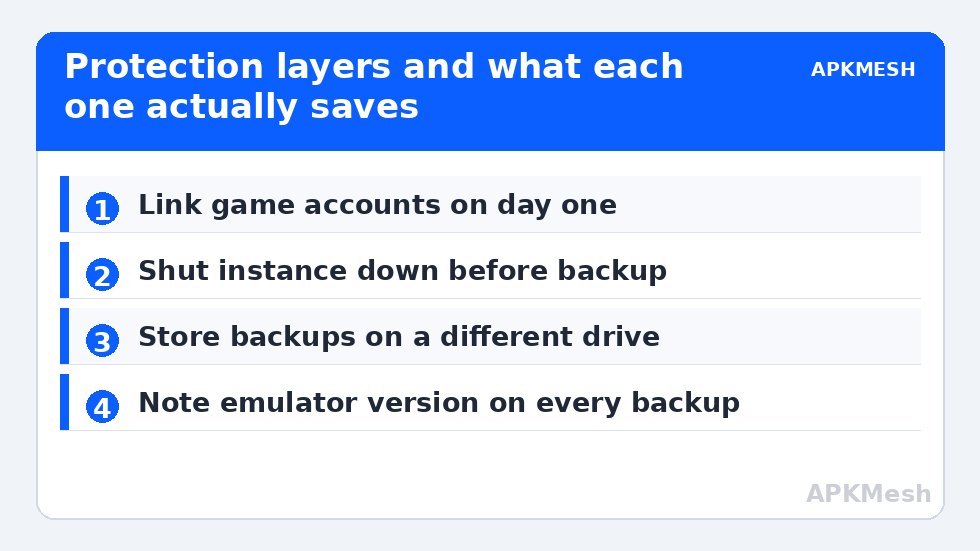
The professional habit is layer 1 for every game that offers an account (link it the day you start, not the day you migrate), plus layer 3 on a schedule for the instances you care about. Layer 2 is the surgical tool for moving one game’s data between emulators.
Whole-Instance Backup, Per Emulator
BlueStacks 5: instances can be backed up from the Multi-Instance Manager on builds that expose it; where unavailable, the supported manual method is to fully close BlueStacks and copy the instance’s data from its ProgramData folder (the .vhdx/.vdi engine files under BlueStacks’ Engine directory) — version-specific, so copy the whole Engine folder for the instance and note the BlueStacks version in the backup name. LDPlayer: the multi-instance manager (LDPlayer Multi-Player) has explicit Backup/Restore per instance producing a single backup file — use it; it is the cleanest implementation in the category. MuMu / MEmu / Nox: each offers instance export/backup in its multi-instance tool with varying fidelity; in all cases, shut the instance down fully before backing up (a running VM’s disk image copies inconsistently), and store backups on a different physical drive than the emulator itself.
Lag risk: —
Restore Drill: Prove It Before You Need It
- Create a throwaway instance, install a small game, make visible progress.
- Back the instance up using your emulator’s method.
- Delete the throwaway instance completely.
- Restore from the backup and confirm the game opens with its progress intact.
- Write down the emulator version used — restores across major version jumps are where exports fail, and knowing the source version tells you what to install first.
Twenty minutes, once, converts your backup from a hope into a system. Repeat the drill after major emulator upgrades; update paths are the silent killer of old backups.
Per-App Data: Moving One Game Between Emulators
When the goal is migration rather than disaster recovery — say you are moving from Nox to BlueStacks after reading our resource comparison — first check whether the game has an account system; signing in on the new emulator is faster and safer than file surgery. For local-data games, the data typically lives in Android/data/<package> or Android/obb/<package> on the instance’s shared storage, reachable through the emulator’s shared folder or a file manager inside Android. Copy those folders out, install the same game version on the target, run it once to create its folders, close it, then copy your data into the matching locations. Version mismatches are the common failure: update the target game to the same build before transplanting data. Games storing progress in protected internal storage cannot be moved this way without root — one more reason account linking is layer 1.
Keymaps, Settings and the Forgotten Files
Your custom keymapping profiles and emulator settings are data too, and they live outside the instance in the emulator’s configuration folders (BlueStacks stores keymaps in its UserData/Controls area; LDPlayer keeps per-instance config in its vms/config directory). When reinstalling Windows, back up the emulator’s whole config directory alongside instance exports, or accept recreating hours of careful keybinding. If you sideload apps into these instances, the same backup protects that work — review safe APK installation practices before restoring unknown-era APKs into a fresh setup. Full library: Emulator Settings.
Cloud Saves: Trust, but Verify the Fine Print
Not all “cloud saves” are equal, and discovering which kind your game uses belongs in the backup audit. True account-server saves (the game state lives on the publisher’s servers, tied to your login) survive everything short of account loss — these need no local backup at all. Device-cloud backups (Google Play Games snapshots, or the platform’s app-data backup) are real but conditional: they restore when the same account signs into a compatible environment, and emulator images are not always that environment. “Cloud” that is really local — some titles label a server-side account binding as cloud saving while the actual progress still lives in local data keyed to that binding; lose the local data without completing the binding ritual and the account holds nothing. The test for any game you care about: sign out, clear a copy instance’s data, sign back in, and watch what returns. What returns is what the cloud actually has.
Organizing the Backup Shelf
Keep backups boringly systematic: one folder per emulator, instance name plus date plus emulator version in every filename, and a plain-text note of which Google account each instance used. Store the working set on the PC and one copy on an external drive or cloud storage — a backup that lives only on the same disk as the emulator is a roommate, not an insurance policy. Prune ruthlessly: keep the latest two versions per important instance and delete the archaeology.
What To Do When a Restore Fails Anyway
Even good routines meet a backup that will not import — a version gap too wide, a quietly corrupted file. Work the ladder calmly: try importing into the exact emulator version that created the backup (old installers are usually still published); if the instance mounts but the game crashes, extract only the game’s data folders from the backup’s virtual disk with a file manager and transplant them per the per-app method, discarding the system image; if the account was ever linked, cut losses and rebuild from the cloud save, accepting the loss of settings as the tuition for the lesson. Then fix the routine that failed — most often it is the missing version note or the single-copy storage, both cheap to correct before the next incident rather than after it.
Frequently Asked Questions
What is the safest way to back up an emulator instance?
Use the emulator’s own instance backup/export in its multi-instance manager, with the instance fully shut down, and store the backup on a different drive. LDPlayer’s implementation is the most straightforward; for BlueStacks, a shutdown copy of the instance’s engine data works where the built-in option is absent.
If my game is linked to a Google account, do I still need backups?
For that game’s progress, the account link covers most disasters. You still lose emulator settings, keymaps, and any local-only games without an instance backup. Keep the account link as layer one and an occasional whole-instance backup as layer two.
Can I restore an instance backup into a newer emulator version?
Usually yes within the same emulator family, and multi-instance managers handle the import. Restores occasionally fail across major version jumps; that is why you note the source version on the backup and keep the old installer until the restore is proven on the new version.
How do I move one game’s save to a different emulator?
Prefer the game’s account system. Otherwise copy its Android/data and Android/obb folders from the source instance via the shared folder, install the identical game version on the target, launch it once, close it, then copy your folders into the matching locations.
How often should I back up?
Before every major emulator update and Windows reinstall, after any long progression milestone in a local-save game, and on a simple monthly rhythm for instances you use daily. Automate a calendar reminder; backups that depend on memory do not happen.