

Learning to create custom macro scripts in an emulator raises two questions: how the recording tools work, and whether the macro you are imagining is one you should run at all. The mechanics are easy — BlueStacks and LDPlayer both ship recorders that capture taps, swipes and keypresses and replay them on a schedule. The judgement is the real skill. Automating a clumsy multi-tap menu sequence in a single-player game is a quality-of-life tool; automating ranked-match actions, resource farming while you sleep, or anything that plays the game for you in competitive modes can breach the game’s terms of service and get accounts banned. This guide teaches the mechanics thoroughly and draws the fair-play line clearly, so read the caution section before the fun section if you must skip something — actually, read it first anyway.
A macro in this context is a recorded script of inputs with timing: tap here, wait 800 ms, swipe there, press this key. Both major emulators store macros as editable files (BlueStacks uses a JSON-based macro format you can open from the Macro Manager; LDPlayer’s Operation Recorder saves scripts you can rename and bind). Because the script replays screen coordinates, it is married to one resolution and one UI layout, exactly like a keymapping profile.
Fair Play First: What Macros May and May Not Do
Game publishers write their own rules, and ‘the emulator allowed it’ is not a defence. Common patterns in mobile game terms: single physical actions mapped to single in-game actions are broadly tolerated (that is ordinary keymapping); chained sequences that perform skilled play — recoil compensation patterns, one-key combo executions in PvP, automated farming loops in games whose economy is competitive — are frequently prohibited and actively detected. Anti-cheat systems look for robotic timing signatures, which is another practical reason macro replays with machine-perfect 0 ms variance are risky even in grey areas.
Our working rule, applied throughout this guide: macros for menus, inventory chores, accessibility (reducing painful repeated tapping), and single-player convenience are reasonable; macros that make competitive decisions or generate resources unattended are not, and we will not optimise for them. If a use matters to you, read that game’s terms and community rules first — the ten minutes is cheaper than a banned account. Everything below is taught for the legitimate end of the spectrum.
Lag risk: —
Recording in BlueStacks Macro Manager
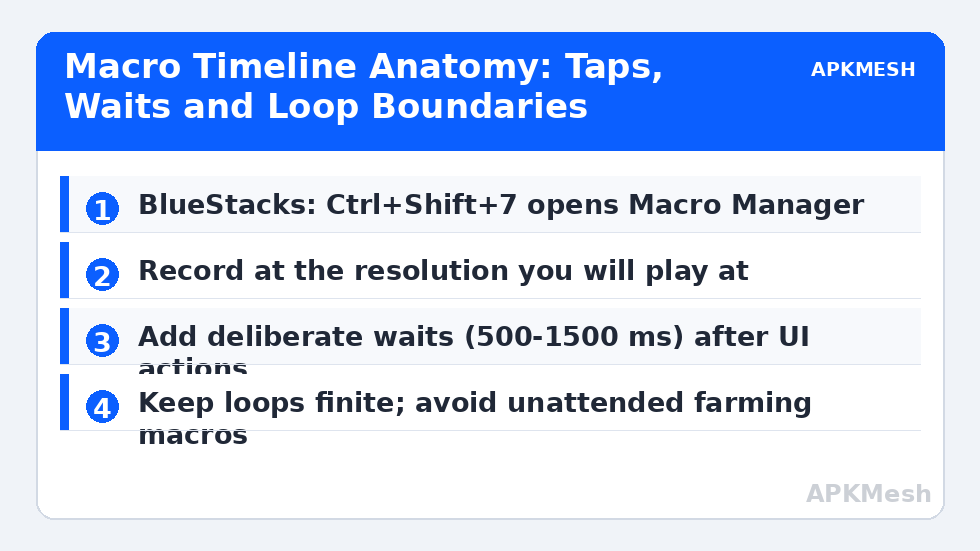
Press Ctrl+Shift+7 (or the Macro Manager icon on the sidebar) and choose Record new macro. Perform the sequence slowly and deliberately: recording captures real time, including your hesitations, and a clean slow take is easier to trim than a fast sloppy one. Click Stop, name the macro after the job (for example ‘Daily-login-menu-route’), and bind it to an unused key in its settings panel. Open the macro in the editor to inspect the event list — you will see taps with coordinates, key events, and delays. This is where recording becomes scripting: adjust individual delays (menus need 500-1500 ms to animate; in-match UI responds faster), delete stray events, and set the loop count deliberately. Infinite loops are how accounts and PCs end up doing something unintended at 3 a.m.; prefer a fixed count with a manual restart.
BlueStacks also allows merging macros and scheduling them, and exporting macro files from the manager for backup. Export your finished macros alongside your control schemes — the workflow mirrors our keymapping profile export process and for the same reason: rebuilds should be imports, not archaeology.
Recording in LDPlayer Operation Recorder
LDPlayer’s equivalent lives on the sidebar as the Operation Recorder (the script/play icon). Start recording, perform the sequence, stop, and the script appears in the recorder list where you can rename it, bind a launch key in the script’s settings, and set execution options such as loop interval and a stop key. LDPlayer scripts are less granular to edit than BlueStacks macros — you cannot nudge every event as freely — so the recording discipline matters more: rehearse the sequence twice before recording, keep the emulator window at its final size, and record at the resolution you actually play, because coordinate scripts do not forgive a later resolution change.
| Element | Example value | Why it matters |
|---|---|---|
| Tap event | x=87%, y=92% (confirm button) | Coordinates are resolution-bound; verify after any UI update |
| Wait after menu tap | 900 ms | Menu animations vary; too short and the next tap lands on the wrong screen |
| Swipe event | from (50%,70%) to (50%,35%), 300 ms | Scroll distance and speed change which items load |
| Key event | Esc (close dialog) | Keyboard events survive resolution changes better than taps |
| Loop count | 3 (fixed) | Finite loops prevent unattended behaviour |
| Stop key | F12 | Always bind a panic stop you can hit blind |
Timing, Testing and Maintenance
Test every macro in a throwaway context first: a secondary account if the game has one, a practice mode, or at minimum a screen where a misfire costs nothing. Watch the first full run without touching anything; a macro that needs babysitting to not break is not finished. The two classic failure modes are timing (the game loaded slower than the recording day because the PC was busy) and drift (a game update moved a button by twenty pixels). Timing failures are cured by longer waits after loading-prone steps; drift failures mean re-recording the affected tap, not nudging every coordinate by guesswork.
Keep a small changelog in the macro’s name or a notes file: version of the game it was recorded against, date, and what it does. Emulator macros accumulate like browser bookmarks — in six months you will own thirty scripts named ‘macro7’ unless the naming discipline starts now. And repeat the boring rule because it is the one that matters: when a game updates its UI or its rules, re-check both before running anything unattended.
One more environmental trap deserves a line: Windows display scaling. If your Windows display is set to 125% or 150% scaling and the emulator window moves between monitors or the scaling changes, the effective window size changes with it, and a coordinate script recorded under one scaling can land subtly off under another. Standardise the setup you record in — same monitor, same scaling, same window state (maximised or a fixed windowed size) — and note it in the changelog with the game version, so a macro that suddenly misses by a few pixels has an explanation you can check in ten seconds.
Related Keymapping Guides
More from this category is collected in the Keymapping Guides archive. These companion guides go deeper on the topics touched above:
- exporting and sharing keymapping profiles
- quick-buy and shop macros for strategy games
- keyboard shortcuts for typing and navigation
Frequently Asked Questions
Are macros bannable in mobile games played on emulators?
They can be. Rules are per game: menu and accessibility automation is often tolerated, while macros that execute skilled play, farm competitively or run unattended are commonly prohibited and detected. Read the specific game’s terms before using any macro beyond simple menu chores.
Why does my macro tap the wrong buttons after a game update?
Macros replay stored coordinates. When an update moves UI elements, the coordinates point at whatever now sits there. Re-record the affected tap or re-record the whole sequence; also confirm the emulator resolution has not changed, since coordinate scripts assume a fixed layout.
BlueStacks or LDPlayer: which macro tool is easier to edit?
BlueStacks’ Macro Manager exposes an event list you can trim and retime precisely. LDPlayer’s Operation Recorder is quicker to capture with but coarser to edit, so recording discipline (rehearse, go slowly, final resolution) matters more there.
How do I stop a macro that is looping wrongly?
Bind a stop key when you create the macro (F12 is common) and keep loops finite rather than infinite. If a run goes wrong, the stop key ends it; worst case, close the emulator window — a macro cannot outlive its host.
Can a macro include keyboard keys as well as taps?
Yes — both recorders capture keypresses, and key events are more robust than coordinate taps because they do not depend on where a button is drawn. Where a menu can be driven by keyboard (Esc to close, Enter to confirm), prefer keys inside your scripts.