MSI App Player occupies an odd, useful niche: it is built on BlueStacks technology, ships free with MSI laptops, yet arrives with lighter defaults than its parent. That makes the msi app player settings guide worth writing separately — budget-laptop owners often install it, accept the preset chosen for a gaming desktop, and conclude the emulator is heavy when really the profile is. This guide retunes it for the integrated-graphics, 8GB-class machines it most often lands on, and flags where its menus differ from BlueStacks so borrowed screenshots do not mislead you.
What Is Actually Different From BlueStacks
Underneath, the engine lineage shows in the instance types, the graphics modes, and the Eco Mode concept. The differences are in packaging and defaults: fewer bundled extras competing for attention, MSI-oriented overlays on supported hardware, and presets that assume an MSI gaming laptop rather than the office ultrabook many App Players end up running on. Treat every inherited BlueStacks tip as a hypothesis to verify in your build, because menu names and the location of the frame-rate controls have drifted between versions.
The practical consequence: work through Settings in this order — Performance, Graphics, Display, then Phone — and ignore anything that smells like a desktop preset. If the Performance tab offers a High profile with four cores and 4GB or more pre-selected on an 8GB laptop, that is the single change that will do your frame stability the most good.
The Budget-Laptop Profile
| Setting | Recommended value | Notes |
|---|---|---|
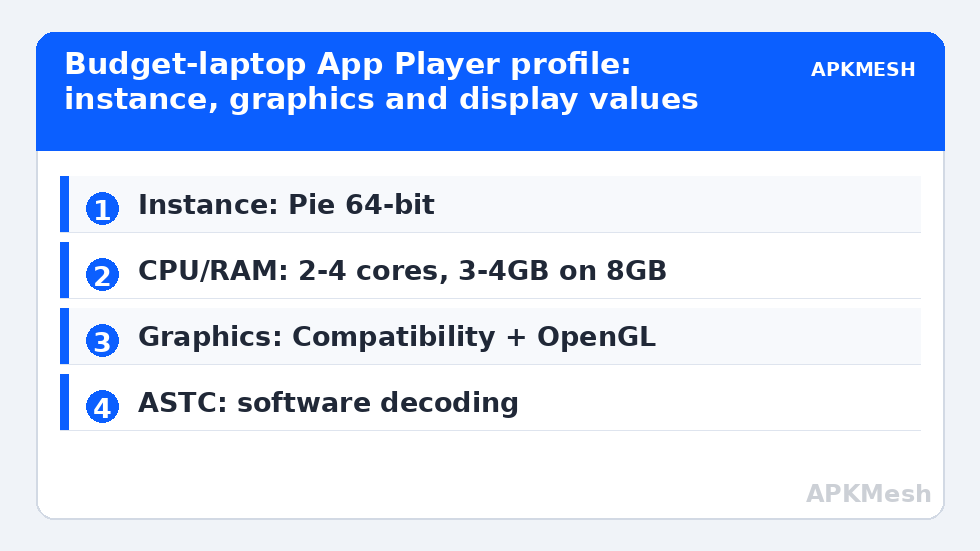
| Instance | Pie 64-bit | Required by most current games; Nougat only for legacy apps |
| CPU allocation | 2 cores (4-thread CPU) / 4 cores (8-thread) | Custom allocation, never the High preset blindly |
| Memory allocation | 3–4GB on an 8GB system | Leaves Windows at least 3GB of working room |
| Graphics engine mode | Compatibility | Performance mode assumes a stronger GPU pipeline |
| Graphics renderer | OpenGL | DirectX only to fix a specific title’s glitches |
| ASTC textures | Software decoding | Safer on older integrated graphics |
| Display | 1280×720 landscape, 240 DPI | 900p only if the laptop stays cool and plugged in |
| Frame rate | 60, high frame rate off | Match ambition to the panel and the iGPU |
These values deliberately mirror the logic in our BlueStacks 5 Pie 64-bit performance tweaks, because the engine constraints are the same; what changes is only where MSI put the switches. Readers coming from GameLoop will find this a heavier but far more general environment — the comparison with GameLoop best settings for low-end PCs is really a comparison between a publisher-tuned lane and a general-purpose garage.
Lag risk: —
Eco Mode and the Second Instance Habit
App Player inherits Eco Mode, and on a budget laptop it earns its keep even with a single instance. Menus, reward screens, update downloads, and queue waits do not need 60 frames; Eco caps the instance so the laptop arrives at the actual match cooler and quieter. The discipline is simply remembering to switch it off when play starts — a capped lobby forgotten at match time is the most common self-inflicted wound among App Player users, ahead of any renderer choice.
If you run a second instance for an alt account, give it the throttled treatment from the start: two cores, 2GB, a 20–30 FPS ceiling, and Eco on permanently. Two full-strength instances on an 8GB laptop is an arithmetic error, not a settings challenge, and it ends in the paging freezes described in the FAQ below.
Display, DPI and the Small-Screen Problem
Budget laptops often pair a 15.6-inch 1080p panel with aggressive Windows scaling, and emulator windows inherit the confusion. Set the emulator itself to 1280×720 at 240 DPI for play, which keeps HUD text chunky enough to read without leaning in, and set the App Player executable’s DPI behaviour to Application in Windows compatibility properties if the window looks blurry at fullscreen. Blurriness at 720p-upscaled is a scaling artefact, not a reason to raise the render resolution and halve your frame rate.
Tablet versus phone display mode deserves one test per game. Several titles ship different HUD layouts per form factor; tablet landscape at 16:9 is the safer default on a laptop screen, while a stubbornly phone-shaped UI usually means the game wants the other mode, not a different DPI. That interplay between resolution and layout is explored more fully in the APKMesh homepage guides and the wide-monitor article elsewhere in this category.
MSI Hardware Extras: Use Them Sparingly
- Keyboard lighting and overlays: pretty, cheap in resources, but disable overlays first when diagnosing stutter — every overlay is one more thing compositing over your game.
- Vendor performance modes: MSI’s own power profiles (through Dragon Center or MSI Center) matter more than any emulator toggle; use the performance profile while plugged in and expect throttling on battery.
- Driver source: take graphics drivers from Intel, AMD, or NVIDIA directly rather than waiting on the laptop support page; emulator fixes ride in those releases.
- Storage: keep the instance on the internal SSD and 15 percent of the drive free; App Player’s virtual disk grows quietly over months of updates.
None of these extras substitutes for the profile table. They are the last five percent; allocation, renderer, and resolution are the first ninety-five, in that order, on every budget machine this emulator will ever meet.
When App Player Is the Wrong Tool
If your laptop has 4GB of RAM, App Player will run, but so will paging — consider whether the game you want exists in a lighter lane, and read the honest ceilings before investing an evening. If your laptop is a recent MSI gaming model with a discrete GPU, most of this guide’s restraint is unnecessary; raise resolution and frame caps in steps, testing thermals as you go. Knowing which machine you actually own is the whole skill here. Settings are just arithmetic with your hardware’s name on it.
Updates, Hygiene and the Older-Intel Question
App Player updates arrive on their own schedule, and each one deserves the same suspicion as a game patch: play one known title for ten minutes after updating before assuming your profile survived intact, and keep your allocation values written down outside the emulator so a reset preset is a two-minute repair rather than an evening of rediscovery. Clear the instance cache seasonally, uninstall abandoned titles, and keep the host drive’s free space above 15 percent; a choked virtual disk imitates almost every performance fault in this guide.
Owners of distinctly older Intel laptops — the HD Graphics era rather than UHD — should read this profile alongside our MEmu Play optimization guide for older Intel processors. The machines overlap, and some of those laptops genuinely run the lighter emulator more happily. Trying both with honest allocations for one evening is worth more than a month of forum loyalty, because the correct answer is written in your Task Manager graphs, not in either product’s marketing.
One Final Check Before You Blame the Emulator
Before concluding that App Player itself is heavy, run the comparison that settles most arguments: play the same title, at the same settings, on a fresh instance with only that game installed. If the fresh instance feels dramatically better, your daily instance is carrying months of accumulated apps, caches, and half-remembered experiments — and the cure is migration to a clean instance, not another round of toggles. Emulator instances are cheap to rebuild and expensive to archaeology through, a truth budget-laptop owners learn exactly once.
Frequently Asked Questions
Is MSI App Player lighter than BlueStacks 5?
Slightly, in practice – it ships with fewer extras and calmer defaults in some builds, but the underlying engine is BlueStacks technology, so tuned identically the two perform very similarly. The real difference is which preset you start from, which is why manual allocation matters more than the brand on the window.
How much RAM should I allocate to MSI App Player on an 8GB laptop?
Allocate 3-4GB to a single gaming instance and leave Windows at least 3GB. Giving the emulator 6GB on an 8GB machine is the most common cause of mid-match freezes, because the moment total demand crosses physical memory, Windows pages to disk and every frame waits on storage.
Compatibility or Performance graphics mode on a budget laptop?
Compatibility mode with OpenGL. Performance mode assumes a stronger graphics pipeline and on older integrated GPUs it tends to trade a few headline frames for texture glitches and occasional crashes. Switch modes per game only when you have a specific, repeatable symptom to fix.
Why is my game capped at low FPS even on the 60 setting?
Check Eco Mode first – it caps frame rate by design and is easy to leave on after menus. Then check the game’s own FPS option, which often defaults lower than the emulator allows, and finally the laptop power profile, since battery and balanced modes throttle the integrated GPU early.
Can I run two App Player instances on an 8GB laptop?
One full instance plus one throttled background instance, at most: 2 cores, 2GB and a 20-30 FPS cap with Eco Mode on for the second. Two full gaming instances exceed what 8GB and a four-thread CPU can serve, and the result is paging, not parallel play.