Every emulator instance introduces itself to apps under a false name: a device model, a brand, sometimes a phone number’s ghost and a set of hardware claims. That introduction is the device profile, and it decides far more than vanity — which graphics tiers a game offers you, whether a store listing calls your instance compatible, and occasionally whether an app works at all. Yet most users never open the phone settings tab. Tuning emulator device profile settings deliberately — choosing phone versus tablet form factors and models you can justify — turns a cluster of confusing behaviours into a small set of predictable ones. This guide explains what the profile controls and how to set it per purpose.
What the Profile Actually Reports
An emulator’s device profile typically bundles the manufacturer and model strings Android reports to apps, the device’s declared screen characteristics alongside your resolution settings, and in some emulators a generated IMEI and carrier-flavoured details. Apps read these values through perfectly ordinary Android APIs — the same ones a real phone answers — and make decisions: the Play Store filters listings by device capabilities, games select default graphics tiers and unlock frame-rate options by model class, and a few apps alter layouts for models they recognise as tablets.
Two consequences follow. First, a profile claiming a current flagship can unlock options your hardware then has to honour — the 90 FPS tier that appears is an invitation, not a capability. Second, a profile stuck on an ancient model can hide options your hardware could genuinely run, and can age an instance out of store compatibility before the Android version itself does. The profile is a negotiation, and both lying directions cost you.
Phone vs Tablet: The Form-Factor Choice
| Choice | Consequences | Best for |
|---|---|---|
| Phone profile, portrait identity | Phone UI layouts, full store compatibility for phone-first apps | Social, banking-style, and portrait apps; a general default |
| Phone profile, flagship model | Unlocks high graphics and frame tiers in many games | Your main gaming instance, with caps set honestly afterwards |
| Tablet profile | Tablet HUD layouts, wider aspect assumptions | Landscape strategy, reading, and productivity on big monitors |
| Custom / obscure model | Unpredictable store filtering and game defaults | Testing and development only |
On a laptop, the tablet temptation is understandable — the screen looks like a tablet’s — but phone profiles carry the broadest compatibility, because developers test phones first and forever. Choose tablet identity when a specific app’s tablet layout is the thing you want, in a separate instance if needed, rather than as a global personality. This separation-of-instances instinct is the same one behind the portrait setup in portrait and vertical mode configuration: identity is per-instance architecture, not a mood.
Lag risk: —
Model Choice and the Frame-Rate Gate
The most searched reason to touch this tab is a missing frame-rate option: a game that offers 90 FPS to some players and not to your instance is usually gating by device model, because publishers enable high tiers per device as they validate them. Switching the profile to a current, mainstream flagship the game recognises is the legitimate fix — you are telling the game which validation list to consult. What it does not do is grant the hardware to run that tier, so pair every profile promotion with the full high-refresh checklist in enabling high refresh rate in BlueStacks and LDPlayer, and judge the result by sustained play, not the newly appeared menu entry.
Prefer boring models. A widely sold flagship from the last two years sits on every game’s validated list and every store’s compatibility matrix; an exotic or brand-new profile can be recognised by nobody, which is worse than being recognised as mid-range. When an emulator offers predefined profiles, the famous names are famous for a reason.
Clones, Profiles and Consistency
Cloned instances inherit the master’s profile wholesale, including generated identifiers in some emulators — a detail that matters when several clones sign into services that expect distinct devices. Where your emulator offers it, regenerate or randomise the device identity per clone after creation, and record which profile each instance carries in the same notes that track its sync role in instance sync and clone settings. Consistency within an instance matters more than variety across them: an app that watches its device fingerprint change between launches reads instability, and a few sensitive apps respond by demanding re-verification or refusing outright. Pick an identity, then let the instance age into it.
That is also the answer to the common question of whether changing profiles fixes an incompatible-device store error. Sometimes — when the filter was model-based — yes. When the error is really about which Android version the instance runs or its architecture, no profile edit will help, and the honest paths are a newer instance or a different build. Diagnose which filter is speaking before redecorating the identity.
A Sensible Default Policy
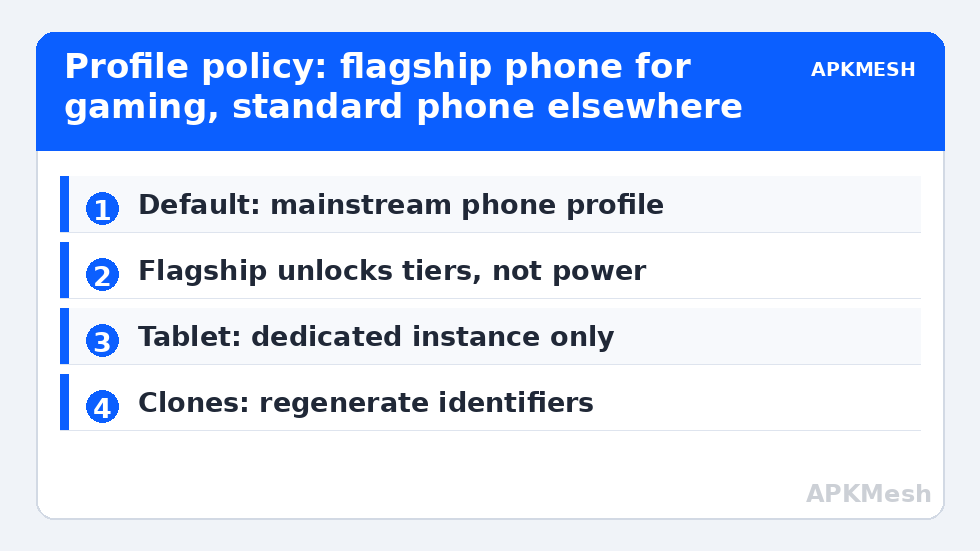
- Main gaming instance: a recent mainstream flagship phone profile, caps and graphics then set to what the laptop truly sustains.
- Reading / portrait instance: a standard phone profile; identity novelty buys nothing there.
- Tablet instance (if any): a mainstream tablet model, kept for the layouts that need it.
- Clones: inherit, then regenerate identifiers where offered, then leave alone.
- Never: a profile chosen to impersonate a specific person’s device, or changed weekly on a whim — stability is a feature apps reward.
Document the choices with the rest of your configuration on APKMesh in spirit: profile, model, and the reason, per instance. Three months from now, when a game update reshuffles its tiers, that note is the difference between a two-minute adjustment and an evening of archaeology in your own settings.
Profiles and Updates: Expect Occasional Resets
Both emulator updates and major game updates can disturb a chosen identity — an emulator upgrade may regenerate profile details, and a game patch may expand its validated-device list so a model you switched away from would now work. Neither event is a reason to churn your settings monthly. The settled rhythm is this: set the profile deliberately once, note it, and revisit only when a symptom names the profile as a suspect — a missing frame-rate tier, a store listing that changed its mind, an app suddenly demanding re-verification. Profiles reward the same conservatism as renderer choices: the value is in a stable, documented identity that apps learn to trust, not in perpetual optimisation of a string most players never see.
The Profile Is a Promise — Keep It Plausible
The thread running through every section of this guide is plausibility: a profile should describe a device that could exist, running software it could run, in the hands of the person actually using it. Plausible profiles age gracefully — stores keep serving them, games keep their tiers stable, and sensitive apps stop asking questions. Exotic profiles chosen for a single unlock tend to collect small contradictions until something, somewhere, declines to cooperate. Set the identity once, set it sensibly, and let your instances become the kind of long-term, unremarkable citizens that software ecosystems reward with silence.
Frequently Asked Questions
What does the device profile do in an emulator?
It sets the manufacturer, model, and related identity values the Android guest reports to apps. The Play Store uses them to filter compatible listings, games use them to choose default graphics tiers and unlock frame-rate options, and some apps select phone or tablet layouts based on the reported device class.
Will a flagship device profile make my games run faster?
No – it can unlock higher options, such as a 90 FPS tier the game was hiding, but your hardware still has to render those frames. Treat a profile promotion as permission, not performance, and set frame caps and graphics to levels the laptop sustains in real play.
Should I choose a phone or tablet profile on a laptop?
Phone, as the default: phone profiles enjoy the broadest store compatibility and the most-tested game defaults. Use a tablet profile in a dedicated instance when you specifically want an app’s tablet layout, such as landscape strategy games or reading and productivity apps on a large monitor.
Why is the 90 FPS option missing in my game?
Games commonly gate high frame-rate tiers by device model, enabling them only for validated devices. Switching the emulator’s device profile to a current mainstream flagship and restarting usually makes the option appear. The game’s minimum requirements and the emulator’s own frame settings must also allow it.
Can changing the device profile break my accounts or apps?
It can trigger re-verification in sensitive apps, because a changed device fingerprint looks like a new phone signing in. Change profiles deliberately, expect to sign in again where asked, and then keep the identity stable – frequently changing profiles is what turns a minor inconvenience into account trouble.