You tap Install, the button changes to Pending, and there it stays — not downloading, not failing, just pending, while the same connection happily streams video in your browser. Learning to fix play store download pending emulator queues means understanding that Pending is a waiting room with several doors. The Store may be waiting for its own stuck queue to clear, for space inside the virtual disk, for a download service that crashed, or for Google’s servers to accept a device profile it distrusts. Each cause has a different fix, and the order below clears the cheap, common ones before the heavier resets, so most readers will be downloading again within a few minutes.
Confirm the Problem Is Really the Store Queue
Start by separating three situations that all get described as pending. Open the browser inside the emulator and load a couple of ordinary websites, then try downloading a small file. If browsing also fails, you do not have a Store problem at all — you have an emulator network problem, and fixing network connection errors inside emulators is the correct path. If browsing works and only the Store stalls, continue here. Finally, check the obvious: confirm the instance has several gigabytes free in Android Settings, Storage, because the Store will sit at pending rather than announce clearly that the virtual disk cannot fit the app. Storage ceilings inside emulators surprise almost everyone once — fixing the storage full error inside virtual disks explains why your PC’s free space is irrelevant to that check.
- Everything offline in the emulator: network fault, not a Store fault.
- Browser fine, every app pending: Store or download-service state — the main path of this guide.
- One app pending, others download: that listing, its size, or its device requirements; check its page for compatibility notes.
- Pending only on Wi-Fi networks with sign-in pages: captive portal or filtered network blocking the Store’s checks.
Step 1: Clear the Queue Properly
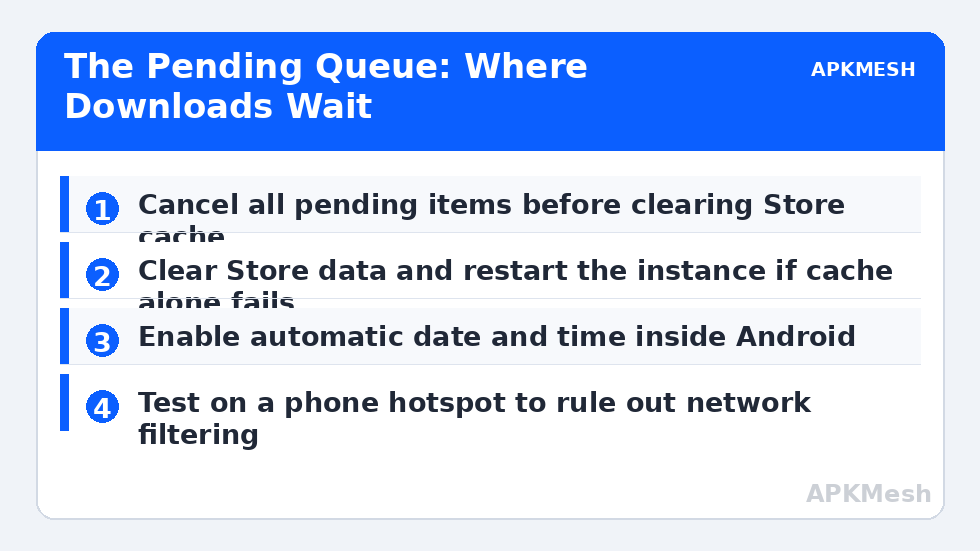
Inside the Play Store, open your profile icon, go to Manage apps and device, and cancel all pending downloads. Force-stopping the Store without cancelling first often preserves the same jammed queue. Then open Android Settings, Apps, Google Play Store, Storage, and clear cache. Return and try one small app — deliberately small, because you are testing the queue, not committing to a four-gigabyte download that hides whether the fix worked.
- Cancel every pending item in Manage apps and device.
- Clear the Play Store cache in Android Settings, Apps.
- Fully restart the emulator instance, not just the Store app.
- Download one small app as a controlled test.
- If it installs, retry your original app before changing anything else.
If the small test also sticks, escalate within the same idea: clear the Play Store’s data as well as cache, and do the same for Google Play services and the Download Manager if your Android version lists it. Clearing data resets the Store to a first-run state. Your account, purchases and installed apps survive, as the FAQ below confirms, but the stuck internal state that cache-clearing cannot reach is replaced. Restart the instance afterwards and give the Store a minute to re-initialise before testing again.
Step 2: Check Clock, Account and Profile Causes
Google’s download servers validate security certificates against your device clock. An emulator instance whose date and time have drifted — surprisingly common after hibernation, time-zone travel settings, or manual changes — can stall downloads and sign-ins in ways that look like network faults. In Android Settings, Date and time, enable automatic date and time, restart, and retest. The same clock fault also breaks sign-in, which is covered alongside other authentication causes in resolving Google sign-in errors on emulators; if you have both symptoms together, fix the clock first and judge both afterwards.
Device profile matters too. If you recently changed the instance’s device profile, resolution identity or Android version to chase compatibility, the Store may be re-evaluating every download against the new identity and stalling on some. Return the profile to a mainstream default, clear Store data once more, and retest. And confirm the mundane: your Google account itself is in good standing by signing in on a phone or browser, because an account-level verification challenge will silently hold emulator downloads while presenting as a queue problem.
Step 3: Rule Out Network Filtering and Host Interference
Some networks pass browser traffic but block or throttle the specific services the Store uses — school and workplace networks are the usual setting, and home routers with aggressive parental controls can do it too. The clean test is a different network: tether briefly to a phone hotspot if you can, and try the small test download again. If it flows on the hotspot, your main network is filtering something, and no amount of cache clearing will change that. On your own router, check DNS and content-filter settings, or apply the DNS changes from the network guide linked earlier.
On the host side, VPN and firewall software can treat the emulator’s traffic inconsistently. Test with the VPN disconnected first to establish a baseline. If downloads only work with it off, the VPN’s routing or DNS is your culprit, and splitting the emulator out of the tunnel or changing VPN servers is the durable fix.
Downloads also compete with the host itself, so if your PC is mid-update or syncing heavily, wait it out rather than resetting a healthy Store:
Lag risk: —
When Pending Survives Everything
Create a fresh instance, sign in, and test one small download before installing anything else. A fresh instance that downloads normally convicts the account and app state inside your original instance; migrate to it. A fresh instance that also stalls, on a network proven good by hotspot testing, points at the emulator build itself — update it, and if the problem arrived with an update, check the vendor’s known issues. That sequence distinguishes a fixable local state from a build problem without any guesswork, which is where this guide aimed to leave you: downloading again, or knowing precisely which layer owns the fault.
One last connection is worth knowing: a download queue can also stall when the whole host is overloaded and the Store cannot get timely responses from its own services, the pattern examined in fixing the System is Busy error. If pending downloads and busy warnings arrive together, clear the host load first. For the spec checks that keep instances responsive under that load, the APKMesh homepage calculator is the quickest reference.
Frequently Asked Questions
Why do updates get stuck at pending while new downloads sometimes work?
Updates reuse existing app data and must pass verification against what is already installed, so a corrupt cache or a mismatched device profile blocks updates more easily than fresh installs. Clearing the Play Store and Download Manager cache, then restarting the instance, resolves most update-specific pending loops without affecting your installed apps or account.
Will clearing Play Store data delete my games or purchases?
No. Clearing the Store app’s data removes its local cache, settings and stuck download queue. Your purchased apps, library and installed games belong to your Google account and the instance storage, not to the Store cache. You may need to accept the Store terms once again and your download queue will start empty, which is the point.
How long should a download reasonably stay at pending?
On a working connection, pending should last seconds to a couple of minutes while the Store allocates space and contacts the server. A small app pending for more than ten minutes with no progress, while your browser downloads normally, is stuck rather than slow. Large games can queue longer during busy periods, but the progress should eventually move and respond to a restart.
Does using a VPN help or hurt Play Store downloads in an emulator?
Either, depending on the problem. If your network or region route to Google’s servers is the fault, a reputable VPN can bypass it and is a useful test. If the VPN itself is slow, filtered or disconnecting, it becomes the bottleneck. Test with the VPN fully off first to establish a baseline, then with it on, and keep whichever state demonstrably downloads.
The download finishes but installation fails every time. Is that the same problem?
No — download pending and install failure are different stages with different causes. A completed download that fails to install usually points at insufficient space inside the instance, a corrupt package, or an architecture mismatch. Note the exact error shown at install time and treat storage inside the virtual disk as the first check for that pattern.