Here is the puzzle that sends people down the wrong path: three games run beautifully in your emulator, and the fourth — often the one you play most — crawls at half their frame rate on the same settings, same instance, same PC. The instinct is to hunt for a global emulator fault, but a global fault cannot produce a one-game symptom. Learning to fix low fps only one game emulator setups suffer from means flipping the question around. Instead of asking what is wrong with the emulator, ask what this one title does differently: a different rendering API, a different in-game settings profile, a heavier CPU simulation, or a device-profile decision the game made about your emulator without asking you. Work those differences in order and the outlier usually stops being mysterious.
What One Slow Game Is Telling You
Your smooth games are free diagnostic evidence. They prove virtualization works, the driver is broadly healthy, and your allocation is adequate for real workloads. So the slow game’s problem lives in the narrow space where that title and your system interact. Modern mobile games auto-configure aggressively: on first launch they read the device profile, GPU string and Android version your emulator presents, then lock in graphics tiers, frame-rate caps and effect levels based on that identity. A profile the game misreads can cap it at thirty frames or push it into a tier your integrated GPU cannot sustain, while other games read the same profile sensibly.
- Locked at a suspiciously round number like 30: an in-game cap or a profile-based tier decision, not raw hardware limits.
- Low in matches, fine in menus: effects and draw calls in this title’s scenes exceed what your GPU path handles; compare the combat pattern in fixing FPS drops during combat scenes.
- Low everywhere in this game only: rendering API mismatch or an in-game resolution/render-scale setting higher than you realise.
- Became slow after this game’s update: new defaults, new effects, or a fresh shader cache — check the game’s own settings before the emulator’s.
Step 1: Audit the Game’s Own Graphics Settings First
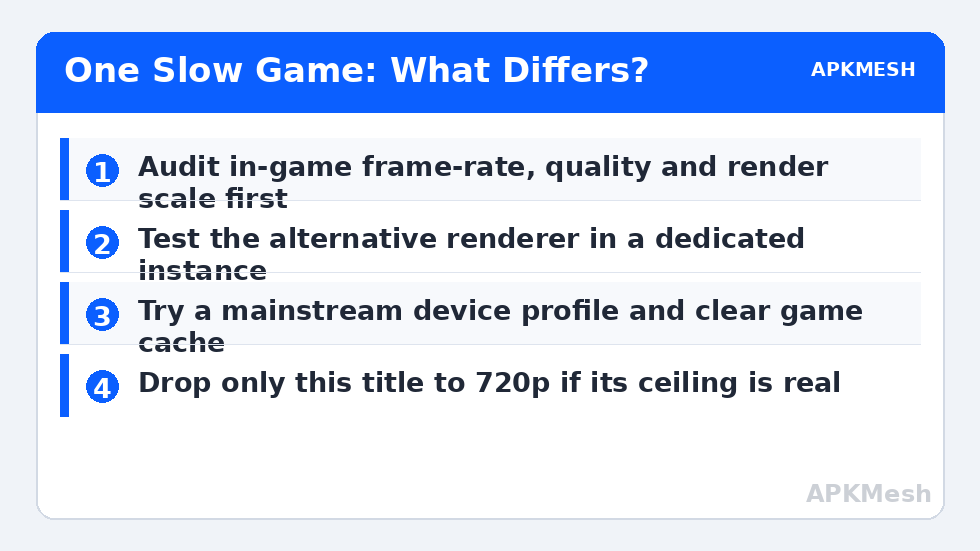
Open the slow game and read every graphics option as if for the first time, even if you set them months ago. Updates and profile changes reset them silently. Look for a frame-rate setting capped at a low tier, a graphics quality preset one notch above what you chose, render resolution or render scale above one hundred percent, and optional effects with outsized costs on integrated graphics — dynamic shadows, post-processing bloom, and high particle density are the usual trio. Set quality one tier below your current value, frame rate to the highest your display and PC can plausibly hold, and disable the expensive effects individually.
- Set the in-game frame-rate option to its high or maximum value if one exists.
- Drop overall quality one preset and restart the game.
- Turn off dynamic shadows and reduce particle effects.
- Confirm render scale is at or below one hundred percent.
- Retest the same scene and record the frame rate against your baseline.
Many players discover at this step that the game had quietly been running at a higher internal resolution than the emulator window itself — supersampling a scene your GPU already struggles with. That single correction can recover more performance than every emulator tweak combined, and it costs nothing outside this title.
Step 2: Give the Outlier Its Own Rendering Path
If in-game settings are sane, the interaction to test next is the rendering mode. Games differ in which translation layer suits them; a title built primarily around one graphics API can run noticeably worse through another. Rather than flipping your main instance — and disturbing three happy games — create a dedicated instance for the outlier, or clone your current one if your emulator supports it. In that instance, test the alternative renderer with a full restart, playing the same scene for ten minutes.
This per-game isolation is the practical heart of the whole fix. Your main instance keeps the configuration your other games proved good. The dedicated instance can also carry a different resolution — dropping this one game to 720p while everything else stays at 1080p — and a different device profile if the game is making tier decisions you dislike. The rendering-mode mechanics behind this step are explained fully in fixing graphics rendering mode crashes, and the same testing discipline applies even when your symptom is slowness rather than crashing.
Step 3: Check Profile, Version and Cache State
Three quieter causes remain. First, the device profile: if the emulator presents an obscure or very old device identity, some games serve it a conservative build or, worse, an unoptimised generic one. In the dedicated instance, select a mainstream flagship profile from the emulator’s own list, clear the game’s data so it re-detects from scratch, and sign in again to restore progress. Confirm account linking before clearing data, as always.
Second, Android version and bitness. A handful of titles perform best, or only run correctly, on a specific Android version or a 64-bit instance. If your main instance is an older 32-bit build kept for other games, the dedicated instance is again the answer — build it on the newer Android version the slow game prefers. Third, cache state: a game that was smooth at install and degraded over weeks may be carrying a bloated or corrupt cache. Clearing the game’s cache, not its data, is a safe first move that preserves logins and saves.
Before concluding the game simply exceeds your PC, verify your allocation still matches your hardware honestly:
Lag risk: —
Accepting a Title-Specific Ceiling
Sometimes the investigation ends with a legitimate conclusion: this game, at these settings, is heavier than your PC’s weakest component allows, and your other games are lighter than they look. That is not failure — it is a measured ceiling, and it comes with options. Play this title at 720p with a locked, steady frame rate rather than an unstable higher one. Use the game’s battery-saver or lite mode if offered. Or treat this title as the deciding case when you next upgrade RAM or move to a discrete GPU. What you should not do is keep degrading your whole emulator setup, and three well-running games, in pursuit of the one outlier.
Finally, keep a short note for the outlier title: its working renderer, resolution, profile and in-game preset. Game updates have a habit of resetting exactly those choices, and your note turns a repeat of this problem into a five-minute restoration. If the title also shows high host consumption at idle, compare it against fixing high CPU and memory usage in emulators, and use the APKMesh homepage calculator before raising any allocation in its dedicated instance.
Frequently Asked Questions
How can one game be slow if my emulator runs heavier games well?
Heavier is not a single scale. Games stress different resources: one may be CPU-bound on game logic, another GPU-bound on effects, another dependent on a specific rendering API or a high tick rate. A title that leans hardest on your PC’s weakest component will be your slowest game even if its graphics look simpler than a smoother title’s.
Should I create a separate instance just for the slow game?
Often, yes. A dedicated instance lets you give that game its preferred rendering mode, resolution, Android version and allocation without compromising the setup your other games enjoy. It costs disk space for a second virtual disk, but on a low-end PC it is usually cheaper in frustration than endlessly retuning one shared instance back and forth.
Why did the game become slow after its own update, not the emulator’s?
Game updates add effects, raise asset quality, change rendering paths and sometimes reset your in-game graphics settings to defaults based on the detected device profile. Check the in-game settings first after any major update, confirm they match what you had chosen, and expect a session of shader rebuilding before judging the new baseline.
Could my account or server choice affect FPS?
Server choice affects ping and responsiveness, which players often describe as lag, but it does not change rendered frames per second. If the frame counter itself is low, the cause is local rendering or CPU work. If frames are smooth but actions feel delayed, treat it as a network problem instead and check your connection path for that game’s servers.
Is it worth lowering resolution for just this one game?
Resolution is the strongest single lever on integrated graphics, and per-instance or per-game resolution lets you spend it only where needed. Dropping the slow title from 1080p to 720p commonly recovers more frames than any other single change, at a visible but often acceptable cost in sharpness, especially on smaller laptop screens.