It is hard to enjoy a game through a display that will not sit still. Horizontal lines split the picture when you turn, brightness pulses in menus, or the whole image blinks just often enough to give you a headache by the second match. Learning to fix screen flickering tearing emulator output comes down to understanding the short pipeline your frames travel: the emulator renders a frame, Windows composes it, the GPU presents it to a display with its own refresh rhythm. Flicker and tearing are what disagreement inside that pipeline looks like. They are related but not identical faults, and the fix differs depending on where your frames and your monitor fall out of step — so this guide separates the symptoms first, then repairs the pipeline link by link.
Read Your Symptom: Flicker, Tearing, or Both
Tearing is a frame boundary visible inside the picture: pan the camera sideways and a horizontal seam appears where two different frames meet. It means frames are being presented partway through the display’s refresh cycle. Flickering is temporal instead of spatial: the image flashes, pulses, dims or blanks briefly, often at a steady rhythm, and it usually means frames are being dropped, duplicated unevenly, or presented through an unstable fullscreen path. Judder — motion that is uneven without a visible seam — is the mild cousin of both and shares most fixes.
- Tearing mainly during fast camera movement: synchronisation problem; V-Sync and frame caps are your first tools.
- Flicker in menus and static screens: refresh-rate mismatch, fullscreen composition, or a display/cable issue — games barely render anything in menus, so rendering load is innocent here.
- Flicker only under heavy gameplay: frame rate oscillating around the refresh rate, or GPU driver instability under load.
- Flicker everywhere including the Windows desktop: stop troubleshooting the emulator; the cable, monitor or GPU output is at fault.
Display faults often travel with rendering ones, so if your symptom includes crashes or blank screens alongside the flicker, stabilise the graphics path first using the rendering mode crash guide. Pure flicker and tearing with an otherwise stable emulator belong here.
Step 1: Synchronise Frame Rate and Refresh Rate
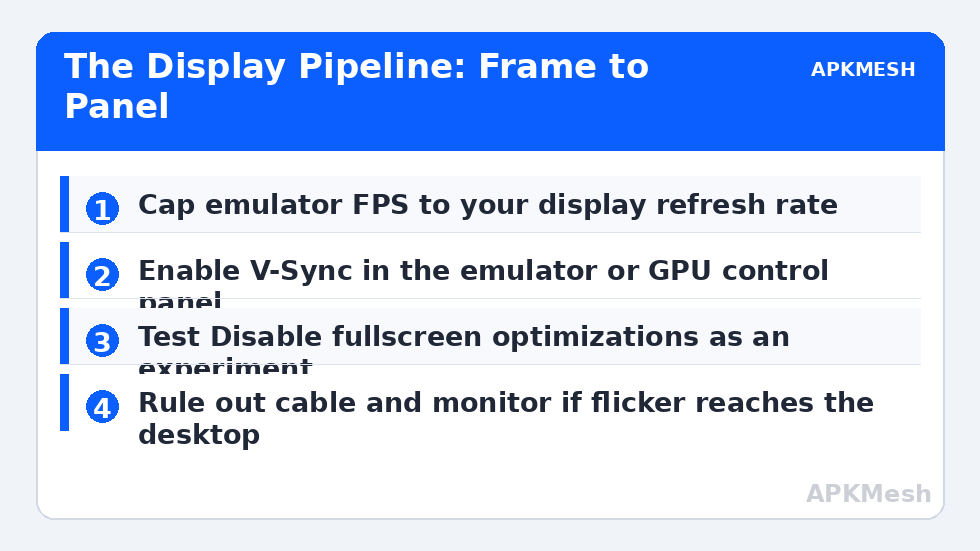
Check what your display actually runs at: Windows Settings, System, Display, Advanced display, and note the refresh rate. Then look at what the emulator is trying to produce. An emulator set to an unlocked or very high frame-rate mode feeding a 60 hertz display guarantees tearing no matter how good the rest of the chain is, because most frames can never align with the refresh. The practical target for most low-end setups is coherence: cap the emulator’s frame rate to your display’s refresh rate, and enable V-Sync in the emulator if offered, or force it for the emulator in your GPU vendor’s control panel if not.
- Note your display refresh rate in Windows advanced display settings.
- Set the emulator’s frame-rate cap to that same value — 60 for most panels.
- Enable V-Sync in the emulator; if absent, enable it per-app in the GPU control panel.
- Disable any frame-generation or aggressive low-latency mode while testing.
- Retest with a slow camera pan in the same game scene.
Step 2: Repair the Fullscreen and Composition Path
If flicker appears only in fullscreen, Windows composition is your suspect. Right-click the emulator’s executable, open Properties, Compatibility, and test the Disable fullscreen optimizations option — tick it, run a session, and if nothing improves, untick it; this setting genuinely helps some systems and hinders others, which is why it is a test rather than advice. In the same spirit, test borderless or windowed fullscreen modes if your emulator offers display-mode choices, since they use a different composition path than exclusive fullscreen.
Overlays deserve a pass here as well. FPS counters, recording overlays, chat overlays and RGB utilities all insert themselves into the presentation chain, and an overlay that polls the frame buffer can introduce a rhythmic flicker that looks exactly like a driver fault. Disable every overlay for one test session. If the flicker vanishes, reintroduce them one at a time across sessions until the rhythm returns with its owner identified. This is also where multi-monitor setups betray people: dragging the emulator between displays with different refresh rates can leave it presenting at the wrong rhythm until restarted, so after moving displays, restart the emulator before judging its output.
Step 3: Verify the Physical Chain and Driver
Software gets blamed for hardware’s flicker constantly. If any flicker survives onto the desktop or into other fullscreen applications, reseat the display cable at both ends, try a different cable, and set the monitor to its standard refresh rate rather than an overclocked one in its on-screen menu. On laptops using external displays through docks, test the panel directly; docks add a translation step that marginal cables expose.
The graphics driver is the software half of this step. An outdated or freshly changed driver can destabilise presentation without breaking rendering, which is why flicker sometimes arrives alongside the wider changes covered in fixing FPS drops after a Windows update. Install the current vendor driver cleanly, restart, and repeat your camera-pan test before inventing further theories. If flicker began with a new driver, rolling back one version is an equally valid experiment.
One more chain link is often forgotten — the emulator’s internal resolution versus the display’s native resolution. Heavy upscaling can shimmer at edges and be mistaken for flicker. Match the emulator resolution to your panel where performance allows, and confirm your hardware allocation is not forcing frame drops that read as flicker under load:
Lag risk: —
Confirm the Fix Under Real Conditions
- A slow camera pan in your main game shows no horizontal seam at the tested settings.
- Menus sit perfectly still for a full minute — no pulsing or blinking.
- The same results hold in fullscreen and after a full emulator restart.
- A thirty-minute session shows no return of rhythmic flicker, including in heavy scenes.
Stable display output is a chain of agreements: game to emulator, emulator to Windows, Windows to GPU, GPU to panel. Your tests have now checked each agreement in turn. Keep a note of the combination that worked — cap, V-Sync state, fullscreen setting, driver version — because the next driver or Windows update is the most likely thing to renegotiate it without asking.
Two neighbouring faults help complete the picture if your display problems turn out to be mixed: a screen that goes fully blank rather than flickering belongs with fixing black screen issues on startup, while a pointer that vanishes in the same fullscreen mode that flickers is covered by fixing the disappearing fullscreen cursor. Solve one symptom at a time, keep notes, and use the APKMesh homepage tools when frame-rate caps need matching to your hardware.
Frequently Asked Questions
What is the difference between flickering and tearing?
Flickering is the whole image or parts of it flashing, pulsing or briefly going blank, usually at a regular rhythm. Tearing is a horizontal split where the top and bottom of the screen show different frames at once, most visible when the camera pans. They have overlapping causes in the display pipeline but different signatures, and naming yours correctly speeds up the fix.
Why does flickering only happen in fullscreen?
Fullscreen changes how Windows composes the emulator’s output, often switching to an exclusive or optimised path with its own refresh behaviour. A mismatch between the emulator’s output rate, the display refresh and that path only appears in fullscreen. Testing the same scene windowed is a valid diagnostic, and fullscreen optimisations and refresh settings are the fixes to try in that order.
Can a cable or monitor really cause emulator flicker?
Yes. A marginal HDMI or DisplayPort cable, a loose connector, or a monitor running an overclocked refresh rate can produce flicker that software gets blamed for. The giveaway is flicker appearing in other fullscreen apps or on the desktop as well. Swap the cable and set the monitor to its standard refresh rate before undertaking deep software troubleshooting.
Should I turn V-Sync on or off for tearing?
V-Sync exists to prevent tearing by synchronising frames to the display, so for tearing it is the first setting to enable and test. Its cost is a small amount of input latency and possible judder when frame rates cannot match the refresh rate. If tearing vanishes but controls feel delayed, you are choosing between two imperfections — most players keep V-Sync for tearing and adjust elsewhere.
My screen flickers only in one game. Is the game at fault?
Possibly its internal frame-rate or effects. Some titles use flashing effects, aggressive post-processing or unlocked frame rates that interact badly with a particular display chain. Test that game with its frame rate capped and effects reduced. If the desktop and other games are clean on identical emulator settings, the title’s own rendering choices are the remaining variable.