Plenty of players need or simply prefer to play with one hand: a temporary injury, a long-term difference in mobility, a baby asleep on the other arm, or a second hand occupied with work controls. A thoughtful one-handed control scheme emulator accessibility setup is not a stripped-down version of a normal scheme; it is a redesign around a single hand’s real reach, deciding which actions must be simultaneous, which can be sequential, and which can move to toggles, holds or a footswitch-style spare key. Emulators are unusually good at this redesign because every touch can be relocated.
This guide builds two complete one-handed patterns: a left-hand keyboard-centred scheme for slower and medium-paced games, and a mouse-centred scheme with many buttons for players whose stronger side is the right hand. It also covers operating-system helpers such as Sticky Keys, emulator features that genuinely help (toggles, hold-to-press controls, larger zones), and the honest limits: some fast competitive titles will remain harder one-handed no matter how clever the mapping is, and choosing genres that respect your setup is part of the design.
Design Principles: Reach, Simultaneity and Recovery
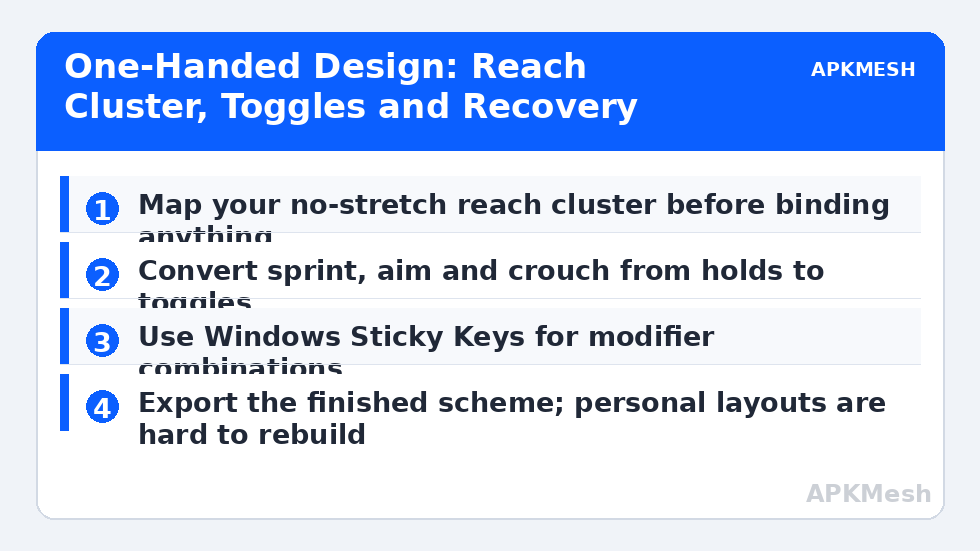
Map a hand’s comfortable territory first. Sit with your hand in its natural rest position and note which keys you can reach without stretching or lifting your palm. That cluster, often the size of a playing card, is your prime real estate: movement and the single most frequent action live there. Everything else is ranked by urgency. Actions needed while moving must be inside or immediately beside the cluster, because one hand cannot be in two places; actions used only while stationary, such as menus, healing from safety, or map checks, can live further away or on toggles.
Simultaneity is the central problem, so reduce it deliberately. Convert hold actions into toggles where the game allows it: sprint as a toggle rather than a held key, aim as a toggle rather than a hold, crouch as a toggle for slower titles. Use the emulator’s controls and the game’s own accessibility settings together; many mobile games now include auto-run, auto-fire assists, or lock-on options that remove whole categories of simultaneous input. None of this is cutting corners. It is allocating one hand’s attention to the decisions that actually make the game interesting.
| Action type | One-handed treatment | Example setting | Reason |
|---|---|---|---|
| Movement | Keep in prime cluster, largest zone | WASD or mouse-directed move | Used constantly, must never require a stretch |
| Main action / fire | Adjacent key or mouse button | Space, or left mouse button | Needed together with movement |
| Sprint / aim | Toggle instead of hold | Caps Lock area key or side mouse button | Frees a finger for the whole duration |
| Rare abilities | Sequential, further keys | Number row, pressed while stationary | Urgency is low, reach can be lower |
| Menus and map | Dedicated key, pauses movement need | Tab or M | Safe moments only, so distance is acceptable |
Pattern One: Left-Hand Keyboard Scheme
For strategy, RPG, adventure and turn-based titles, and for slower action games, a keyboard-centred scheme works well. Movement sits on WASD with the main action on Space under the thumb and interact on E or F without moving the hand. Q and Tab carry the two most important secondary actions, the number row carries occasional abilities in order of frequency, and Esc or a bound system Back control handles menus. In the emulator editor, enlarge the movement zone slightly and give every tap spot generous size; precision placement matters less than a target your finger can find without looking down.
Enable Windows Sticky Keys if your scheme still needs a modifier combination, so Shift plus another key can be pressed in sequence instead of together. In the emulator, prefer a separate named scheme for one-handed play even on a shared PC, so nobody’s edits overwrite it, and export it once finished. One-handed schemes involve far more personal tuning than standard layouts, which makes them both harder to rebuild from memory and more valuable to back up.
Lag risk: —
Pattern Two: Mouse-Centred Scheme
If your available hand is your mouse hand, a multi-button mouse becomes the whole controller. Choose mouse-directed movement where the game supports tap-to-move or a follow-cursor mode; otherwise place a small joystick zone and use the emulator’s mouse-look or steering options creatively, accepting that mouse-only movement suits slower games best. Assign the main action to the left button, the second action to the right button, and use the wheel click and side buttons for the next three priorities. Keyboard keys are then only needed for rare, safe actions, and an on-screen keyboard can cover even those in a pinch for menu-heavy games.
A trackball is worth considering for this pattern if wrist movement is limited, because the hand stays still while fingers move the ball. Whatever device you choose, reduce pointer speed slightly below your desktop preference at first: one hand doing both aiming and action benefits from calm, deliberate pointer movement more than from flick speed it must also brake with the same fingers.
Testing, Comfort and Session Length
Test a new one-handed scheme in the safest content the game offers and judge it on comfort after twenty minutes, not on performance in the first two. Stretching faults appear as a slow-building ache or as accuracy that decays through a session, and both mean an action is placed too far away, however logical its position looked in the editor. Rearrange without sentimentality: your scheme serves your hand, and any guide, including this one, is only a starting arrangement. Take breaks on a timer rather than on a pain signal, and keep water and anything else you need on your playing side before you start, so a session is not interrupted by a two-handed task in disguise.
Finally, involve the game’s difficulty and assist options without apology. A well-chosen assist that removes a simultaneous-input burden can restore a whole genre to comfortable play, which is a far better outcome than a pure scheme that hurts. The measure of a successful setup is a game you can enjoy for a full session and want to return to tomorrow.
Revisit the scheme after your first week, not just on the first day. Early sessions reveal which actions you reach for instinctively, but a week of real play reveals frequency honestly: the ability you placed far away and use constantly, and the prime-cluster key you almost never touch. Swap those two without hesitation. A one-handed scheme is a living fit between a hand and a game, and the week-one revision is usually the change that turns a workable layout into a comfortable one.
Related Keymapping Guides
Start at the APKMesh homepage for the complete library, and combine this guide with:
- mapping keyboard shortcuts for typing and navigation to make menus, chat and inventory one-hand friendly too
- connecting Xbox and PlayStation controllers if a small pad held in one hand suits some of your games better
- voice commands for hands-free controls to move rare actions off the hand entirely
- per-instance control profiles for keeping this personal scheme separate and backed up
Frequently Asked Questions
Which games work best with a one-handed emulator scheme?
Turn-based, strategy, RPG, adventure and tap-to-move titles work best because few actions must be truly simultaneous. Slower action games become comfortable with toggles and in-game assists. Fast competitive shooters remain the hardest category one-handed, and it is reasonable to choose genres that respect your setup rather than fighting the least suitable ones.
Should sprint and aim be toggles in a one-handed scheme?
Yes, wherever the game or emulator allows it. A held modifier occupies a finger for its entire duration, and with one hand that finger is needed elsewhere. Toggling sprint and aim converts a simultaneous problem into a sequential one, which is the core trick that makes most one-handed schemes workable.
What is Windows Sticky Keys and why does it help here?
Sticky Keys lets modifier combinations be pressed one key at a time instead of together: press Shift, release it, then press the second key. For a one-handed player that removes an entire class of two-finger chords. Enable it in Windows accessibility settings and test it in the emulator before rebuilding your scheme around it.
Is a multi-button mouse or a keyboard better for one-handed play?
It depends which hand is available and which genres you play. A keyboard scheme suits strategy and RPG titles with many occasional actions. A multi-button mouse suits pointer-driven and slower action games. Many players keep both patterns as separate schemes and choose per game, which emulators make easy.
How do I stop my one-handed scheme being overwritten on a shared PC?
Save it as its own named scheme, never as an edit of the shared default, and export it to a folder you control. One-handed schemes contain far more personal tuning than standard layouts, so treat the export as essential rather than optional, and keep a short note of your key choices with it.