
Open Task Manager on a hard-working 8GB machine and you may see a line that alarms people: a chunk of memory described as compressed, sometimes a gigabyte or more. That line is the centre of endless bad advice. Understanding windows memory compression emulator performance means understanding a trade Windows makes on your behalf — spending a little CPU to squeeze idle memory pages instead of writing them to a much slower disk — and why turning that trade off, as many tweak guides command, usually makes an emulator PC slower and less stable, not faster. This guide explains how memory compression works, how to read what it is doing on your machine, the narrow cases where behaviour is worth adjusting, and the truth about the related “large pages” setting that circulates in emulator forums.
How Windows Memory Management Actually Works Here
When RAM fills, Windows must move something out of the way. The old way was simple: write the least-recently-used pages to the pagefile on disk and read them back when needed. The problem is the read-back cost — even a good SSD is thousands of times slower than RAM, and on a hard drive the delay is measured in tens of milliseconds, long enough to freeze a frame. Since Windows 10, the memory manager first tries a cheaper trick: it compresses those idle pages and keeps them in a dedicated store inside RAM itself. A compressed page occupies a fraction of its original space, and decompressing it later costs a sliver of CPU time instead of a disk trip.
For an emulator PC this is almost always the right trade. Your emulator instances hold large amounts of guest memory, much of it idle at any given moment — perfect compression candidates — while the active scene cycles constantly. Compressing the idle regions keeps more of the total working set resident in physical memory, which means fewer pagefile reads during play and fewer of the hard stalls that players describe as “random freezing.” The CPU cost is real but small, and on any processor with four or more cores it is spread across cores that the memory pressure would otherwise leave waiting on the disk.
Reading Your Own Machine Before Believing Anyone’s Advice
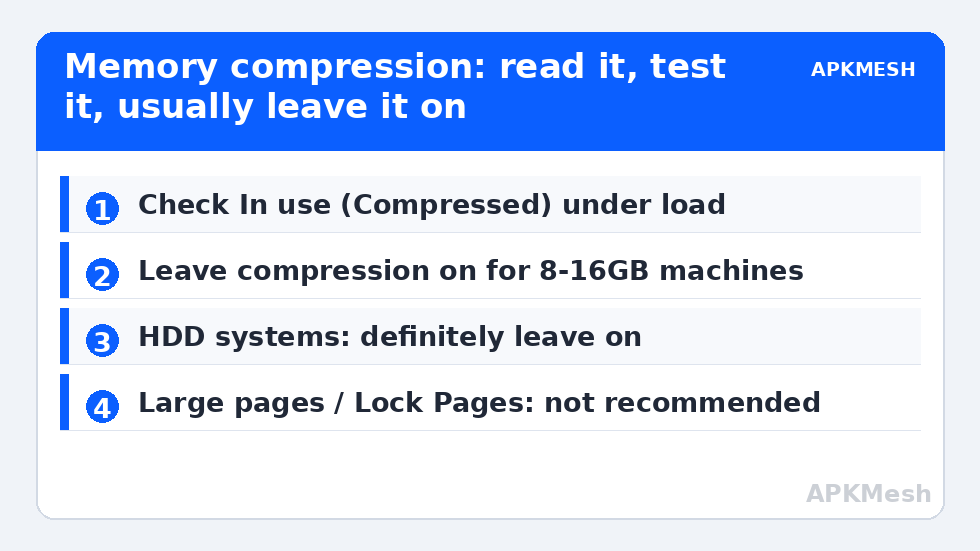
- Open Task Manager → Performance → Memory during a heavy emulator session, not at an idle desktop.
- Find the In use (Compressed) figure. The number in parentheses is how much physical space the compressed store occupies; hovering or checking the details shows the uncompressed size it represents — the difference is the RAM the feature has effectively handed back to you.
- Watch Committed against its limit. Compression does not change your commit ceiling; if committed memory rides at the limit, your problem is total allocation, and the fix lives in our pagefile sizing guide, not here.
- Check the Hardware reserved line too. On some integrated-graphics machines a surprisingly large slice is reserved; that is a BIOS/UMA setting question, separate from compression.
A healthy picture on an 8GB emulator PC under load: several hundred megabytes to around 1.5GB in the compressed store, no sustained disk activity on the pagefile, and frame delivery that stays even in busy scenes. If your compressed figure is tiny, compression is barely working on your setup anyway, and disabling it would change almost nothing in either direction.
Lag risk: —
The Disable Question, Answered Plainly
You can disable memory compression with a PowerShell command (Disable-MMAgent -MemoryCompression), and tweak culture treats doing so as obligatory. The claimed logic is that compression “wastes CPU.” Measure it and the claim collapses on memory-constrained machines: with compression off, the same idle pages go to the pagefile instead, and every return trip is a disk read. Users who report gains from disabling almost always test on machines with abundant free RAM, where compression never engaged in the first place — they have disabled a feature that was costing them nothing and credited the placebo. The one legitimate exception is a genuinely CPU-bound machine with RAM to spare: if your emulator is pinned at 100 percent CPU while memory sits half empty, compression overhead, however small, buys you nothing. That profile is rare on emulator PCs, where RAM is usually the scarcer resource.
| Your machine’s profile | Memory compression verdict |
|---|---|
| 8GB RAM, emulator near the commit limit | Leave on — it is preventing disk paging |
| 16GB RAM, heavy multi-instance use | Leave on — idle instance memory compresses well |
| 16GB+ RAM, CPU pinned at 100%, RAM half free | Test off if you like; expect little change |
| HDD system drive | Definitely leave on — paging to disk is the worst outcome |
If you do experiment, the method is: benchmark a fixed scene, disable, reboot (the change needs one), benchmark again, and be willing to re-enable with Enable-MMAgent -MemoryCompression when the numbers say so. Change nothing else in the same session — the discipline from our before-and-after benchmarking guide applies here as everywhere.
Large Pages: The Forum Tip, Examined
The companion myth is that granting the emulator “large page” privileges (the Lock Pages in Memory policy, with 2MB pages instead of 4KB) unlocks hidden speed. Large pages genuinely reduce translation-lookaside-buffer pressure for certain server and scientific workloads with huge, stable memory footprints. An emulator’s access pattern — dynamic, fragmented, constantly allocating and freeing guest memory — is close to the opposite profile, and enabling the privilege forces Windows to keep large contiguous regions available, which works against the memory manager’s flexibility on a small-RAM machine. In practical terms, users who test it carefully find no repeatable emulator gain, while occasionally inheriting odd allocation failures. Leave it alone. The memory features that do move emulator performance are unglamorous: enough physical RAM, sensible per-instance allocations (do not hand one instance 6GB on an 8GB machine), and a pagefile sized to keep the commit limit out of reach. Round out the picture with our RAM timings diagnosis guide for the hardware side and the dual channel upgrade guide if a second stick is on your shopping list; the full optimisation map is on the APKMesh homepage.
Frequently Asked Questions
Is memory compression using up my RAM?
The opposite. The compressed store holds data in less space than the original pages occupied, so the feature returns RAM to the system compared with keeping those pages uncompressed. The figure Task Manager shows in parentheses is the compressed size — the smaller one. What it costs is a small amount of CPU when pages are compressed or decompressed, traded against far slower disk reads.
Why is my compressed memory number so high during emulation?
Because your instances hold a lot of idle guest memory, which is exactly what the feature targets. A high compressed figure during a heavy session usually means compression is doing useful work — keeping rarely touched pages cheaply resident instead of paging them out. Judge it by symptoms: if frames are smooth, the number is a success story, not a problem.
Will disabling memory compression stop my emulator stuttering?
Almost certainly not, and on RAM-tight machines it commonly makes stutter worse by pushing the overflow traffic onto the pagefile. Stutter with a memory flavour more often traces to insufficient total RAM, an undersized pagefile, or a slow drive. Diagnose with Task Manager’s committed and compressed figures before changing a feature that is probably helping you.
Should I enable Lock Pages in Memory for my emulator?
No. Large pages suit workloads with huge, stable allocations; emulator memory use is dynamic and fragmented, and the privilege reduces the memory manager’s freedom on exactly the small-RAM machines that can least afford it. Careful tests show no repeatable emulator benefit. Spend the effort on RAM capacity and allocation settings instead.
How do I turn memory compression back on if I disabled it?
Open PowerShell as administrator and run Enable-MMAgent -MemoryCompression, then restart the PC. Verify in Task Manager’s Memory view during your next session — the compressed figure should reappear under load. If it does not, run Get-MMAgent to confirm the feature state reports memory compression as enabled.