
MuMu Player 12 earned its reputation on laptops for a specific reason: its Android 12 base and Vulkan-first rendering pipeline waste less work than older emulators, so the same integrated GPU produces steadier frame times. A proper mumu player 12 setup high fps configuration is mostly about removing the three default limits MuMu ships with — a conservative resolution, a mid-range memory ceiling, and Windows power throttling — then verifying with the emulator’s own FPS counter rather than guessing. Work through this guide in order; each step assumes the previous one is done.
Step 1: Install Clean and Pick the Right Device Model
Download MuMu Player 12 from NetEase’s official MuMu site only, and install it on an SSD if the laptop has one — instance data lives in large virtual disk files and an HDD turns every asset stream into a seek exercise. On first launch, open Settings Center and set the device model to a mainstream flagship profile (the default is fine for most games). Avoid exotic profiles: some games gate their high graphics tiers by device model, but a mismatched profile can also trigger compatibility warnings in banking-style integrity checks. A common, boring profile is the professional choice.
MuMu Player 12 Setup High FPS: Performance Allocation
In Settings Center > Performance, MuMu offers presets; choose Custom and set values for your laptop class:
| Laptop class | CPU cores | Memory | Performance mode |
|---|---|---|---|
| 8GB RAM, 4-core CPU, iGPU | 4 | 4GB | High |
| 16GB RAM, 6–8 core CPU, iGPU/Iris Xe | 6 | 6GB | High |
| 16GB RAM, discrete GPU (RTX 3050+) | 6–8 | 6–8GB | High |
| 4GB RAM laptop | 2 | 2GB | Medium (60 FPS target) |
Enable “Force use of discrete GPU” only on dual-GPU laptops where Windows keeps handing MuMu the integrated chip; verify in Task Manager’s GPU column after launch. Also enable the option to prioritize emulator performance / reduce memory usage for background instances if you ever run a second instance — for a single instance it is irrelevant.
Lag risk: —
Step 3: Resolution and the Frame Rate Ceiling
Resolution is the FPS dial that matters most. In Settings Center > Display:
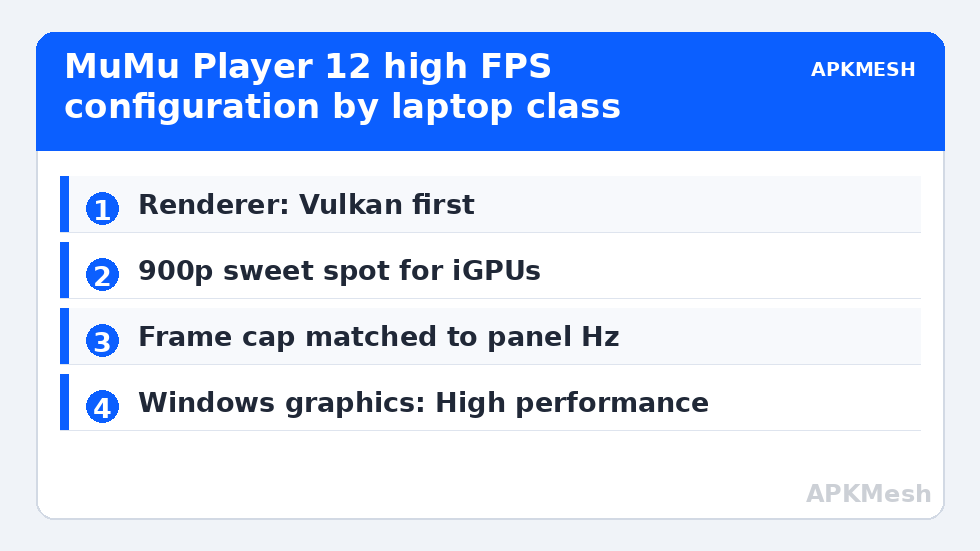
- Resolution: 1920×1080 only if you have a discrete GPU; 1600×900 is the sweet spot for Iris Xe and Vega iGPUs; 1280×720 for older UHD 620-class chips.
- Frame rate settings: set the cap to match your panel (60/90/120/144). MuMu 12 supports dynamic frame rate adjustment — enable it so menus idle lower and gameplay peaks higher.
- Enable vertical sync only if you see tearing; V-Sync adds a small input delay that competitive players notice.
Then, inside each game, set its own graphics to the highest tier that holds your target frame rate for ten minutes, not for ten seconds. Thermal throttling on thin laptops typically appears between minutes 8 and 15. This is exactly why the MuMu high FPS setup should be validated in a real match, not the training ground.
Step 4: Renderer — Vulkan First, With an Escape Hatch
MuMu 12’s graphics settings offer Vulkan and OpenGL modes. Vulkan is the headline feature: on supported hardware it reduces CPU overhead per draw call, which is precisely the bottleneck in busy scenes. Keep Vulkan as default. Drop to OpenGL for a specific title only when you observe repeatable artifacts — missing effects, inverted colors, or a crash at a fixed point — because per-game quirks, not global rules, decide this. Our broader explainer on choosing between OpenGL, DirectX and Vulkan in emulators shows the decision process. After switching renderers, delete the game’s shader cache (Android Settings > Apps > Storage > Clear cache) so old compiled shaders do not contaminate the test.
Step 5: Laptop-Level Settings That Cap Your FPS Silently
- Power: play plugged in, Windows power mode set to Best Performance; most gaming laptops halve GPU clocks on battery.
- Graphics preference: Windows Settings > Display > Graphics — add MuMu’s main executable (MuMuPlayer.exe / MuMuNxMain) and set it to High performance.
- Refresh rate: confirm the laptop panel is actually set to its advertised Hz in Windows display settings; a 144Hz panel left at 60Hz caps everything. See also high refresh rate setup for emulators.
- Background load: pause Windows Update and cloud sync during sessions; on 8GB laptops these are the top cause of mid-game hitches.
Verifying the Result
MuMu shows an FPS overlay option in its toolbar — turn it on and watch two numbers: average FPS and, more importantly, the dips during the busiest scene you play. A healthy configuration on a mid-range laptop holds 55–60 FPS at 900p in popular shooters and MOBAs, and 90 FPS in lighter titles on Iris Xe-class graphics. If averages look fine but dips crater, the cause is usually thermal or RAM pressure, not the renderer; consult the allocation rules in allocating CPU cores and RAM correctly and browse the rest of Emulator Settings for per-game adjustments.
Keymapping and Gamepad Notes for Laptop Players
High FPS only matters if your inputs land cleanly, and MuMu’s keymapping deserves the same care as its renderer. Open the keymapping editor in a practice match, not the lobby: place movement, camera and skill keys, then test the specific failure mode laptop players hit — simultaneous inputs. Trackpads aside, laptop keyboards vary in rollover quality; if a three-key combination (move + sprint + skill) drops inputs, the keyboard’s ghosting limit, not MuMu, is at fault, and an inexpensive external keyboard or a gamepad will outperform any software setting. With a controller connected, MuMu maps standard XInput pads automatically; verify the right stick’s camera sensitivity in the training ground and reduce MuMu’s own mouse acceleration so aim feels 1:1.
Network Reality Check for Online Titles
Players routinely misread network stutter as FPS failure, and the fixes are opposites. MuMu’s FPS counter tells the truth: if the counter holds 60 while characters teleport, you have packet loss — play on the router’s 5GHz band, sit within one room of it, or wire the laptop with Ethernet (a USB-C dock is fine). In MuMu’s settings, leave network bridge mode off unless a specific LAN feature needs it; NAT mode is the lower-maintenance default for online games. Also disable the laptop’s Wi-Fi power saving (Device Manager > adapter > Power Management) — Windows loves to nap the radio mid-match on battery-friendly profiles, which feels exactly like emulator lag until you know the pattern.
MuMu-Specific Comfort Settings Worth Ten Minutes
Two smaller settings separate a configured MuMu from a merely fast one. First, the display’s “smart frame rate” / variable refresh behavior in newer builds lets the emulator drop rendering effort in static scenes; leave it on for RPGs and strategy titles, but disable it for competitive shooters, where any frame-pacing cleverness can interact with the game’s own prediction. Second, assign MuMu’s screenshot and boss-key shortcuts before you need them, set the shared folder to a quarantine directory for APK testing only, and disable the emulator’s startup auto-launch of recommended content in its settings if your build shows it — a gaming session that begins with three promotional surfaces loading is a session that begins with its RAM already spent. These are polish items, but polish is what remains once the allocation, renderer and resolution are correct.
Frequently Asked Questions
What frame rate can MuMu Player 12 reach on a laptop?
MuMu 12 supports caps up to high-refresh values (including 120 FPS and above on capable builds). What you actually hold depends on the game and GPU: integrated graphics typically sustain 60 FPS at 720–900p in popular titles, while a discrete RTX-class GPU can hold 90–120 FPS at 1080p.
Should I choose Vulkan or OpenGL in MuMu Player 12?
Vulkan first — it lowers CPU overhead and suits MuMu 12’s design. Switch a specific game to OpenGL only if you see repeatable graphical glitches or fixed-point crashes, and clear that game’s cache after switching.
How much RAM should I allocate to MuMu on a 16GB laptop?
6GB is the balanced figure for a single instance, leaving Windows and a browser room to breathe. Allocating 8GB+ rarely adds FPS and can introduce paging stutters when other apps need memory.
Why is MuMu capped at 60 FPS even though I set more?
Check three caps in order: the in-emulator frame rate setting, the game’s own FPS option (many default to 60), and the Windows display refresh rate for the laptop panel. All three must allow the higher rate.
Does forcing the discrete GPU always help?
No. On laptops with strong modern iGPUs, the difference can be small and the discrete card adds heat. Force it only when Task Manager shows MuMu running on the integrated GPU and your FPS is below target.