

Every emulator settings screen asks the same two questions — how many cores, how much memory — and most users answer them by dragging both sliders to the right. That single habit causes more emulator lag than any other misconfiguration. Learning how to allocate cpu ram emulator resources correctly means understanding what the emulator actually does with them: the cores you assign are borrowed from Windows, not created, and every gigabyte you hand over is a gigabyte the host cannot use to keep the game fed. This guide gives you the rules, the maths, and the exceptions.
The Core Rule: Never Give the Emulator Everything
An emulator’s virtual CPU shares your physical CPU with Windows, your drivers, and every background process. Assigning all threads creates a queue where the emulator’s render thread waits behind a Windows update check. The working rules:
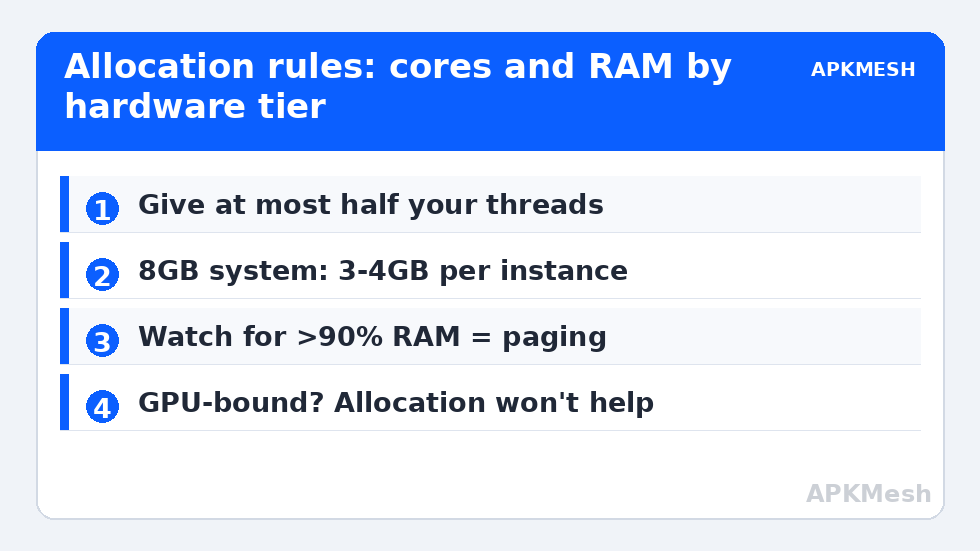
- Assign at most half your threads on CPUs with 8 threads or fewer; up to two-thirds on 12–16 thread CPUs.
- Prefer even, “round” values: 2, 4 or 6 cores. Odd allocations can confuse some schedulers and game engines.
- More cores stop helping quickly: most Android games use 2–4 heavy threads. Beyond your assigned 4 cores, returns shrink to noise for single-instance play.
- Hyperthreading counts: a “4-core/8-thread” i5 offers 8 logical CPUs; allocating 4 logical threads is the sweet spot, not 8.
| Your CPU (cores/threads) | Assign to emulator | Left for Windows |
|---|---|---|
| 2C / 4T (older i3, Ryzen 3 mobile) | 2 | 2 threads |
| 4C / 4T (older i5 desktop) | 2 | 2 cores |
| 4C / 8T (modern i5 mobile) | 4 | 4 threads |
| 6C / 12T (Ryzen 5, i5-12400 class) | 4–6 | 6–8 threads |
| 8C / 16T (Ryzen 7, i7) | 6–8 | 8–10 threads |
Lag risk: —
How to Allocate CPU RAM Emulator Resources: The RAM Rule
Windows 11 with a browser open comfortably uses 4–5GB before you launch anything. The emulator allocation must fit inside what remains, with a buffer:
| Total system RAM | Single instance allocation | Notes |
|---|---|---|
| 4GB | 1.5–2GB | Survival mode; close everything else |
| 8GB | 3–4GB | The most common correct answer |
| 16GB | 4–6GB | More than 6GB rarely changes FPS |
| 32GB | 6–8GB | Extra is for multi-instance, not one game |
Why not give a single game 12GB “because it’s there”? Android itself is built for phones with 4–12GB shared by the whole system; a single game process seldom uses more than 2–3GB inside the guest. Extra guest RAM mostly sits as cache while the host — which streams the game’s assets from disk — goes short. Watch for the signature symptom: Task Manager shows total memory above 90% and the disk at 100% during freezes. That is paging, and the cure is less emulator RAM, not more.
How to Verify Your Allocation Is Right
- Launch the emulator and your heaviest game. Play ten minutes.
- Open Task Manager > Performance. Total CPU should sit below ~85%, total RAM below ~88%, disk near 0% except during loading.
- If CPU is pegged at 100% with the emulator taking most of it, add one core (if you have headroom) or lower in-game graphics — CPU-bound.
- If GPU is pegged and CPU is relaxed, you are GPU-bound: allocation changes won’t help; reduce resolution or effects. See settings for integrated Intel UHD graphics for that path.
- If RAM is the pegged resource, reduce the emulator’s allocation before closing host apps you actually need.
Multi-Instance Maths Is Different
With multiple instances, divide deliberately: total emulator cores across instances should still respect the “leave half” principle, and RAM sums must fit the same host budget. Four instances at 2 cores / 2GB each is a sane pattern on a 16GB, 12-thread machine; four instances at 4 cores / 4GB each on the same machine is a paging machine. Background instances deserve Eco-style throttling (low FPS caps) because a menu screen does not need 60 frames. The full discipline is covered in running multiple instances without crashing your PC.
Common Allocation Myths, Retired
“The emulator shows a warning that more RAM is recommended, so I must obey.” Those warnings assume a gaming PC with memory to spare. “Allocating more cores fixed my friend’s lag.” His bottleneck was CPU on an 8-core desktop; on your 4-thread laptop the same change backfires. “RAM is unused, so it’s wasted.” Windows uses spare RAM as file cache — that cache is part of why levels load quickly. Apply the tables, verify with Task Manager, and stop tuning. For per-emulator starting points, return to Emulator Settings, and compare two tuned engines in NoxPlayer vs BlueStacks 5 resource consumption.
Special Cases That Break the General Rules
Single-core-bound legacy games
Some older Android titles do nearly everything on one thread. On such games, assigning 6 cores changes nothing measurable versus 2, because the bottleneck is one core’s clock speed. The correct response is not more cores but better conditions for the one core: plugged-in power, cooling headroom so boost clocks hold, and closing single-threaded host hogs (a browser tab decoding video is a classic offender).
Hybrid CPUs (Intel P-cores and E-cores)
On 12th-gen-and-later Intel laptops, Windows may schedule emulator threads onto efficiency cores, producing inexplicable underperformance at modest total CPU. If your high-thread chip underperforms a friend’s older one, suspect scheduling: ensure the emulator is classified as a high-performance process (Windows Graphics > High performance), keep the laptop on the performance power mode so the scheduler favors P-cores, and avoid third-party “core parking” utilities that fight the OS scheduler with outdated logic.
When the GPU masquerades as a CPU problem
Task Manager shows combined figures that mislead: an iGPU at 100% forces the CPU to wait, inflating its apparent load. Always read the GPU column alongside CPU before changing allocations. If the GPU is the wall, cores and RAM are decoys — resolution and effects are the cure.
Allocation for Recording and Streaming While You Play
Streamers break the half-the-threads rule legitimately, because their “Windows share” now includes an encoder. If you record with OBS or the emulator’s built-in recorder, budget the encoder first: GPU encoding (NVENC/Quick Sync/AMF) costs almost no CPU and is the correct choice wherever available; CPU encoding at 1080p can consume 2–4 threads by itself, which must come out of the emulator’s half, not the host’s reserve. The symptom of ignoring this is distinctive — the game runs at 60 for viewers’ first minutes, then stutters as the encoder and emulator contend — and the fix is arithmetic, not settings folklore: emulator cores down by the encoder’s appetite, or the encoder onto the GPU. The same logic covers Discord screen-share and Windows Game Bar recording, which are encoders wearing casual clothes.
One last verification habit catches misallocations that averages hide: open Task Manager’s Performance tab, right-click the CPU graph, and switch it to Logical processors. An emulator bottlenecked by a single thread shows one core pinned near 100% while the rest idle, and no allocation increase fixes that — the answer is a lighter renderer or lower resolution, not more cores. Conversely, if all allocated cores sit at 85–95% during fights, the allocation genuinely is the ceiling, and one extra core (or closing the background browser) is a real cure rather than folklore.
Frequently Asked Questions
How many CPU cores should I give my emulator?
Half your logical threads is the reliable default: 2 cores on a 4-thread CPU, 4 on an 8-thread CPU, 6 on a 12-thread CPU. Most Android games use 2–4 heavy threads, so higher allocations mostly add contention with Windows rather than FPS.
Can allocating too much RAM make an emulator slower?
Yes. When total system memory pressure crosses roughly 90%, Windows pages data to disk, and those page faults feel like random one-second freezes. Reducing the emulator’s allocation by 1GB often removes the stutter entirely.
Should I allocate cores equal to my physical cores or threads?
Think in threads (logical processors), because that is what Windows schedules. A 4-core/8-thread CPU can sanely offer the emulator 4 threads. Emulator settings screens count logical processors too.
Does more RAM increase FPS directly?
Only up to the game’s actual working set — typically satisfied at 3–4GB guest RAM for a single popular title. Beyond that, FPS is decided by CPU single-thread speed and GPU throughput, not memory size.
What is the best allocation for two instances on 16GB RAM?
Give the active instance 4 cores / 4GB and the background instance 2 cores / 2GB with a low FPS cap (Eco Mode), keeping total emulator demand near half your threads and under 8GB.