
Every low-spec gaming forum eventually asks the same question: if emulators are too heavy, why not install Android itself? PrimeOS is the most polished of the Android-x86 desktop systems, and the primeos vs android emulators low spec pc comparison is a genuine architectural fork — a native operating system that owns the whole machine versus a guest Android borrowing resources from Windows. Native wins whole categories of performance. It also introduces whole categories of risk and inconvenience that emulator users never think about. This guide maps both honestly, so you choose with your eyes open.
PrimeOS vs Android Emulators Low Spec PC: How Each Spends Your Hardware
| Factor | PrimeOS (native Android-x86) | Windows + emulator |
|---|---|---|
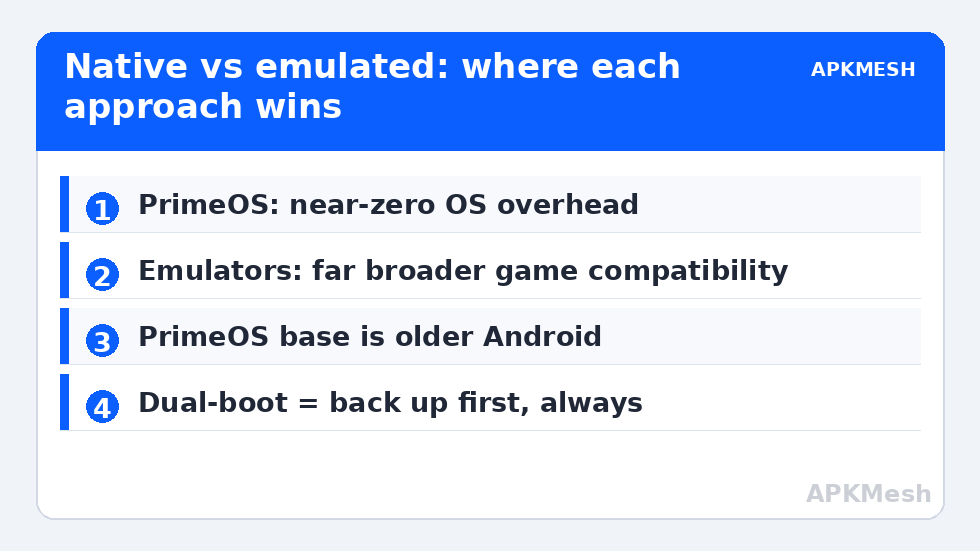
| OS overhead while gaming | Almost none — Android is the OS | Windows 10/11 idles at 1.8–2.5GB RAM + CPU background load |
| Minimum comfortable RAM | 2–4GB total system | 8GB for comfort, 4GB survival |
| CPU translation layer | Native x86 for supported apps; ARM bridge for ARM-only apps | Full virtualization + translation, mature and optimized |
| GPU access | Direct (Mesa drivers) | Through emulator renderer (OpenGL/DirectX/Vulkan) |
| Game compatibility | Patchier — some games detect x86/root-like environment or miss libraries | Broadest — Pie 64/Android 11 images match store expectations |
| Anti-cheat/integrity | Frequently flagged; several competitive titles block or misbehave | Generally accepted (Play Integrity caveats aside) |
| Switching back to Windows work | Full reboot | Alt-tab |
The performance logic is undeniable on truly weak hardware: a 4GB RAM, dual-core laptop spends nearly half its memory on Windows before BlueStacks opens. PrimeOS reclaims all of it. In lighter games the practical gain is often the difference between unplayable and 50–60 FPS at modest settings — not because PrimeOS renders faster per frame, but because nothing else is eating the machine.
The Compatibility Ledger Nobody Puts in the Brochure
PrimeOS’s Android base (historically Android 7/9-era builds, with newer branches unevenly maintained) reproduces the version-cliff problem from our Android 11 vs Android 9 comparison at double strength: modern titles requiring Android 10+ may not install at all, and those that install can refuse to run when their integrity checks see an x86 native environment, an unlocked bootloader equivalent, or missing hardware attestation. Emulators face milder versions of these checks because their Pie 64/Android 11 images are the tested mainstream path. PrimeOS also depends on Mesa drivers for your exact GPU; Intel integrated graphics fare best, older AMD and NVIDIA cards can be flaky, and Wi-Fi/Bluetooth chip support on laptops is a lottery Windows users never play.
Lag risk: —
Installation Risk: The Partition Conversation
Installing PrimeOS means either dedicating a disk/partition (dual-boot) or running its Windows installer variant inside a disk image on your Windows partition. Both are reversible when done carefully; both can destroy data when done carelessly. Non-negotiables: back up everything important first (see backing up your data — the discipline transfers), disable Secure Boot only if required and understand what that changes, keep your Windows recovery USB within reach, and never let an installer “use the whole disk” unless the machine is truly dedicated. Emulators ask for none of this. On a family or work laptop, that difference alone settles the argument.
Gaming Experience Details
PrimeOS’s DecaPro keymapping and game center are genuinely good for supported shooters, and input latency benefits from the absence of a hypervisor. But per-game support is a manual patchwork compared with BlueStacks’ or LDPlayer’s per-title tuning databases. Storage is another quiet win for native: games write directly to your disk at full speed rather than through a virtual disk file, which matters on the HDDs still common in this hardware class. Updates cut the other way — emulator updates are an app update; PrimeOS updates are an OS event.
Verdict by Machine
- Dedicated old laptop, light/older games, you enjoy tinkering: PrimeOS is a rewarding second life for the machine.
- Your only PC, current competitive titles, work + play: Emulator on Windows. Compatibility and zero reboot friction outweigh the overhead.
- 4GB RAM and you must play a modern Android 11 title: Neither is comfortable; the emulator at least runs it slowly (see LDPlayer settings for 4GB laptops), while PrimeOS’s older Android may not install it — check the specific game before wiping anything.
- School/work-managed device: Emulator, full stop. You likely cannot (and should not) alter boot configuration.
More low-spec strategies are in Emulator Settings, including the middle path of genuinely lightweight Windows emulators that reclaim much of PrimeOS’s advantage without a reboot.
The Middle Paths People Forget
The fork is not strictly binary. Three middle options reclaim part of PrimeOS’s overhead advantage while keeping Windows in charge: a genuinely lightweight emulator with an Android 7/9 image for the older titles (covered in our lightweight roundup), which gives up new-release compatibility but keeps alt-tab convenience; Windows Subsystem-style Android layers where still available — note Microsoft discontinued WSA, so this is a legacy footnote, not a 2026 plan; and cloud gaming/emulation streaming for the weakest machines of all, which trades the entire local-performance question for a latency-and-subscription question — legitimate for turn-based and casual titles, poor for competitive play. Evaluate these before committing to a partition editor; a surprising share of “PrimeOS-curious” users discover their real constraint was one bloated emulator configuration, fixable with the allocation and settings discipline elsewhere in this category.
Security Posture, Stated Plainly
Running any alternative OS means trusting its maintainers with everything typed into it. PrimeOS is a known project, but its images are not your laptop vendor’s signed Windows install, and its update cadence has historically been uneven. Confine it to gaming accounts, keep your primary email and banking in Windows (or better, on your phone), and the risk calculus stays sane. The same discipline applies to abandoned emulator builds, which is why we keep repeating it: in this whole corner of computing, old Android images are lab equipment, not daily drivers.
What About Bliss OS and Other Android-x86 Descendants?
PrimeOS is the famous name, not the only one: Bliss OS and plain Android-x86 images occupy the same niche with different trade-offs — typically newer Android bases and more active open-source development in exchange for rougher gaming tooling (no DecaPro-style keymapper out of the box) and more manual configuration. If PrimeOS’s Android version is the blocker for your specific title, a newer Bliss build is the logical experiment, undertaken with the same backups and the same isolation discipline. Conversely, if keymapping polish is your priority, PrimeOS remains the reference. The category moves slowly and unevenly; check the actual release date of any image you consider, because a dormant branch is worse than an old-but-maintained one for exactly the security reasons already covered.
Frequently Asked Questions
Is PrimeOS faster than BlueStacks on a low-end PC?
On the same weak hardware, PrimeOS often delivers better results in light games because Windows isn’t consuming half the machine underneath. The advantage shrinks as hardware improves, and disappears entirely for games PrimeOS can’t run due to its older Android base or integrity checks.
Can PrimeOS run PUBG Mobile / BGMI and Free Fire?
Historically these titles ran on PrimeOS with its keymapping, but support is unofficial and changes with game updates and anti-cheat policy; some builds get blocked or detected as emulator-class environments. Verify current status for your exact title before planning an install around it.
Is it safe to dual-boot PrimeOS with Windows?
It is a well-trodden path, but it modifies partitions and boot configuration, so it carries real data-loss risk if rushed. Back up first, use a separate partition or the Windows-installer image method, and keep Windows recovery media ready.
What are the minimum specs for PrimeOS?
PrimeOS runs on remarkably little: a dual-core x86 CPU, 2–4GB RAM, and a few GB of disk will boot and play light games. Intel integrated graphics have the best driver support in its Mesa stack; discrete and older AMD GPUs are more hit-or-miss.
Can I uninstall PrimeOS easily?
The Windows-installer variant uninstalls like a program and restores boot entries. A manual dual-boot partition install requires removing the partition and repairing the Windows bootloader — straightforward for experienced users, a chore for everyone else.