Downloads fail at 98%. Apps refuse to install “insufficient storage.” Android nags that storage is full — yet your Windows drive has 200 GB free. To fix the storage full error inside an emulator’s virtual disk, you first have to accept the architecture: the Android instance lives inside a fixed-size virtual disk file. Android can only see that disk, not your PC’s free space. When the virtual disk fills — with game assets, caches, media, and forgotten downloads — every write fails no matter how empty the host drive is. This guide shows where the space actually went, how to reclaim it safely, and how to enlarge the disk properly when cleaning is not enough.
See the Truth: What Is Using the Virtual Disk
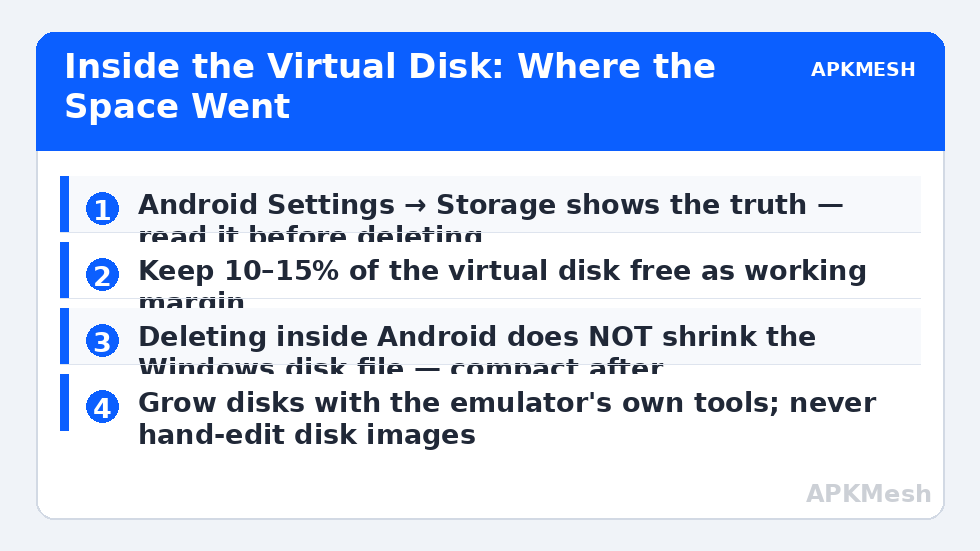
Inside the emulator: Android Settings → Storage. Read the breakdown before deleting anything:
- Apps + their data: modern games are the whales — 10–25 GB with downloaded assets is normal; the Play Store listing size is the downloader, not the final footprint.
- Cached data: system-wide cache can be several GB after months.
- Images/video/other files: in-emulator downloads, screen recordings, and shared-folder copies pile up invisibly.
- System + “Other”: a bloated “Other” usually means app data in disguise (streaming caches, game patch leftovers).
Note the disk’s total size while you are here — most emulators default to 32–64 GB, and if your games sum to more than that, no cleaning strategy survives contact with reality; you need the expansion step below. This also explains the install failures that show up disguised as other errors — LDPlayer’s error code -110 is frequently just this problem wearing a number.
Reclaim Space in Safe Order
- Clear caches: Settings → Storage → Cached data (where offered) and per-app cache for browsers/social/video apps. Cache returns over time, but this is free space with zero risk.
- Empty the Downloads folder and in-emulator trash with the Files app; screen recordings are shockingly large.
- Delete downloaded game assets for titles you dropped: many games hide a “storage management” option in their settings; otherwise uninstall the game itself.
- Uninstall apps you no longer open — check Settings → Apps sorted by size and be honest about the top five.
- Remove duplicate media from shared folders: files dragged into the emulator are copies; the original still exists on Windows. Delete the in-emulator copies freely.
Do not go deleting Android system folders with a file manager, and do not use third-party “cleaner” apps inside the emulator — they cannot see more than the stock tools do, and the category is thick with adware. Also avoid random “virtual disk shrinker” downloads on the Windows side; the compaction step below uses the emulator’s own tooling.
Expand the Virtual Disk (When Cleaning Is Not Enough)
Most emulators let you grow an instance’s disk — growth is safe; shrinking is the dangerous direction:
- LDPlayer: instance settings → disk management option lets you expand the disk size; apply, restart the instance.
- BlueStacks: instance storage is managed per instance; the practical route is a new instance if an old one’s disk is chronically undersized for your library, since in-place expansion options vary by version — check Settings → Storage/instance options in your build first.
- Nox/MuMu: multi-instance managers expose disk size at instance creation, and their settings offer cleanup/compaction tools (below).
Before expanding, verify the host drive genuinely has room for the larger virtual disk plus working space — a virtual disk that cannot grow its file on a full host drive trades an Android error for a Windows one. Host pressure symptoms overlap with high memory usage faults when the pagefile gets squeezed, so check both.
And set the instance’s RAM sensibly while you are in settings — storage fixes that coincide with wild allocations create new problems:
Lag risk: —
Compact the Disk File Afterwards (Host-Side Bonus)
Here is the part most guides miss: deleting files inside Android does not shrink the virtual disk file on Windows — the file stays at its high-water mark until compacted. After a big cleanup, use the emulator’s built-in disk cleanup/compaction if offered (Nox and LDPlayer expose forms of this in settings or the multi-instance manager; BlueStacks has a Disk Cleanup tool in Settings → User data on supported builds). Run it only after the in-Android cleanup, with the instance shut down if the tool asks. Never compact by hand-editing or truncating disk image files — that is how instances get destroyed, and instance corruption resurfaces as unrelated-looking faults like hangs at 99% loading.
How to Verify the Fix
Android Settings → Storage shows healthy free space (keep 10–15% of the disk free as working margin), a previously failing download completes, a large game installs and updates, and the state survives a restart. On the host, after compaction, confirm the disk file size actually dropped if that was your goal.
When This Will Not Work
If your game library genuinely exceeds what a single instance disk should hold, discipline (one instance per game family, uninstall rotation) beats endless expansion — giant virtual disks are slow to back up and prone to corruption. A host drive that is itself nearly full caps everything. And if free space decreases on its own rapidly with nothing installed, something is logging or caching pathologically inside the instance — find that app before expanding again, or you are feeding a leak. The remaining storage and install faults are indexed in the lag and error fixes section.
Where the Space Quietly Goes: Three Repeat Offenders
If storage fills again within weeks of a cleanup, one of these is almost always responsible. Game patch residue: large titles download multi-GB patches and do not always purge the previous version’s files until a successful update completes; a game updated five times can carry surprising dead weight — reinstalling just that game reclaims it. Messaging and social apps: auto-downloaded media (videos especially) accumulates in-app; set media auto-download to off inside those apps, on Wi-Fi-only at most, and clear their caches monthly. Browser and streaming caches: offline video downloads and music caches are stored as app data, invisible to casual browsing of the Files app — audit them inside each app’s own storage settings. Finding the growth source matters more than the cleanup: a disk expanded to feed a leak is full again on schedule.
Finally, build the habit that makes this error rare: glance at Android’s Storage screen once a month, the way you would a fuel gauge. Emulator disks fill by drift, not disaster — a few hundred megabytes of cache and media a week — and a two-minute monthly check (plus deleting one dead game) keeps you permanently out of the emergency this guide describes. The error only ever feels sudden because nobody watched the gauge.
Frequently Asked Questions
Why does Android say storage is full when my PC has plenty free?
Because Android lives inside a fixed-size virtual disk file and cannot see your PC’s free space. The disk’s ceiling — not the host’s — is what matters, which is why this guide starts inside Android’s Storage settings.
Is it safe to expand the virtual disk?
Yes, using the emulator’s own settings. Growing is a supported operation. The risky direction is shrinking or manually editing disk files — avoid both, and keep a backup of important instances before any disk operation.
I deleted 10 GB inside Android but the file on Windows is the same size. Why?
Virtual disk files do not shrink automatically when contents are deleted. Run the emulator’s disk cleanup/compaction tool after cleaning; that is the step that returns space to the host.
How much free space should I keep inside the instance?
At least 10–15% of the virtual disk, and never less than ~2 GB. Android and large games need working room for updates and cache; running at 99% full causes install failures and update loops.
Can I move the instance to another drive instead?
Most emulators allow changing the data/install location at install time or in settings, and moving to a roomier (ideally SSD) drive is a legitimate permanent fix. Use the emulator’s own move/reinstall path rather than dragging folders and breaking paths.