Crackling, popping, or robotic audio in an emulator is rarely a broken speaker or a bad game file. It is a scheduling problem: audio is produced in tiny buffers that must be filled every few milliseconds, and whenever the CPU is busy doing something else — a shader compiling, Windows paging, a core parking — a buffer goes out half-empty and you hear the gap as a crackle. To fix emulator sound cracking audio buffer issues, you raise the buffer where the stack allows it, and reduce the CPU contention that starves it everywhere else. Both halves matter; buffer tweaks alone disappoint users whose real problem is a saturated processor.
First, Identify Which Crackle You Have
- Crackle under load only (busy scenes, loading transitions): buffer underruns from CPU/GPU contention. This guide’s main path.
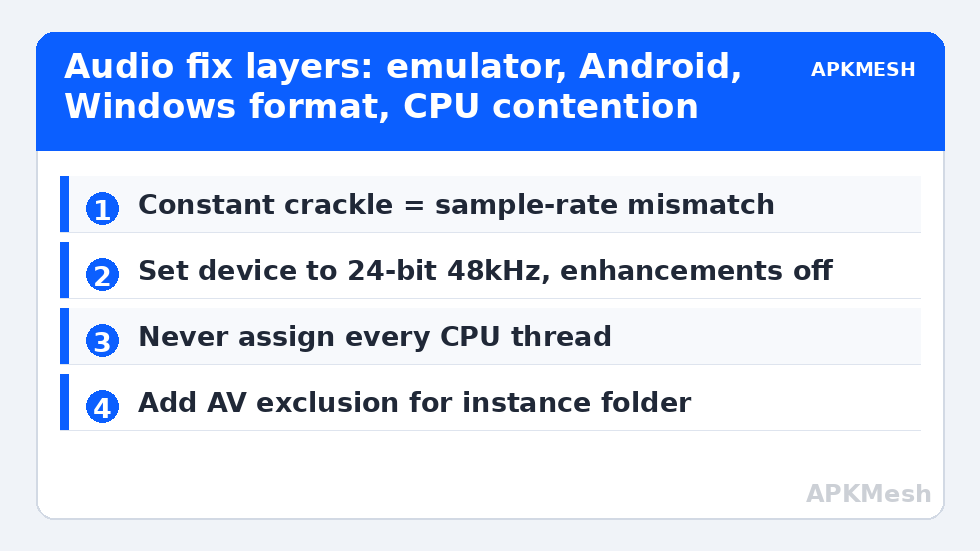
- Constant crackle even in menus: sample-rate mismatch between the emulator/Android (usually 44.1kHz or 48kHz) and the Windows playback device, or a broken audio driver.
- Crackle only on Bluetooth headphones: the Bluetooth stack renegotiating or dropping to headset (HFP) mode. Test with wired audio before changing any setting.
- Echo/reverb artifacts: an enhancement in Windows sound settings or vendor audio software processing the stream twice.
Fix Emulator Sound Cracking Audio Buffer: Where the Buffer Can Be Changed
Most consumer emulators do not expose a numeric audio buffer in milliseconds, so “configuring the buffer” happens at three indirect layers:
| Layer | Adjustment | Effect |
|---|---|---|
| Emulator settings | Where offered (some builds expose sound quality / buffer or “audio performance” toggles), choose the higher-latency/higher-quality option | Larger guest buffer; trades a few ms of latency for stability |
| Android inside the instance | Disable in-game voice processing/effects; keep game audio at default sample settings | Reduces per-buffer DSP work |
| Windows playback device | Set Default Format to 24-bit, 48000Hz (or 44100Hz to match stubborn titles); disable “Audio Enhancements” and spatial processing | Eliminates resampling conflicts, the constant-crackle cause |
| Windows power/CPU | High Performance plan; disable core parking via the plan’s processor minimum state (100% while gaming is a valid test) | Stops the CPU downclocking mid-buffer |
Exclusive mode in the Windows device properties (Advanced tab) is worth one test in each state: some drivers crackle with apps sharing the device, others crackle when an app seizes it exclusively. There is no universal answer — there is only your driver.
Lag risk: —
Removing the Contention That Starves the Buffer
Audio threads are small but latency-critical; everything in our allocation guidance applies with interest. Never assign the emulator every CPU thread (allocation rules) — the Windows audio service needs somewhere to run. Keep total CPU below ~90% in the heaviest scene: if the game itself saturates the processor, lower resolution or effects until it does not (start with the GPU-heavy options in Intel UHD settings if you are on integrated graphics). Close real-time antivirus scanning exclusions appropriately — add the emulator’s instance folder as an AV exclusion so asset streaming is not inspected file-by-file mid-game, a classic underrun generator. On HDD systems, asset streaming and paging compete with audio too; the SSD lecture applies here as everywhere.
Driver and Device Hygiene
- Update the audio driver from the laptop/motherboard vendor (Realtek packages matter), and the chipset driver alongside it.
- Remove virtual audio devices you no longer use (old streaming tools leave stubborn endpoints behind) — wrong default devices cause “no sound” more than crackle, but their drivers still sit in the audio path.
- Test a different output: wired jack vs USB headset vs Bluetooth, one at a time, to isolate whether the problem follows the device or the PC.
- Check DPC latency with a free monitor (LatencyMon) if crackle persists: a misbehaving Wi-Fi or GPU driver with long DPC stalls is the deep cause in a stubborn minority of cases, and it will be named in the report.
Finally, verify the game itself: a title with known audio bugs on real phones will faithfully reproduce them in an emulator. One search of the game’s community saves an evening of system tweaking. More audio and performance tuning lives in Emulator Settings.
Sample-Rate Detective Work, Step by Step
If your crackle is the constant kind, run this sequence before touching anything else. First, note the format Windows is using: right-click the speaker icon > Sound settings > your output device > Format. Android audio pipelines are built around 48kHz in modern versions (44.1kHz in older games), and every conversion Windows performs to reach a device set to, say, 96kHz studio mode is a chance for glitches on weak drivers. Set 24-bit/48kHz, disable all enhancements and spatial sound for the device, then retest in the emulator’s menus — menu music is the cleanest test signal because the CPU is idle there. If menus are clean but battles crackle, your problem was never the sample rate: it is contention, and the earlier sections apply. If menus still crackle, swap the physical output (jack, USB, Bluetooth in turn) to separate device faults from PC faults, then update or reinstall the audio driver before suspecting the emulator itself.
Voice Chat: The Separate Microphone Path
Mic crackle in Discord-in-emulator or in-game voice is a different pipe from game audio and is fixed at different taps: select the correct microphone explicitly inside the emulator’s settings and inside the app (auto/default frequently binds to a dead virtual device), disable Windows’ microphone enhancements and “listen to this device” echoes, and if the mic is USB, move it off any hub shared with the Wi-Fi dongle. A headset that crackles only when you speak while the game is loud is usually automatic gain control pumping — set a fixed mic level around 80% and disable AGC in the app.
Recording and Streaming: Where Crackle Goes to Be Discovered
Many users meet this bug only when they start recording: gameplay sounded fine live, but the capture is full of pops. The recorder adds a second audio consumer with its own buffering (OBS and Game Bar both resample the mix), and a system that was marginally keeping up live falls behind under the double load. Fixes mirror the main path with one addition — match the recording software’s sample rate to the device format you standardized (48kHz end-to-end), and prefer capturing the emulator’s audio via the application-audio source rather than a virtual loopback device stacked on the same struggling driver. If streams matter to you, validate audio on a test recording before the session you care about; audio faults are the least forgivable because they are discovered only in the edit.
Frequently Asked Questions
What actually causes crackling sound in emulators?
Buffer underruns: the audio buffer empties before the system refills it, usually because the CPU is saturated, downclocked, or stalled by another driver at that moment. Sample-rate mismatches between Android and the Windows device cause the constant-crackle variant even at idle.
Can I directly increase the audio buffer size in BlueStacks or LDPlayer?
Most builds do not expose a numeric buffer setting. The practical equivalents are the emulator’s sound-quality options where present, the Windows playback format (48kHz, enhancements off), and removing CPU contention. If your emulator offers an audio performance toggle, choose the stability option over the low-latency one.
Why does the crackle only happen in heavy scenes?
Because that is when CPU and GPU contention peaks. The audio thread misses its refill deadlines exactly when the game is compiling shaders, streaming assets, or maxing every assigned core. Lowering resolution or effects slightly usually removes those peaks — and the crackle with them.
Does Bluetooth make emulator audio crackle?
It can. Bluetooth headsets switching into hands-free (HFP) mode drop to low-quality mono and often crackle, and busy 2.4GHz environments cause dropouts. Test with wired audio: if the crackle vanishes, the problem is the Bluetooth path, not the emulator settings.
Will setting Windows to 48kHz break anything?
No — 48kHz is the standard rate for most modern content and Android audio paths. If a specific old title crackles at 48kHz, try 44.1kHz for that title; the setting lives per playback device in Windows Sound properties and is safe to change back and forth.