
A racing wheel pedal setup for an Android emulator on PC starts from an honest mismatch: mobile racing games are designed for tilt sensors and thumb sticks, so they expect steering input that snaps from centre to full lock in a fraction of a second, while your wheel offers 900 degrees of precise analogue travel and pedals the game believes are two buttons. Nothing about this is plug-and-play, yet with the right signal path — wheel configured as separate pedal axes, rotation limited to arcade scale, and the emulator translating the wheel’s X axis into the game’s steering control — the result is genuinely fun and far more controllable than a keyboard. This guide builds that path for mainstream wheels (Logitech G29/G920/G923, Thrustmaster T-series) running Android racers in LDPlayer or BlueStacks.
Ground rule before any software: the emulator does not see your wheel as a wheel. It sees a gamepad. Everything in this guide flows from that fact — you are persuading a gamepad pipeline to carry wheel data with minimal damage, including in games that also accept the controller layout described in our Xbox and PlayStation connection guide.
Step 1: Configure the Wheel in Its Own Software First
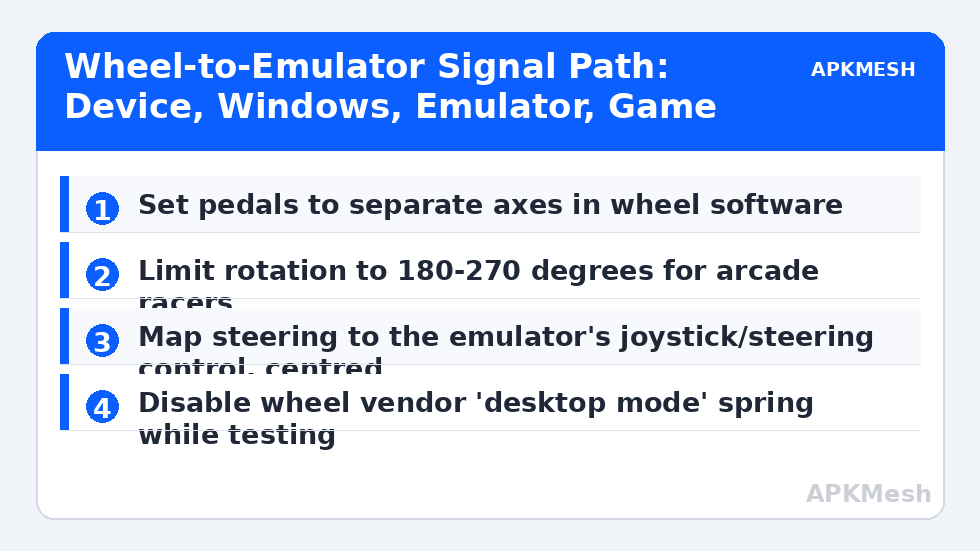
Install the wheel’s PC software (Logitech G Hub or the Thrustmaster control panel) and open the Windows game controller test (joy.cpl) to watch raw axes. Two settings matter immediately. First, pedals: choose ‘separate’ pedal axes rather than ‘combined’. Combined mode puts throttle and brake on opposite ends of one axis, which Android games read as a single slider that can never press both — separate axes give the emulator two clean analogue inputs. Second, degrees of rotation: drop from 900 to 270 degrees for simcade titles and 180 degrees for pure arcade racers. A mobile game’s steering model saturates within a thumb-stick’s throw; spreading that across 900 degrees makes the car feel unresponsive no matter what sensitivity you later choose.
Centre spring and force feedback: emulators send no force feedback to the wheel (Android games have none to send), so any resistance you feel is the wheel’s own default spring. A light centre spring helps the wheel return naturally; a strong one fights you in long sweepers. Set the spring low in the vendor software and disable any ‘desktop/game mode’ auto-switching while you test, so the profile you are tuning is the profile that stays.
Lag risk: —
Step 2: Present the Wheel to the Emulator as a Gamepad
Enable gamepad detection in the emulator (BlueStacks Settings > Preferences; LDPlayer’s sidebar controller icon confirms connection). The wheel should appear as a controller; if it does not, check joy.cpl again and reinstall the wheel driver, because the emulator can only forward what Windows enumerates. Some wheels ship a mode switch (the G29’s PS3/PS4 selector is the famous example) — on PC it must be in the PC/PS4 position or Windows sees a crippled device with missing axes.
Now map the steering. In the emulator’s gamepad editor, place the steering/joystick control over the game’s steering input area (for stick-steering games, the left virtual stick zone) and bind it to the wheel’s X axis by turning the wheel when prompted. Throttle and brake go onto the game’s accelerate/brake on-screen buttons as analogue-friendly inputs where the editor allows axis binding; where it only accepts buttons, bind the pedals as digital presses and accept on/off throttle for that title — kart racers tolerate it, simcades suffer. Buttons for handbrake, camera, pause and reset-to-track go to the wheel’s face buttons and paddles: paddles as gear up/down where the game has manual gears, otherwise handbrake on the right paddle is a satisfying default.
| Wheel input | Emulator binding | Target on screen | Notes |
|---|---|---|---|
| Steering (X axis) | Left stick / steering control | Game’s steering stick zone | Centre the control exactly; test lock-to-lock |
| Throttle pedal | RT (analogue) or button | Accelerate button | Analogue if the editor allows axis binding |
| Brake pedal | LT (analogue) or button | Brake/reverse button | Separate axis mode is essential |
| Clutch / third pedal | LB | Handbrake | If present; else leave unbound |
| Paddles L / R | LB / RB or face buttons | Gear down / gear up | Or handbrake right paddle in auto-gear games |
| D-pad | D-pad | Menus / camera | Menus are easier on the wheel’s D-pad than the mouse |
| Face buttons | A/B/X/Y equivalents | Confirm, back, camera, reset car | Mirror the on-screen prompts |
Step 3: Tune Deadzones, Saturation and the Centre Problem
Three calibration faults ruin wheel setups, and each has a distinct feel. A deadzone that is too large makes the car ignore the first degrees of input around centre — the car wanders on straights before it responds. Set the wheel’s deadzone in vendor software to the smallest value that still reads a stable zero at rest (typically 1-3%). Saturation is the opposite end: if the game’s steering maxes out before your wheel reaches its stop, reduce the operating angle further or lower the emulator-side sensitivity so full lock uses most of your set rotation. The centre problem — car pulls gently left or right hands-off — comes from the steering control in the emulator editor being a few pixels off the true centre of the game’s stick zone; nudge the control, never compensate in the wheel software, because the offset is geometric, not electronic.
Test on a long straight and a constant-radius corner. On the straight, hands-off should track true for three seconds. On the corner, hold one steering angle and confirm the car’s line is steady rather than pulsing — pulsing means the emulator is re-sampling the axis coarsely or the game applies its own steering filter that fights analogue input; in filtered games, a slightly larger deadzone and slower hands genuinely produce faster laps.
Step 4: Per-Game Profiles and Honest Expectations
Save one scheme per game, named with the rotation you used (for example ‘Asphalt-270’ or ‘RealRacing-180’), because rotation is a wheel-software setting you will change alongside the scheme. Expect variance: titles with native gamepad support behave best; tilt-only games with a stick-steering option behave well; games that only accept tilt and buttons are poor candidates, and no mapping will make them feel like a wheel game. That honesty saves hours — spend them in the games that reward the hardware.
Keep the keyboard scheme enabled too: menus, garage navigation and text entry are faster on keyboard and mouse, and both schemes can be live at once, as covered in our general emulator controller setup. The wheel is for driving; let it be only for driving.
Related Keymapping Guides
More from this category is collected in the Keymapping Guides archive. These companion guides go deeper on the topics touched above:
- Xbox and PlayStation controller connection guide
- trigger and bumper mapping principles
- delayed input and lag diagnosis
Frequently Asked Questions
Why does my wheel barely turn the car in Android racing games?
The game expects thumb-stick travel, which saturates almost instantly, while your wheel spreads input over 900 degrees. Reduce the wheel’s rotation to 180-270 degrees in its software, confirm pedals are on separate axes, and the steering response becomes proportional again.
Can the emulator use my wheel’s force feedback?
No. Android racing games do not generate force feedback signals, so the emulator has nothing to send. The only resistance available is the wheel’s own centre spring from its vendor software — set it light so it helps centring without fighting you.
Throttle and brake cancel each other out. What is wrong?
Your pedals are in combined-axis mode, where both pedals share one axis and pressing both equals pressing neither. Switch to separate pedal axes in the wheel’s software or control panel and rebind in the emulator.
The car pulls to one side with my hands off the wheel. How do I fix it?
Usually the steering control in the emulator editor is a few pixels off the game’s true centre. Re-centre that control precisely on the stick zone. Do not compensate in the wheel software, because the error is in the mapping geometry, not the wheel.
Which Android racing games work best with a wheel?
Games with native gamepad support first, then games offering a stick-steering option. Tilt-only titles are poor candidates regardless of mapping effort, because their input model has no analogue steering channel to feed.