Emulator PCs rarely die in a single dramatic failure. They decay: a driver ages, dust thickens, the drive fills, an instance nobody uses swells to 30GB, and one day the setup that ran fine “for no reason” stutters — with no single change to blame because the cause was fifty small ones. A complete preventive maintenance checklist for an emulator PC is the system that prevents that story: a short set of recurring checks, each tied to a failure mode documented in this category, performed on a cadence and recorded in one running notes file. Nothing here takes more than fifteen minutes per session. The discipline is the entire trick.
The Monthly Session (15 Minutes)
- Storage snapshot: Settings → System → Storage. System drive under 85% full? If not, run the routine from our cleanup guide — temp files, update leftovers, audit emulator instances (delete or archive the unused, compact the active).
- Thermal glance: play your usual game for five minutes with the overlay up (Afterburner method). End temperatures within a few degrees of your baseline? A slow upward drift across months is the dust curve announcing itself before it becomes throttling.
- Startup audit: Task Manager → Startup apps. Anything new that you did not invite (installers love adding residents)? Disable it now rather than discovering it during a match.
- Instance & emulator housekeeping: apply pending emulator updates (after reading the changelog), clear one game’s stale cache inside Android, export a backup of your main instance to the archive drive. Backups you have never tested restoring are wishes; spot-check an import once a quarter.
- Notes entry: date, drive free space, end-of-session temps, changes made. Four lines. Future-you is the audience.
Lag risk: —
The Quarterly Session (30–45 Minutes)
- Driver review: check GPU driver currency against the vendor’s current release (official sites only, per our driver update guide). Update if you are multiple versions behind or a release targets your emulator/games; archive the current installer first as your rollback.
- Windows health: let Windows Update complete fully (including optional driver offers reviewed, not blindly accepted), then run sfc /scannow from an admin terminal if the machine has shown any odd corruption symptoms. Check drive health: SSD/HDD SMART status via the vendor tool or CrystalDiskInfo — reallocated sectors or falling SSD health percentage are replace-soon warnings, not trivia.
- Baseline re-benchmark: run your fixed scene once (protocol guide) and compare with the recorded baseline. A slow drift localised by these numbers beats a mystery discovered mid-season.
- Memory & commit review: heaviest realistic session, Task Manager open — committed peak vs limit still has 25% headroom? Instance RAM allocations still sane after emulator updates reset them (they do)? Pagefile configuration as intended (the pagefile allocation guide has the sizing logic).
- Cable, port, and peripheral sanity: controller cables fray silently; network cable still negotiating gigabit (if wired); laptop adapter is the full-wattage original.
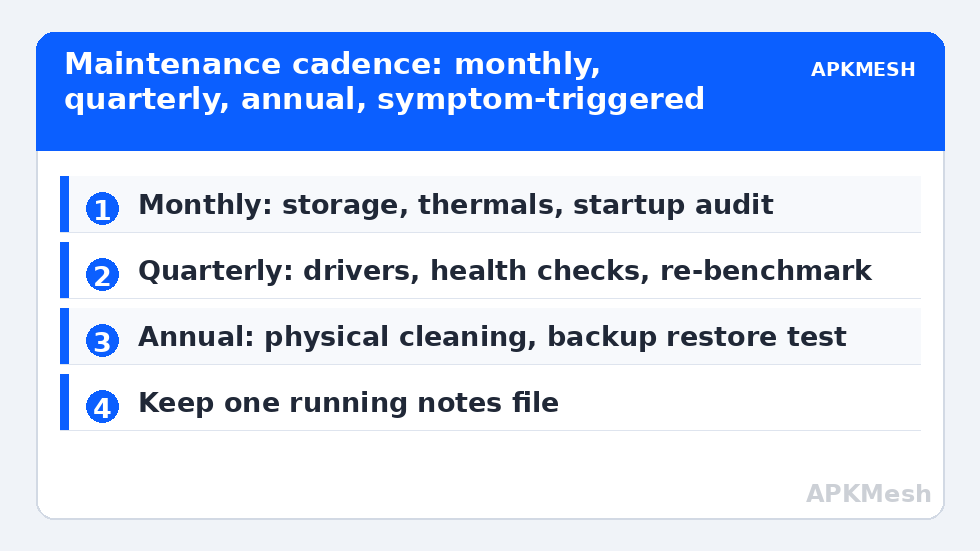
The Annual Session (An Hour, Calendar It)
- Physical cleaning: power off, compressed air through fans and fins (hold fan blades still), wipe intake meshes. Desktops: open the case, same treatment, check that case fans still spin freely. This is the appointment that keeps the thermal throttling problem theoretical for another year.
- Paste assessment (year 3+ machines, or if the quarterly thermal trend says so): if idle and load temperatures have crept despite clean fans, plan a repaste or a service visit — do not open a warranty-sealed laptop for this; use the vendor.
- Full backup verification: restore your main instance backup onto a scratch instance and boot it. A backup that has never been restored is a hypothesis.
- Accounts and security pass: Windows fully patched, Defender scan clean, Memory Integrity state exactly as you decided it (our Core Isolation guide frames that trade-off), browser and emulator downloads coming from official sources only.
- Settings inventory refresh: re-export or re-note the configuration decisions that define this machine — power plan, GPU assignments, emulator allocations, XMP state — into the notes file. Reinstalls stop being archaeology when this page exists.
The Trigger-Based Checks (Any Time Symptoms Appear)
| Symptom | First check | Guide |
|---|---|---|
| Sudden stutter after driver update | Shader cache state | Shader cache guide |
| FPS fine early, degrades over 15+ minutes | Temperature/clock trace | Thermal throttling guide |
| Emulator closes without error at heavy scenes | Committed memory vs limit | Pagefile guide |
| Loading times ballooning | Drive fullness, instance size, fragmentation (HDD) | Disk cleanup & defrag guide |
| Online matches spiking | Router ping test (local vs internet) | Network adapter guide |
The checklist is the capstone of the PC Optimization category: every other guide is a repair or a lever, and this one is the reason they stay repaired. Print it, schedule it, keep the notes file — the machine you maintain on a calendar is the machine that never ambushes you mid-season.
Setting Up the Notes File (Five Minutes, Once)
The checklist runs on one document, so create it properly: a single text file or note (name it with the PC’s name and year) with four standing sections — Configuration inventory (power plan, GPU assignments, per-instance CPU/RAM allocations, pagefile sizing, BIOS notes including XMP and virtualization state), Baselines (fixed-scene results with dates), Change log (dated one-liners: what changed, why, and the measured result), and Archive locations (where instance backups, known-good driver installers, and the Windows restore-point habit live). Every session in this guide reads from and writes to that file. It feels bureaucratic right up until the first reinstall, driver incident, or “it was fine in March” investigation, at which point it becomes the most valuable document on the machine. Keep a copy in cloud storage; the file is small and the machine it describes is exactly the thing that might not boot.
Adapt the cadences to your reality rather than abandoning them: a machine used daily earns the monthly rhythm; a weekend-only rig can stretch monthly items to six weeks. What does not stretch is the recording habit — an undated tweak is a future mystery, and mysteries are what this entire system exists to prevent.
Add one two-minute pre-flight to the front of any long session, separate from the scheduled sessions above: glance at free disk space on the system drive, confirm no Windows update is sitting at ‘restart required’, and check that the emulator’s own update prompt — if one appeared this week — has been dealt with deliberately rather than mid-game. Updates and restarts ambush more play sessions than hardware failures do. The pre-flight takes less time than one matchmaking queue, and it converts tomorrow’s interruptions into today’s choices.
Frequently Asked Questions
Isn’t this overkill for a hobby gaming PC?
The monthly session is fifteen minutes and the quarterly under an hour. Compare with the alternative cost profile: one corrupted instance with no tested backup, or one evening lost to diagnosing drift that a notes file would have localised instantly. Maintenance looks like overhead until the first time it converts a weekend problem into a five-minute check — then it looks like the hobby’s best bargain.
What is the single highest-value item on the list?
The tested instance backup. Performance items save frames; the backup saves the entire library, accounts, and configuration in the only scenarios (disk failure, corruption, a bad update) where everything else on this page is irrelevant. If you do nothing else, export and test-restore your main instance quarterly.
Should I use a maintenance/optimiser suite to automate this?
The legitimate automation is already in Windows: Storage Sense for temp files, Optimize Drives scheduling for TRIM/defrag, Windows Update itself. Third-party suites add registry cleaning (risk, no benefit) and duplicate notifications. The human-judgement items — audits, baselines, backup tests — are precisely the ones that should not be automated away.
My PC is new. When do I start?
Now, at the baseline step: record the fixed-scene numbers, drive space, temperatures, and configuration inventory while the machine is perfect. A baseline recorded on day one is the most valuable page in the notes file, because every later measurement has something true to be compared against.
How do I adapt this for a shared/family PC?
Keep the cadence, add coordination: schedule the quarterly session, note changes in the shared notes file (especially driver and security-setting decisions), and leave the machine’s configuration inventory where the other users can find it. Most “someone broke the PC” mysteries are unrecorded good intentions.