Every emulator generation eventually asks the same awkward question: the newer Android image is available, it is heavier, and your laptop is not getting any younger — should you switch? With android 13 emulator instance settings the answer depends on why you are switching. If a game you play now requires Android 12 or above, the decision is made for you and the job becomes damage control: configuring the 13 instance so its extra weight costs as little as possible on a low-end PC. This guide covers that configuration, the honest cost of the newer image, and which machines should stay put.
What Android 13 Actually Changes Inside an Emulator
For emulator users the visible changes are modest: a refreshed interface, per-app language options, a photo picker, and tighter permission prompts. The changes that matter for performance are underneath — newer system services, updated graphics translation components in current emulator builds, and a baseline memory footprint that sits a little above Android 11’s. None of this makes games render faster per frame. What Android 13 buys you is eligibility: a growing list of titles and apps whose store listings simply will not offer an install button to older instances.
That framing matters because it sets the tuning goal. You are not chasing a speed upgrade; you are paying a small, fixed tax for compatibility, and your settings work is about minimising the tax. Readers who have not yet read the earlier generational comparison should start with Android 11 vs Android 9 emulator performance, where the fixed-cost versus frame-cost distinction is laid out; Android 13 extends the same pattern by a smaller step.
Recommended Settings for a Low-End Android 13 Instance
| Setting | Value on 8GB RAM PC | Value on 16GB RAM PC |
|---|---|---|
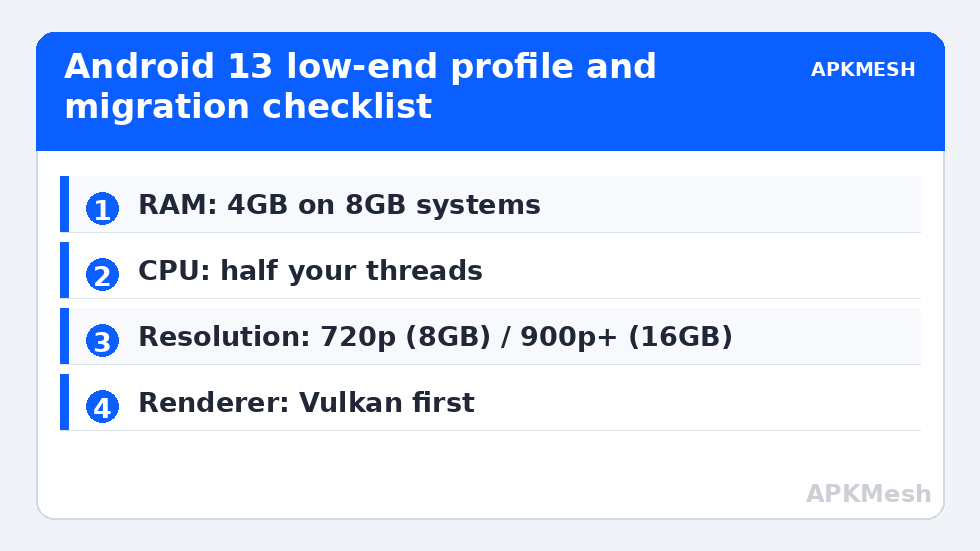
| CPU cores | Half your threads (typically 2–4) | Half your threads (typically 4) |
| RAM allocation | 4GB | 4–6GB |
| Resolution / DPI | 1280×720 / 240 | 1600×900 or 1920×1080 / 320 |
| Renderer | Vulkan first, OpenGL fallback | Vulkan first, OpenGL fallback |
| Frame cap | 60 | 60, higher only with a discrete GPU |
| Instance role | Only for titles that require it | Can serve as the main instance |
Two details in that table deserve emphasis. First, the RAM bump to 4GB on an 8GB machine is not generosity — the newer image’s resident services genuinely use more, and under-allocating produces the in-guest low-memory kills that look like random game crashes. Second, keeping an older, lighter instance alongside the 13 instance for undemanding titles is not indecision; it is the rational layout on weak hardware, the same master-and-supporting-cast thinking used for multi-instance budgets.
Lag risk: —
Migration: There Is No In-Place Upgrade
Emulators treat each Android version as a separate instance image, so moving means creating the Android 13 instance fresh, installing your games, and signing back in. Cloud saves follow your accounts. Local-only progress — offline games, unsynced saves, downloaded media inside apps — does not, and it is lost the day you delete the old instance in a tidy-up mood. Before migrating, inventory which of your titles keep progress server-side, and back up anything local first; the workflow in how to back up and restore emulator game data covers the export habits that make version jumps painless.
Run both instances in parallel for a week. Play each title where it performs best, confirm the 13 instance holds your accounts and settings, and only then consider retiring the old image. On a small SSD the two images compete for space, so check free storage before starting — an instance creation that fails at 95 percent for lack of disk is an avoidable frustration.
Permission and Privacy Prompts Are Not Bugs
Android 13 asks more often: notification permission per app, limited photo access instead of full gallery access, and clearer runtime prompts. Inside an emulator these appear exactly as on a phone, and users regularly mistake the new notification opt-in for a broken game. Grant notifications deliberately per title — competitive games’ event alerts may be worth it, most other prompts are not — and expect the photo picker to change how screenshot-sharing and profile-picture flows look inside older apps. None of this is configurable at the emulator level; it is the guest operating system behaving as designed, and fighting it wastes the time you saved elsewhere.
Who Should Stay on Android 11 (or 9)
If every title you play installs happily on your current instance, staying is the performance-optimal choice: the older image boots a little faster, idles a little lighter, and leaves more of a small RAM pool for the game itself. The trigger to move is specific — a store page that hides the install button, an update notice naming a minimum Android version, a new release you actually want. Moving for fashion spends your scarcest resource, headroom, on nothing. When the trigger does arrive, you will find the preparation links on APKMesh and the sibling guide to emulator device profile settings useful together, because new instances are also the moment when device model choices get made.
One more honest note: emulator builds carrying Android 13 are the newest and therefore the least battle-tested in each vendor’s lineup. Occasional title-specific quirks in the first months of a build are normal. Keeping your previous instance installed is your rollback plan, and on a low-end PC a working rollback is worth more than a tidy instance list.
Verifying the Switch Was Worth It
After a week on the new instance, audit the migration with the same discipline you would apply to any settings change. List the titles that forced the move and confirm each installs and updates normally. Play your heaviest shared title on both instances back to back and compare the worst minute, not the average: if the Android 13 instance holds the same frame stability with its slightly larger memory appetite, the tax was priced correctly for your machine. Check Task Manager during play for total RAM pressure above 90 percent; if the newer image pushed an 8GB laptop across that line in games where the old instance stayed under it, keep demanding titles on the older image and reserve 13 for the titles that require it.
Also confirm the unglamorous parts: notifications arriving as expected after the new permission prompts, cloud saves visibly current, and your per-game control schemes present rather than defaulted. Migrations fail socially more often than technically — a missing keymapping or a silenced event alert is what makes a new instance feel wrong — and a ten-minute checklist catches all of it while the old instance still exists as your reference.
The Short Version for Readers in a Hurry
If you take one paragraph from this guide, take this one: create the Android 13 instance only when a title you play demands it, allocate it 4GB with half your threads at 720p on an 8GB machine (freer values on 16GB), migrate accounts deliberately with backups taken first, and keep the older instance alive as both a lighter home for undemanding games and your rollback. That sequence converts a potentially disruptive platform jump into a routine, reversible errand — which is all a version upgrade on a low-end PC should ever be allowed to become.
Frequently Asked Questions
Is Android 13 slower than Android 11 in emulators?
Slightly heavier in fixed costs – a somewhat larger resident memory footprint, a bigger disk image, and a marginally slower boot. Per-frame game performance on the same title is typically very close, because rendering is decided by the emulator engine and your GPU rather than the Android version alone.
How much RAM should an Android 13 instance get on an 8GB PC?
Give it 4GB. The newer system services use more memory at idle than Android 11 did, and under-allocating causes the guest to kill background processes and occasionally the game itself. Leave Windows the remaining memory rather than pushing the instance to 5-6GB.
Can I upgrade my Android 11 instance to 13 in place?
Generally no. Emulators treat each Android version as a separate instance image, so you create the Android 13 instance fresh and reinstall. Cloud saves follow your accounts, but local-only progress must be backed up and restored manually before you delete the old instance.
Which games actually require Android 13 in an emulator?
A growing minority of new releases and major updates set their minimum version at Android 12 or above, and store listings hide the install button from older instances when they do. Check your specific titles on the store page inside the emulator rather than assuming – most popular games still support Android 11.
Should I delete my Android 11 instance after creating a 13 instance?
Not immediately. Run both for at least a week, confirm every title and account works on the new image, and keep the older instance as a rollback and as the lighter home for undemanding games. Delete it only when disk pressure genuinely forces the choice.