Windows draws its own interface with the same graphics hardware your emulator is trying to rent. On a modern discrete GPU that overlap is invisible; on an integrated GPU sharing memory and compute with everything else, every transparency blur and window animation is a small tax collected hundreds of times a day. Tuning windows visual effects settings low end pc builds run is one of the few genuinely free tweaks: no downloads, no risk, fully reversible, and aimed squarely at the machines this site serves. This guide goes through the Performance Options panel setting by setting, separates the changes that help an emulator PC from the ones that merely make Windows ugly, and flags the related display settings — transparency, animation, and background apps — that live elsewhere in Windows 11.
What Visual Effects Actually Cost an Integrated GPU
The Desktop Window Manager (DWM) composes everything you see, including your emulator window, through the GPU. Effects like translucent title bars, animated minimise and maximise, drop shadows, and smooth scrolling are all little rendering jobs. Individually they are trivial; together, on an Intel UHD or AMD Vega iGPU that also renders your game, shares system RAM as its memory, and may be driving a high-resolution display, they consume exactly the resource your emulator is short of: GPU time and memory bandwidth. The honest expectation is modest — this tweak frees a slice of headroom and removes desktop-side hitches when windows open or notifications slide in during play, rather than adding a block of FPS. On a machine with a discrete graphics card, expect close to nothing, and feel free to keep your pretty desktop.
There is a second, quieter benefit on low-end machines: several effects are CPU-rendered on the weakest hardware, and disabling them trims the same background CPU nibbling that our Windows 11 gaming mode tweaks guide targets from another angle. The two guides pair naturally — do both in one sitting, then benchmark once. The same sitting is a good moment to confirm your power behaviour matches, using our Ultimate Performance power plan guide as the reference.
The Performance Options Panel, Setting by Setting
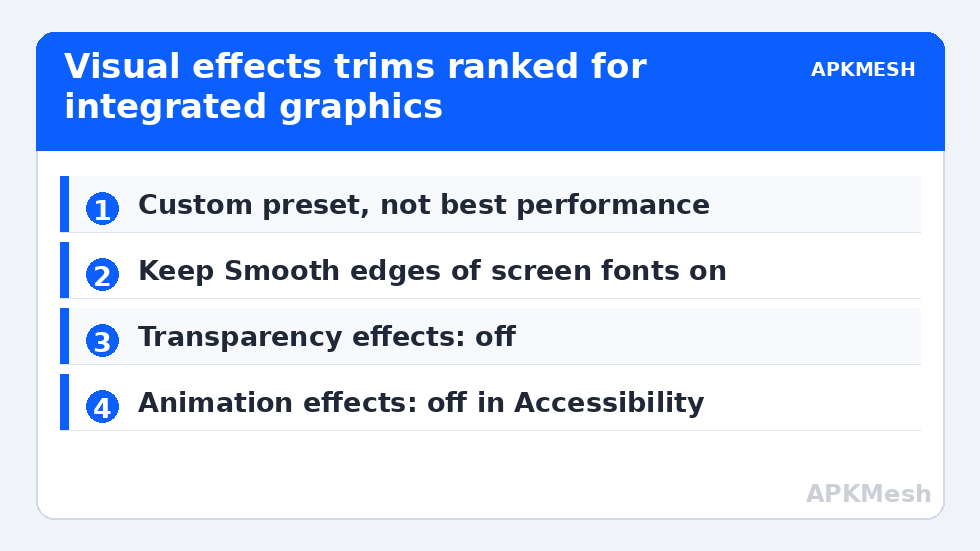
Press Win + R, type sysdm.cpl, then go to Advanced → Performance → Settings. You will see three presets and a long checkbox list. “Adjust for best performance” unticks everything — effective but crude, because it also kills font smoothing, which makes text look genuinely bad and hurts readability in emulator menus and browsers alike. The smarter route is Custom, with this pattern:
| Setting | Recommendation | Reason |
|---|---|---|
| Animate windows when minimising/maximising | Off | Pure decoration; a frequent hitch source on iGPUs |
| Animations in the taskbar | Off | Decoration, rendered during gameplay overlays |
| Fade or slide menus / tooltips / taskbar buttons | Off | All three fade families can go |
| Show translucent selection rectangle | Off | Trivial cost, no loss |
| Show window contents while dragging | Off on very weak PCs | Redraws the whole window live; keep if your PC handles it |
| Smooth edges of screen fonts | Keep on | ClearType readability; turning it off is misery for nothing |
| Use drop shadows for icon labels on the desktop | Keep or off | Negligible either way; keep labels readable on busy wallpapers |
| Show thumbnails instead of icons | Keep on | Costs little, and folder browsing without thumbnails is grim |
Apply, then use the desktop for a minute. If text suddenly looks jagged, you unticked font smoothing by accident — go back and restore just that one box. Nothing here requires a restart, and every change is individually reversible, which makes this a good first tweak for cautious users.
Lag risk: —
The Three Related Settings That Live Elsewhere
Windows 11 scattered the rest of the eye candy across Settings, and two of the three are worth the trip. In Settings → Personalization → Colors, turn off Transparency effects: acrylic blur is one of the more expensive surfaces DWM maintains, and on integrated graphics this single toggle is often worth more than the whole checkbox list above. In Settings → Accessibility → Visual effects, turn off Animation effects — this is the system-wide switch that Start menu, Settings, and notification animations obey, and disabling it makes the whole OS feel snappier on weak hardware independent of any benchmark. The third, scrollbar and dimension effects in the same screen, is a matter of taste with negligible cost either way.
What Not to Do, and How to Judge the Result
Resist the registry-edit compilations that circulate as “visual tweaks” packs. Several of their entries disable parts of DWM or the shell in ways that break screenshot tools, screen recording of your emulator, and occasionally the emulator’s own overlay features — a bad trade for savings the supported toggles already capture. Likewise, do not disable DWM itself on any modern Windows; it is not optional, and attempts create broken rendering rather than free performance.
Judging the effect needs the right yardstick. Run your fixed emulator test scene before and after, but watch the specific things this tweak can influence: stutter when a notification arrives mid-game, hitching when you alt-tab or open a window over the emulator, and general desktop responsiveness while an instance runs in the background. Average FPS in a clean scene will likely move by less than measurement noise, and that is fine — headroom and smoothness during interruptions were the goal. If even those do not improve, restore the settings you liked; a desktop you enjoy using is worth more than a theoretical saving your machine did not need. Continue the low-end tune-up with our startup programs audit and the memory behaviour checks in our memory compression guide, and find the full sequence from the APKMesh homepage.
One combination deserves a specific warning: do not pair these trims with third-party “Aero off” or shell-replacement utilities that promise to go further. The supported toggles in this guide are the whole safe surface — everything beyond them trades emulator capture features, screenshot tooling, or shell stability for savings that testing does not show. If a change cannot be undone from a Settings page in under a minute, it does not belong in a low-risk tune-up.
Frequently Asked Questions
Does turning off visual effects actually increase emulator FPS?
Usually not measurably in a clean test scene. What it reliably does on integrated graphics is free GPU and bandwidth headroom, so interruptions — notifications, window animations, alt-tabbing — cause smaller hitches, and the desktop stays responsive while instances run. Treat it as a smoothness and headroom tweak, and distrust any FPS figure attached to it.
Why does my text look terrible after using “Adjust for best performance”?
Because that preset disables Smooth edges of screen fonts along with everything else. Reopen Performance Options, choose Custom, and re-tick that single setting (and Show thumbnails instead of icons if folder browsing changed). Your performance settings remain trimmed while readability returns — the preset is a blunt instrument, the custom list is the tool.
Should I disable transparency but keep animations, or the other way round?
If you change only one thing, disable transparency effects. The acrylic blur surfaces are continuously composited and comparatively expensive on integrated GPUs, whereas animations are brief events. Ideally do both — they live in different Settings pages — but transparency is the higher-value toggle for an emulator PC.
Do these settings affect the emulator’s own graphics quality?
No. Performance Options and the Settings toggles govern how Windows renders its own interface. Your emulator’s rendering resolution, texture quality, and renderer choice are entirely separate settings inside the emulator. A game will look identical; only Windows chrome — menus, taskbar, window frames — becomes plainer.
I have a discrete GPU. Is any of this worth doing?
Mostly no. A discrete card composes the desktop without breaking a sweat, and the savings are within noise. The exception is a laptop where the internal display is wired through the integrated GPU — common on older gaming laptops — in which case the transparency toggle can still help desktop smoothness during play.