
Every online match played through an emulator crosses your home network twice in spirit: once between the PC and the router, and once between the router and the game server. Players obsess over the second leg, which they cannot control, and ignore the first, which they entirely can. Getting the ethernet vs wifi emulator gaming setup decision right is not about raw speed — any modern Wi-Fi is fast enough for a game’s modest bandwidth — it is about consistency: the jitter, retries, and roaming hiccups that Wi-Fi introduces and a cable simply does not have. This guide compares the two honestly, covers the genuinely good Wi-Fi optimisations for setups where a cable truly cannot reach, and explains how emulator networking modes interact with both.
Bandwidth Is Not the Problem; Jitter Is
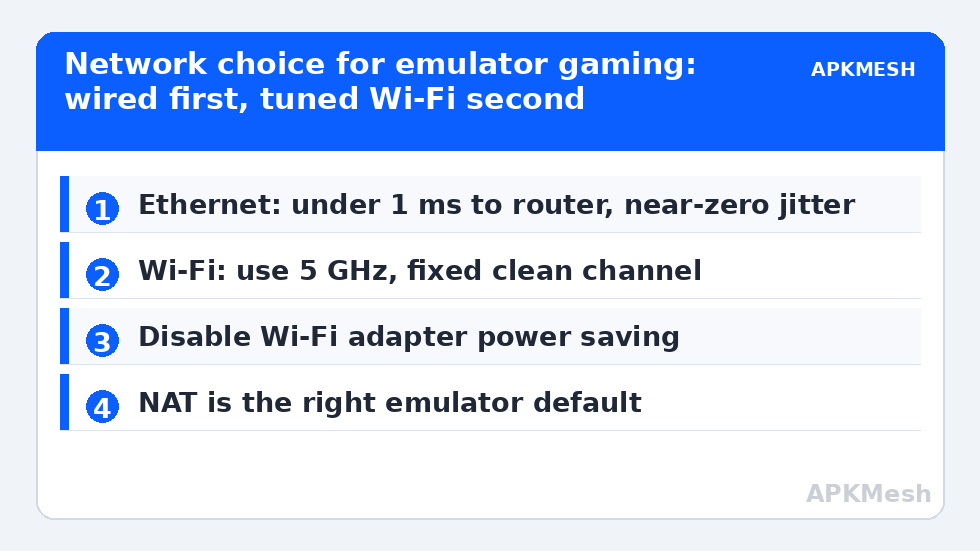
An online game sends and receives surprisingly little data — typically well under a megabit per second of small packets whose value depends on arriving evenly spaced. A speed test that shows 300 Mbps over Wi-Fi tells you nothing about that spacing. Wi-Fi is a shared, half-duplex medium: your laptop, phone, smart TV, and the neighbour’s router all negotiate for airtime, and your adapter politely waits its turn. The result is latency that averages fine but spikes — 12 ms most of the time, then 80 ms while another device grabs the channel — and the human eye reads exactly those spikes as rubber-banding and missed inputs. Ethernet removes the negotiation entirely: a private, full-duplex wire with latency to the router of under a millisecond, varying by almost nothing. For emulator play specifically, there is an amplifier at work: the emulator already adds its own processing latency between your input and the game’s response, so the budget left for network wobble is smaller than on a native client, and Wi-Fi spikes spend it fast.
The Comparison, Without the Marketing
| Factor | Ethernet (wired) | Wi-Fi 5/6 |
|---|---|---|
| Latency to router | Typically under 1 ms, near-constant | Typically 2–5 ms average, spikes to 50 ms+ |
| Jitter (variation) | Negligible | The main weakness; worsens with distance and other devices |
| Bandwidth | 1 Gbps on virtually all modern ports | Plenty for games; shared with everything else |
| Stability over hours | Essentially absolute | Subject to interference, channel changes, power saving |
| Setup cost | A cable and a route for it | Already there |
The verdict for any fixed gaming spot — desk, bedroom corner, anywhere an emulator PC lives permanently — is wired, and it is not close. The interesting part of this guide is therefore the mitigations: the honest second-best setup for the many players whose router sits in another room, another floor, or a landlord’s hallway.
Lag risk: —
If You Must Use Wi-Fi: The Setup That Actually Helps
- Use the 5 GHz band (or 6 GHz if your gear has it). The 2.4 GHz band is crowded, slow to recover from interference, and shares space with Bluetooth and microwaves. In your adapter settings and router, prefer 5 GHz for the gaming machine even at slightly lower signal bars — two bars of 5 GHz beat four bars of 2.4 GHz for latency consistency.
- Position beats power. Line-of-sight or one wall to the router outperforms any “gaming” antenna marketing. If the PC is a desktop under a desk against a wall, a cheap USB extension to raise the adapter or antenna into the open is a real upgrade.
- Kill adapter power saving. In Device Manager → your Wi-Fi adapter → Properties → Power Management, untick “Allow the computer to turn off this device to save power,” and in the adapter’s Advanced tab set Transmit Power to highest and any roaming aggressiveness to lowest, so it stops hunting for better networks mid-match.
- Fix the channel. Use a free Wi-Fi analyser on your phone to find the least congested 5 GHz channel in your building and set the router to it manually rather than Auto, which can hop channels — and drop you — at the worst moments.
- Separate the loads. Stream video and run big downloads on other devices or bands during matches. Your own household’s 4K stream is statistically your worst interferer.
These steps complement, rather than replace, the in-Windows adapter tuning in our network adapter tweaks guide, which covers DNS, driver settings, and disabling bandwidth-hungry features like large-send offloads that misbehave on some chipsets.
The Middle Options: Powerline and MoCA, Judged
Two technologies promise wired behaviour without running a cable. Powerline adapters send data over your home’s electrical wiring; performance depends entirely on your circuits — same-circuit runs in newer wiring can be genuinely good and stable, while runs crossing breakers or old wiring can be worse than decent Wi-Fi. Buy from somewhere with easy returns and test with a long ping run during a match hour. MoCA, which uses coaxial TV cabling, is the sleeper option: where coax exists in both rooms, it delivers near-Ethernet consistency and is consistently underrated. And do not overlook the humble long cable itself — flat Ethernet cable under a rug or along skirting, or a run through the same path as other cabling, solves the problem permanently for the price of a pizza. Finally, remember the emulator-side layer: most emulators default to NAT networking, which is correct for online play; bridged mode gives the guest its own LAN address and occasionally helps finicky peer-to-peer titles, but it does not reduce latency, so change it only to fix connectivity, never in hope of speed. Test your final setup with a five-minute continuous ping to the router while playing — wired should show essentially no lost packets and a flat line; good Wi-Fi shows a flat line with occasional small bumps; anything with periodic spikes still has a positioning or channel problem to solve. Measure any change with the fixed-scene method in our before-and-after benchmarking guide, trim competing background load with our startup programs audit, and find the rest of the sequence from the APKMesh homepage.
Whichever connection you settle on, protect the result by revisiting it after any change to the household network: a new router, a moved PC, or a provider swap can quietly undo careful positioning. Keep a short baseline note — your router ping average and worst spike during a typical evening session — so future comparisons take two minutes instead of an evening of suspicion. Networks drift; a written baseline is how you notice before your ranked matches do.
Frequently Asked Questions
My Wi-Fi speed test shows 500 Mbps. Why does my game still lag?
Because speed tests measure bulk throughput over a few seconds, not the even spacing of small game packets over minutes. Wi-Fi lag in games is jitter and retry behaviour: your average can be superb while individual packets wait behind other devices’ traffic. A continuous ping test during play reveals the spikes the speed test hides.
Is a gaming router worth buying for emulator play?
Rarely as the first move. Position, band selection, and channel choice deliver most of what better hardware would, for free. A newer router earns its cost when the old one is Wi-Fi 4 era, struggles with many devices, or drops connections entirely — reliability problems, in other words, rather than the normal physics of Wi-Fi jitter, which no router repeals.
Will a Wi-Fi extender or mesh node fix my gaming latency?
Usually it makes latency slightly worse while making coverage better: each wireless hop adds its own jitter, and a cheap repeater halves throughput by re-transmitting everything. A mesh system with a dedicated backhaul band is the respectable version. For a fixed gaming spot, a cable, MoCA, or powerline still beats any wireless hop.
Does Ethernet also reduce the emulator’s input lag?
No — it reduces network delay and jitter only. The input path (controller, polling, emulator processing, display) is separate and unchanged by how the PC reaches the router. Players feel the improvement as consistency in online matches, not as snappier local controls, and offline play gains nothing at all.
Should I use bridged networking in the emulator for lower ping?
Bridged mode changes how the guest appears on your network, not how fast packets travel. It can fix specific connectivity problems in peer-to-peer games and is needed for some LAN features, but NAT is the right default for ordinary online play and carries no latency penalty worth measuring.